



Let’s be honest. In today’s world, a company without any social media presence might look a bit suspicious. In this article, I’ll show you how to add social media buttons to your email signatures.
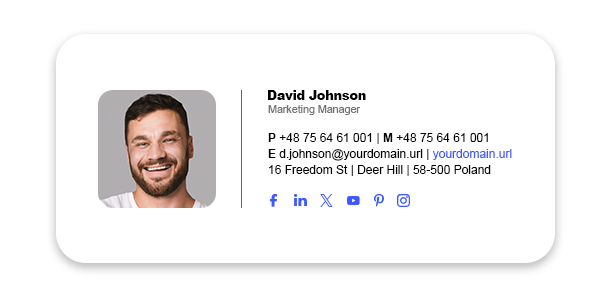
Like this template? Customize and download it for free
Add social icons the easy way
Setting up an email signature just for yourself? Use the free email signature generator. Follow a few easy steps to generate your email signature and then add it to your email app. It’s that simple.
Setting up an email signature for the whole company? Learn more about the best email signature software
If you’re no stranger to some manual work, see the DIY method of adding social media buttons to email signatures below.
1. Find an icon of the social network
We’ve prepared icons of various sizes and styles for your convenience:
Download social media icons for your email signature for free
If you need another icon, you can perform a Google Images search for alternatives and then download them to your device.
And if you don’t want to go anywhere, you can download (or copy the image URL of) one or more of these icons and use them in your signature:


2. Insert the icon into your email signature
Once you have your social media icons, insert them into your email signature. Icons are usually placed below your contact information, but you can put them anywhere you like.
To do this, you will need to open your email signature editor. Click the email app or email system you are using to get detailed instructions:
- Outlook (all versions)
- Gmail
- Thunderbird
- Apple Mail
- Microsoft 365 (Office 365/ Exchange Online)
- Exchange Server Subscription Edition (SE)
- Google Workspace (G Suite)
If your email system includes a WYSIWYG HTML editor (like all modern email apps), you will be able to use the Insert picture button to add a social media icon to your email signature template (or use copy and paste).
If you need to add an icon directly in the HTML code (because you’re using a disclaimer in Microsoft 365 or Exchange Server), you will have to use the IMG HTML tag pointing to the web location of the image. Here is an example of what it could look like:
<img src="https://www.mail-signatures.com/wp-content/themes/emailsignatures/images/facebook-35x35.gif" />
3. Link to your social media profiles
The last thing is to make your button clickable. To do so, you need to link social buttons to your company’s (or your personal) social media profiles.
If you are working with a WYSIWYG HTML editor, it’s very easy. Just select your image by clicking on it, then click the Add a hyperlink button in the editor’s top menu (Ctrl + K usually works, too) and enter the URL (hyperlink) pointing to your profile’s page. Remember that the hyperlink should be the profile’s complete URL (for example: https://www.facebook.com/CodeTwo or https://x.com/CodeTwoSoftware).
When editing raw HTML code of your email signature, find the image code (see the previous step to learn what it looks like). To add a link to it, you need to insert the <a href=…></a> tags around the code of your image. For example:
<a href="https://www.facebook.com/CodeTwo"><img src="https://www.mail-signatures.com/wp-content/themes/emailsignatures/images/facebook-35x35.gif" /></a>
4. Adding an event-triggering button
Note: Changes in social network APIs may affect the results of the solutions I talk about below.
In most cases, adding event-triggering buttons to email signatures is not a good idea. People expect social buttons to lead directly to a social media profile. If a button does something else, it will be suspicious. If you decide to go through with this, anyway, make sure that instead of a standard social media icon, you’ve added a clear call to action (CTA).
Most social networks do not let you equip your email signatures with buttons that, upon clicking, would automatically follow Facebook pages, like posts, subscribe to YouTube channels, etc.
One of the exceptions is X, which supports certain actions (called “web intents”), for example:
https://x.com/intent/follow?screen_name=#Your X handle#
Your handle is the part after “@” in your X profile, for example:
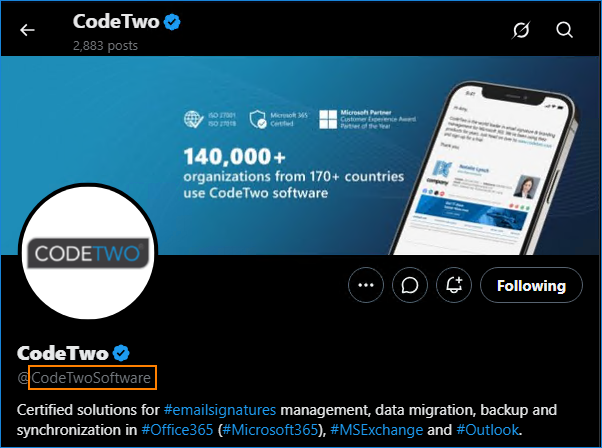
You can also see the handle in your profile’s URL:

So, in this example, the resulting URL is:
https://twitter.com/intent/follow?screen_name=CodeTwoSoftware
Another action-triggering URL is YouTube’s subscribe to channel intent:
#Your Channel Address#?sub_confirmation=1
So, a real-life example would be:
https://www.youtube.com/@CodeTwo?sub_confirmation=1
To create buttons using these links, apply similar steps as when adding a social media icon. But once again, I strongly recommend providing a clear CTA, for example: Subscribe to our YouTube channel.
FAQ
Here’s a list of the most frequently asked questions about social media icons in email signatures.
Why add social buttons to email signatures?
That’s a valid question and I’ve seen it a lot. There are people who believe that your signature should include your name and nothing else. However, there are many valid reasons to include social media icons (and other elements) in the signature. For example, social icons:
- direct your recipients just where you need them,
- make your emails more actionable,
- add credibility,
- let your recipients easily verify you,
- grab attention and make your recipients more engaged.
Which social icons to choose?
There is no single right answer to this question – it depends on your social media activity and what you want to achieve. Pick social media profiles where you are (or your company is) the most active. And if you don’t focus on a specific platform and try to post simultaneously on all of them, pick the one where you have the most engagement. This way, people who click your social media buttons will trust your brand more and might increase your subscriber count.
How many social icons to add?
It depends. Remember that people usually won’t click all the icons in the signature. They can only click what’s available (duh) and will probably choose to click the logo they are most familiar with. That’s why there are two main strategies:
- Add one or two most relevant social media icons where you have the best reach. This shows where your primary focus is.
- Add more (but still only those where you are active) and let the recipient click the social media button to the platform they work with the most.
Pick your social media channels carefully and don’t go over 6 or your signature design will look cluttered.
Which size is the best for social media icons?
There’s no one-size-fits-all. The ideal size for your signature depends on the total number of elements, your font size and other factors. The most popular sizes range from 20 to 24 pixels. Keep in mind that if you want your social icons to look perfect on high-resolution displays, you need to use, for example, a 48×48 px icon and scale it down to 24×24 px with HTML.
Learn more about hi-res images in email signatures
Why isn’t my social media icon clickable?
There is more than one possible explanation for this phenomenon. The simplest is that you didn’t add the link to your social channel or that some kind of mechanism removed the link. But it is also possible that you’re using a single-image email signature. While such signatures won’t have their formatting broken (as some HTML email signatures tend to) regardless of the email app you use, they lack in terms of accessibility, cannot be responsive in any way, and can usually include only a single link in the entire signature.
Learn more about this and other actions against good email signature etiquette


I use Mail in Windows 10, how do I add in my signature for people to go to my Twitter ac 1_traveller by clicking on it, I am not tech savvy but I would still like to do it.
Hi Chris,
The easiest way to create a signature with such a link would be to use our free email signature generator. This way, you would get a well-formatted email signature with the proper social media icon linking to your profile.
If you want to learn more about setting up signatures in Windows 10 Mail App, click the link below:
How to set up email signatures in Windows 10 Mail App
Great share! This post is very useful.
Keep it up i love your work keep sharing these type of info,
Does any of this work with Apple Mail? I am not having any success
Apple Mail does support HTML signatures, so there shouldn’t be any issues. Could you specify at which step you experience a problem?
I complete all of the necessary steps, but when I go to “paste” it into the signature box, it messes up the format and the pictures. I’ve tried all ways of copy+paste & no luck. Ends up deleting one of the icons, my headshot, and another picture I added?
Are you using our signature generator? As long as you’re not using Safari browser, there should be no problem with the formatting. If you let me know which browser, template and email client you are using, I’ll see what can I do to help.
nothing work to acitvate an Instagram button
Hello Dan,
Do you mean adding a hyperlink to the Instagram button? No matter which email client you are using, it should be as simple as highlighting the button and choosing the Add hyperlink option. The key is not to click the image but to highlight it like you would do with a chunk of text.
Very good article! Thanks
nice post, really very helpful for all the readers
thanks for sharing
Just saying thanks,
as I was able to place the social media buttons in my email, using your help.
Best regards, Robert.
I tried adding the linkedin and twitter buttons to my gmail email signature using the stated steps but the it appears in an absurd manner when I send mails. the entire linkedin view my profile button and twitter icon with their urls are shown alongside the signature.
Hi Tilda,
Please make sure that you add the links to your profiles properly. After adding an icon, you need to select the image. Simply clicking it will not do, you have to either click and drag until it is highlighted, or place your cursor after the icon, and press the left arrow key while holding the Shift key. When the icon is highlighted, click the link icon and paste your profile address. Please share if it solves your problem.
This doesn’t work or explain how to add in social media buttons into an email signature. Social media buttons are html codes, not hyperlinks. This article only explains how to add a hyperlink onto the picture, that isn’t the same thing as adding the social media follow buttons, because html codes don’t work when being pasted in as hyperlinks.
Hi Michael, You’re right! I will research adding *real* social media buttons and update the article as soon as I can.
awesome!
Hi,
I’m using a macbook pro office 365.
I’m trying to add Twitter and LinkedIn icons onto our work signature emails and the Icons disappear and turns into text. I don’t seem to be able to hyperlink it to the Icon?
Hi Jey,
Try this – save the icons on a local drive and then drag/drop them into Outlook’s email signature editor.
Or, if you are open to using 3rd party solutions, check out CodeTwo Email Signatures for Office 365.
Hi, can we add hyper link to Mozilla thunderbird client. If Possible
Pls provide the steps plz.
Thanks in advance
Hello,
I am trying to set up our company’s email signature in Outlook 2010 -we our using four different social media icons. However, every time someone reply’s back to one of our emails, the four different icon images appear as attachments. After some research I learned that I should try hosting the images…so after hosting the images through ExactTarget, now when someone reply’s to an email, the images disappear and it’s just the name of the file that is visible. Any suggestions? Any help would be greatly appreciate. Thanks!
Hi Amy, Is there a chance that the problem is present in specific scenarios only (e.g. when the reply is sent from mobile)?
Hi Pawel, I have the same question as Amy. In my case, yes the reply where the social media icons appear as attachments is when our remote sales team is sending emails from their mobile devices. Additionally, when their emails from their desktop computers are being forwarded from mobile devices, the signature images appear as attachments. Any ideas on how to fix the issue? Thanks!
Hi Jenny, This issue is most likely caused by the fact that the mobile devices convert emails to plain text format upon reply/forward. It has been reported that it can be fixed by adding rich text formatting (e.g. bold or italicized text) to the mobile device signature: http://apple.stackexchange.com/questions/53537/forcing-rich-text-by-default-for-ipad-iphone
How would servers react to these images? Would emails be blocked?
Hi Sean,
It depends whether you use linked or embedded images. More in this article.
Best regards,
Pawel
Hi,
I have a question. When i use my signature in a direct response to an e-mail, there is just de core text, all the logos and the buttons with hyperlinks have disappeared. I don’t have this problem when i use my signature in a new mail.
Thanks
Hi Danel,
Does the problem occur in specific circumstances (e.g. on specific email clients) or always?
Best regards,
Pawel
Hi,
I am trying to use multiple images and link every image with different url. (LinkedIn; YouTube; Company Logo; Twitter etc.).
But when I am doing so the image size is varying and every image is of different size. Please suggest.
Its is very urgent please reply asap.
Hi Ganesh,
Are you using images of the same size on input (i.e. when you upload them to a webserver or your email client)?
If not, then try doing so. And if you are, then I will need more info about your email client and details on how your are adding the images to the signature.
Keep in mind that you can always use our free email signature templates, which shouldn’t cause problem with size.
Best regards,
Pawel
I have Outlook 2003 email which doesn’t have an Insert Photo button or a Hyperlink button. Is there a way to add a social media icon w/link to Outlook 2003?
Hello Lise,
Apologies for the late response.
Yes, it is possible to insert an image with a hyperlink in Outlook 2003, however, this option is a bit hidden under the Advanced Edit option within Outlook settings.
To add a social media icon with a hyperlink, please follow these steps:
1. Open your Outlook.
2. Go to the Tools tab and then Options.
3. In the resulting window, go to the Mail Format tab and click the Signatures button under the Signatures section.
4. If you have already created a signature, please edit it by clicking the Edit button in the Create Signature window. If not, click the New button to create your signature from scratch.
5. In the Edit Signature window, click the Advanced Edit… button so that Microsoft Word editor will launch.
6. In the Microsoft Word editor, add the social media button you want to have in your signature. To do that, go to the Insert tab, and then the Picture option to select the image.
7. Once the image has been inserted, click on it so that it is selected. Now, go to the Insert tab again and then choose the Hyperlink option.
8. In the resulting window, provide the link to the website or another online source and click OK.
9. Then, save changes and close the editor.
11. Now, the social media icon should be clickable.
Hope this will help,
All the best,
Milena
Beautiful 🙂
Trying to add Social Media buttons to my Gmail signature, but not getting an option to add a hyperlink? Even clicking on the picture and then clicking on the ‘link’ button is not working? Any help is much appreciated.
all ok – figured it out 😉
Having this same issue, what’s the secret?
Hi Judy,
The secret is not to click on the social media image, but to highlight it (for example, with clicking & dragging over the image) and then click the add hyperlink button.
Is it possible to have the social media images on iPhone ios8? I have copied it the signature from a ‘sent’ email into my iphone singnature and it works for the first email. However any further emails created on the iphone only show empty boxes. But when going into settings, signature, they still show.
Hi Ashley,
Make sure you’re social media images are linked and that you’ve saved the original email containing the signature in Drafts. More in steps 1 and 7 of this article: https://www.mail-signatures.com/articles/setting-html-email-signature-images-iphone/?sts=4237
Hope this helps,
Pawel
Thanks for sharing…
Hello, would you have the solution for putting social network buttons into an email signature for Yosemite platform MAC mail? Tks
Hello Grant,
You simply need to create your signature with social media buttons in HTML (as described in the article), then open it in a web browser and copy/paste it into the signature in Mac Mail. To access your signatures go to the Mail menu, then Preferences, and then click Signatures.
This is awesome, thanks.
I first tried setting up the signatures in my gmail account /settings/signatures, but they only showed up if I emailed from the gmail account, and I use Mail.
When I tried to add them through the signatures panel as you suggest here, there was no clear way to attach the hyperlink to the .png like there was in gmail.
I’m not sure what you mean by “open it in a browser window.” I have 8 individual icons each with their own link, if I try to drag them as a group to a browser window nothing happens or I get the first icon’s URL open… I tried copying them from the gmail signature panel to the Mail signature panel but no love.
Can you clarify, please? Thanks a million.
Hi Matthew,
In case of Apple Mail, what you will have to do is create an HTML file for your signature (e.g. in an application like Dreamweaver) and then implement the file as per this video: https://www.youtube.com/watch?v=wGNYlL1uNVw.
Remember that, since HTML does not allow for embedding images, you will have to upload the social media icons to a hosting service and link to them from your code as per Tomasz’s article.
Hope this helps,
Pawel
Hi Bogdan,
1. It’s not possible for the social media image to open 2 links. The button will only open the link which you added via the Add hyperlink option or a href tag. E.g. this HTML element: {a href=”http://www.facebook.com/CodeTwo”}{img src=”https://www.mail-signatures.com/articles/wp-content/themes/emailsignatures/images/facebook-35×35.gif”}{/a} will only open the http://www.facebook.com/CodeTwo page (remember to replace curly brackets with “<" and ">” characters).
Can you clarify why you would want the image to open 2 links? Maybe I can figure out a solution for you.
2. What types of images are you using – embedded or located on a web server? Do you know what email client your recipient is replying from?
Looking forward to your feedback,
Tomasz
Hello. Thank you for this good tutorial. I have a question: its possible to have two links for the same image: one is the source image, and the other one is the link for image(ex Facebook)?
And also i have a problem. When somebody reply to my mail all image disappear.Do you know why?