



This quick guide shows how to use popular image hosting services to store your graphics so you can use them in email signatures. It works for more than email signatures, but well – it’s an email-signature-focused blog.
Technically speaking, when using image hosting services like Dropbox, Flickr, or Imgur as source, you need to make sure the images are publicly available and that you’re using their direct URL. So, if you want to learn how to get a direct image URL from those services and how to use such image in signatures, read on.
Also see our beginner-friendly guide to editing images for email signatures and more
Why direct image URLs matter in email signatures
You might wonder how direct image links or direct URLs are related to email signatures. To understand that, it helps to look at the two types of images that can be used in emails:
- Hosted images (aka linked images) – stored online and displayed in an email signature via – yup, you guessed it – a direct URL.
- Embedded images – added directly to the email body.
That’s the absolute basics. If you want to learn more, here’s a great article that offers a deeper perspective: What’s the difference between hosted and embedded images.
Now, this article is all about using hosted images. Keep in mind that in most cases, it is better to host images for email signatures on your own servers, because then you have full control over them. If you do not own a server, or even a WordPress-based website, your best bet is to use an image hosting service.
This article shows how to get a direct link in some popular image and file hosting services. As you will see, it requires more than just right-clicking the image and choosing copy image address. Select one of the links below to quickly learn how to get a direct image URL in your hosting service:
How to get a direct image URL in OneDrive
Note: Getting the direct link from OneDrive doesn’t work in OneDrive for Business. In other words, you won’t be able to use images from your company’s SharePoint or OneDrive.
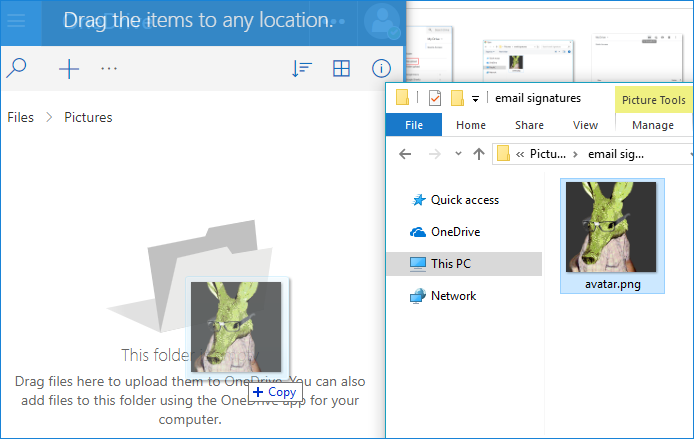
- First, use any method to upload the image to OneDrive:
- Once the image is uploaded to your OneDrive, right-click it and choose Embed from the menu. In the menu which appears on the right side, click Generate.
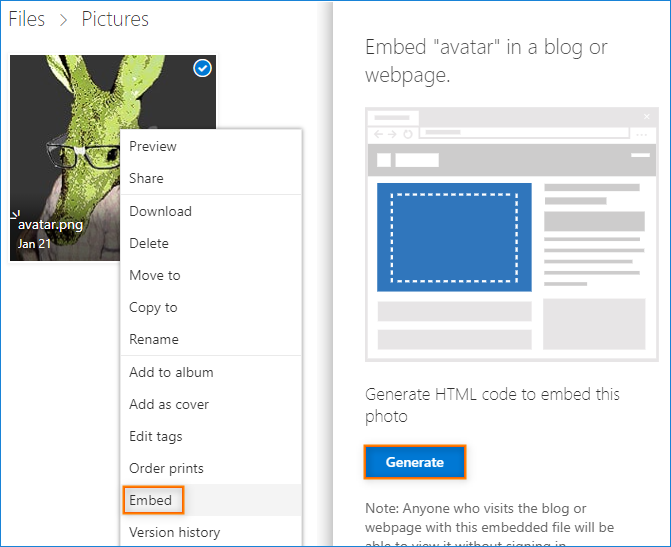

- This generates a direct link.
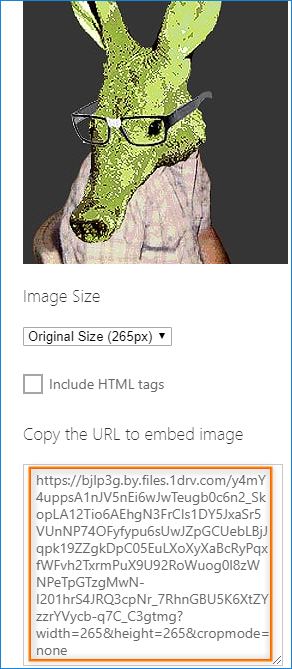

- Before you use this link, delete its attributes (the question mark and the part to the right), as some email clients are picky about displaying images with those attributes included.
How to get a direct image link in Dropbox
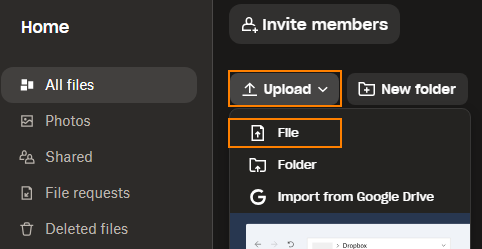
- First, upload your image to Dropbox. To do it, simply drag & drop your image or click Upload > Files and choose the image from your local drive.
- Once you upload the image, hover the mouse over it and click the Share button appearing next to the picture.
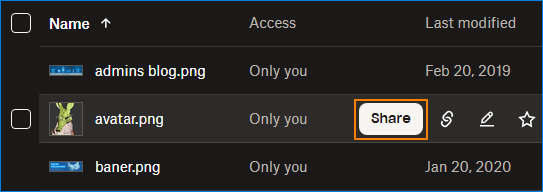
- In the newly opened window, access the settings by clicking the gear icon.
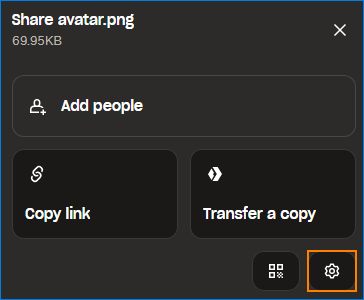
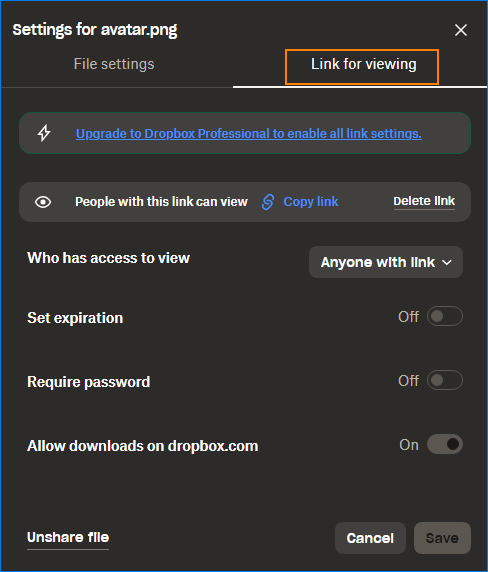
- On the Link for viewing tab, make sure that the file is generally available, that is:
- Anyone with link can view the image,
- expiration is off,
- no password is needed to view the image, and
- downloads on dropbox.com are allowed.
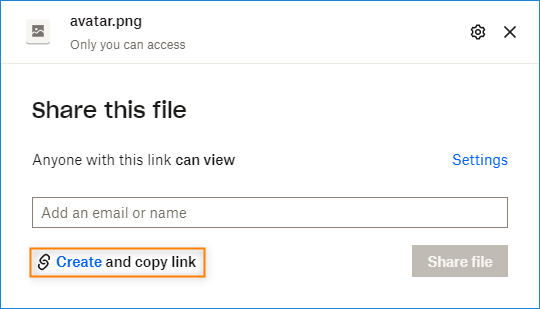
- Next, click Create and copy link or Copy link. The link gets copied to your clipboard. Paste it into any text editor (or into the address bar).
- The last thing you need to do is to find the dl=0 parameter at the end of the address and change it to raw=1. For example, if your original URL is:
https://www.dropbox.com/<SomeRandomCharacters>/avatar.png?dl=0then you need to change it to:https://www.dropbox.com/<SomeRandomCharacters>/avatar.png?raw=1And that’s it!
How to get a direct picture URL in Imgur
- Start with uploading the image you want to be hosted. On Imgur’s main page, click New post and either drag & drop or use the Choose Photo/Video button to upload your image.
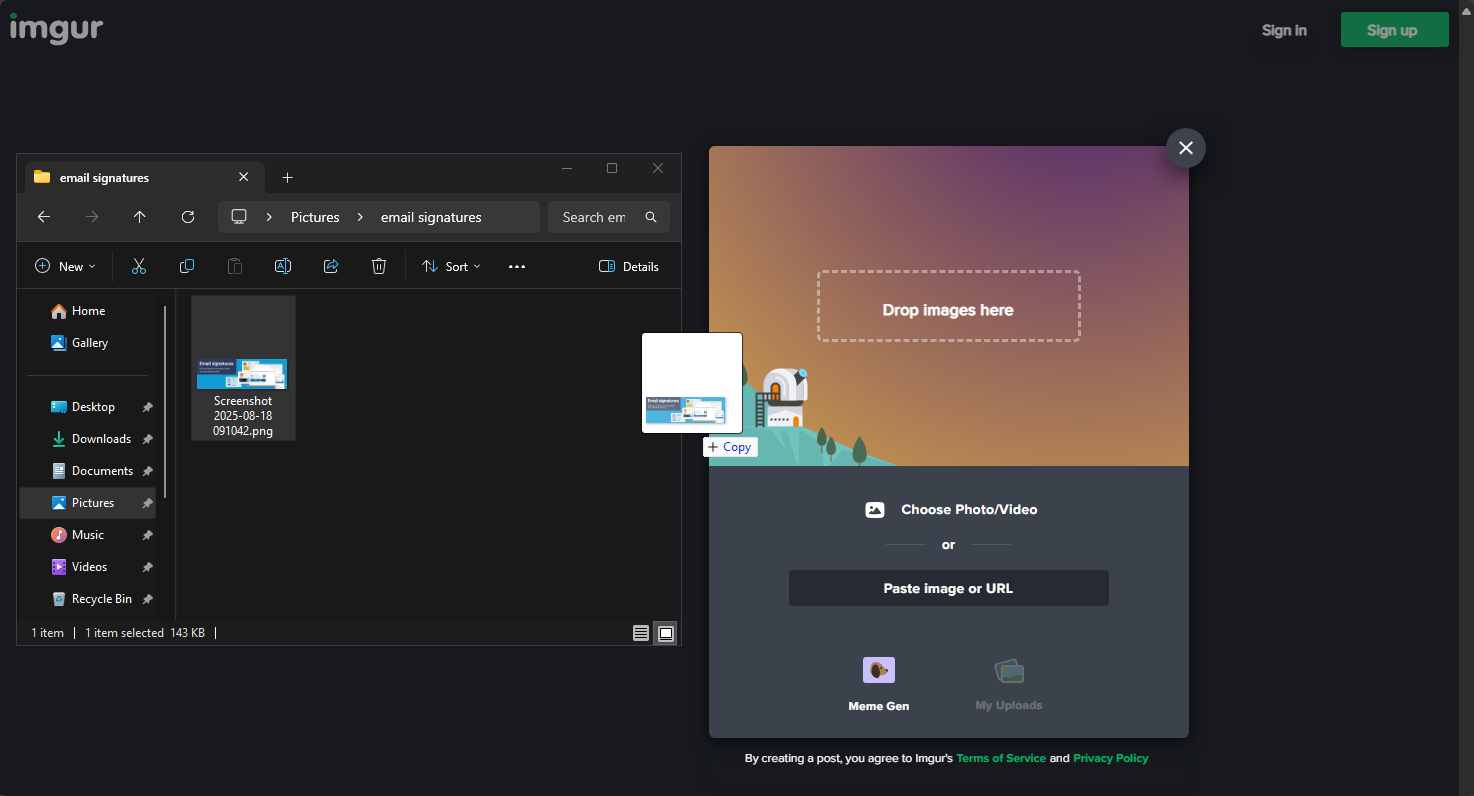
- Next, hover over the uploaded image, select the ellipsis (three-dot) button and choose Get share links.
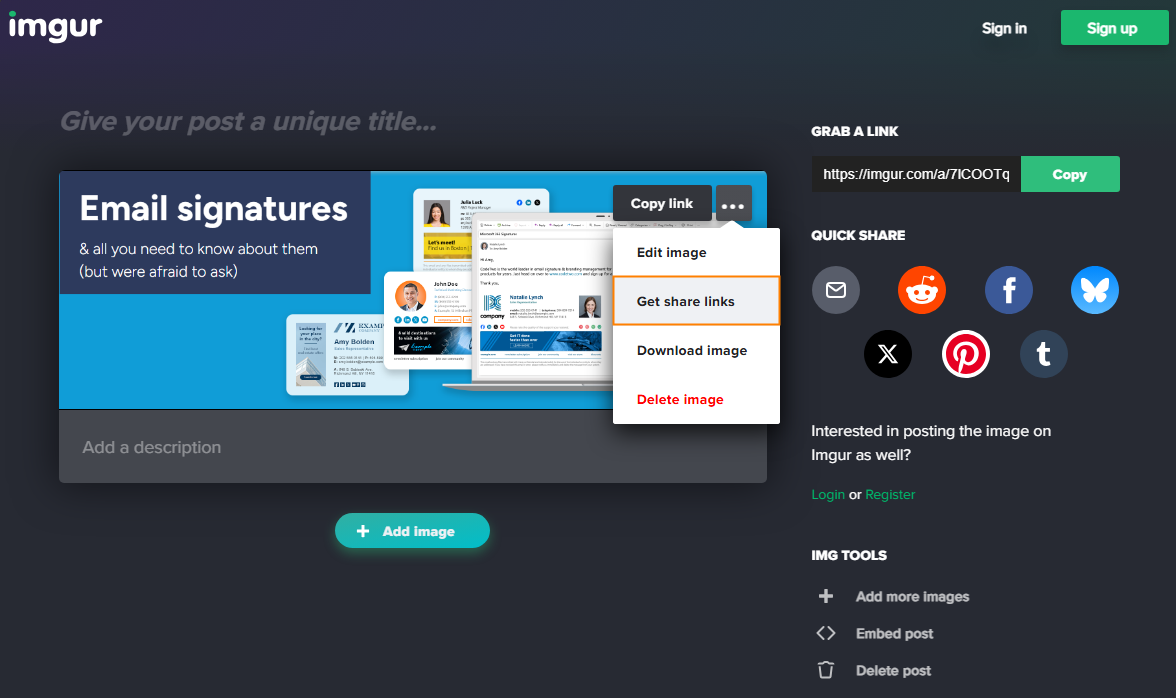

- Copy the link from the BBCode (Forums) field.
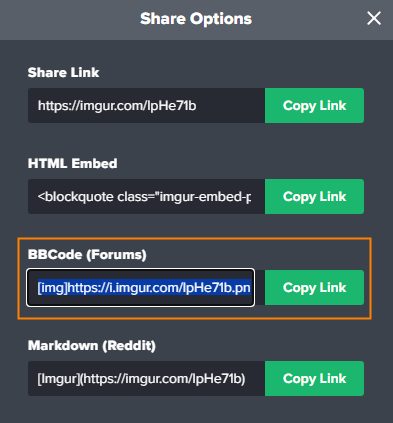

- As you’ll notice, the link will be surrounded by the [img] and [/img] tags. Just paste the link into any text editor (or wherever you want to use it) and remove both the tags to get the direct URL. No tricks or other steps are required.
How to get a direct URL to an image in Flickr
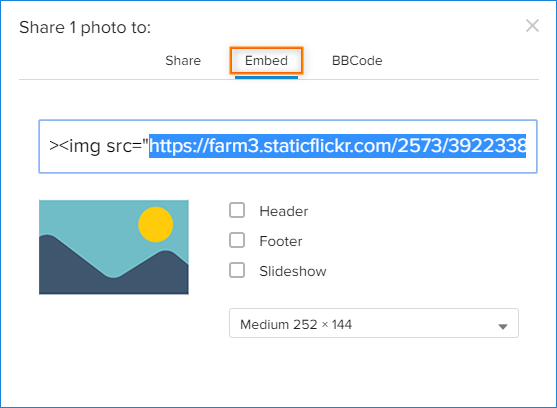
- After you upload or find the picture you want to use, click Share Photo.
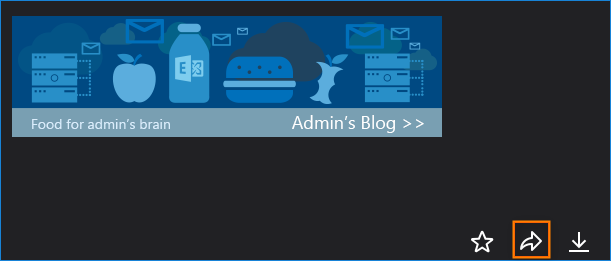

- In the sharing window, go to Embed and copy the code from the box below. The direct link is the part between quotation marks, right after src=.

How to get a direct image link in Google Drive
Personally, I use and like Google Drive, but it’s not usable for hosting your email signature images at this moment, because Google has prevented hotlinking such files in any external domain.
The instructions below show how to get a direct image URL from Google Drive if you need it for anything other than email signatures.
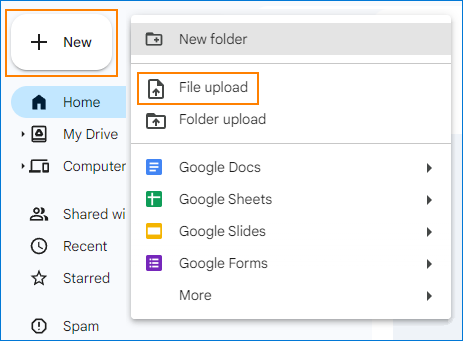
- First, let’s add an image. Either drag & drop your image (and skip to Step 3) or click New > File upload.
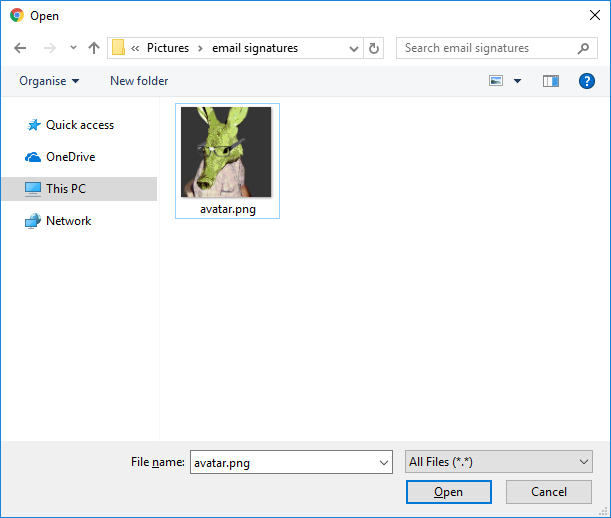
- Now, choose the image you want to host in Google Drive.
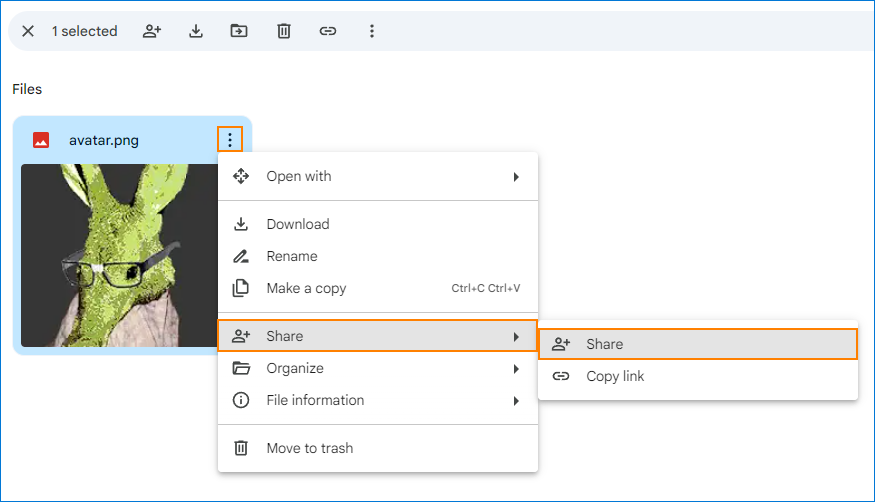
- Now, you can access your photo. Select it, click the three dots and go to Share > Share to display file sharing options.
- If you want your online image to work right (display for everyone, that is), you need to ensure the Viewer role and the Anyone on the Internet with the link can view access option are selected. Before you copy the link, go to the advanced settings by clicking the cogwheel:
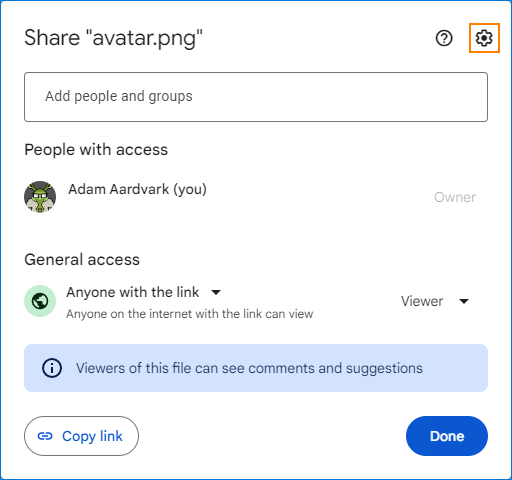
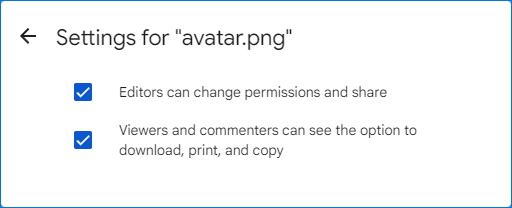
- In the advanced sharing options, make sure both settings are checked.
- Back in the Share image window or in Google Drive folder view, click Copy link.
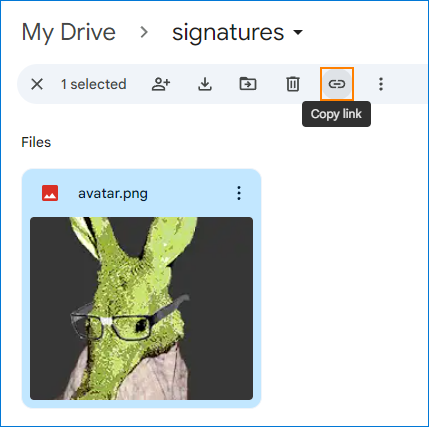
Note: Mind that in this step you are not getting a direct link yet – it is a shareable link. A shareable link cannot be used as a source in email signatures. As a reminder, at the moment of writing, no Google Drive link seems to be valid for this purpose.
- Now, copy the shareable link by selecting Copy link and paste it into any text editor. You will see a link similar to this one:
https://drive.google.com/open?id=1evNxiyU9A5yB8LYnUVsOq3--Y6hc4JJq
orhttps://drive.google.com/file/d/1evNxiyU9A5yB8LYnUVsOq3--Y6hc4JJq/view?usp=share_link
The series of letters and numbers in bold is the image id (*img_id*) of this particular graphic file. You need to copy and paste it into the following URL formathttps://drive.google.com/uc?export=view&id=*img_id*
Simply replace the whole *img_id* part with your id (in this example, it is1evNxiyU9A5yB8LYnUVsOq3--Y6hc4JJq). This way, you get the proper direct URL ready to use in your signature. For example:https://drive.google.com/uc?export=view&id=1evNxiyU9A5yB8LYnUVsOq3--Y6hc4JJq
How to use the direct image link in an email signature
Getting your graphics online is the first step. The next one is to use those files in practice. Below, you can see how to use them to create your own, professional email signature using direct image links.
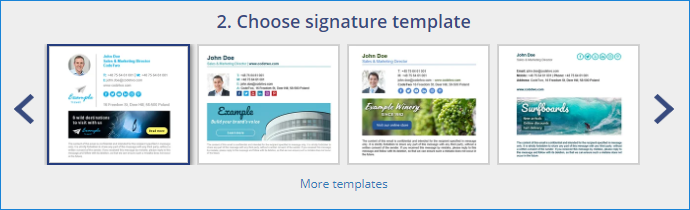
- Once you upload your image and get the direct URL, go to our free email signature generator and choose the signature template that suits your needs. You can use the < & > buttons to see more templates or you can also scroll through all the available signatures in our signature template gallery.

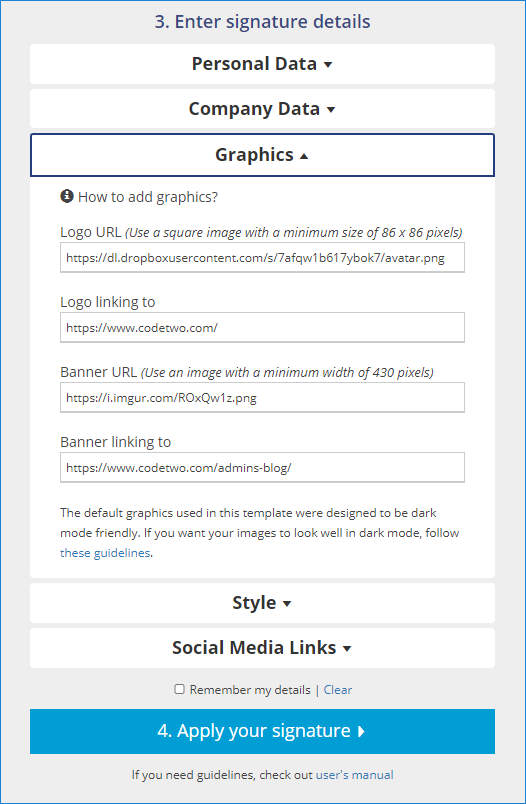
- Next, fill in your data and go to the Graphics section. Replace Logo URL and Banner URL fields with the right direct links you have acquired before. The Logo/Banner linking to fields specify which website will open when the logo or banner is clicked in the email signature. Leaving those fields empty will not add any hyperlinks.

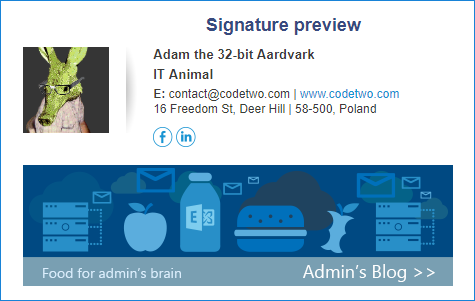
- On the right side, you can see the signature preview. When you finish making changes and the signature looks well, click apply your signature and follow the instructions specified for your email client.

A few good tips
Finally, here are some tips for using images in email signatures
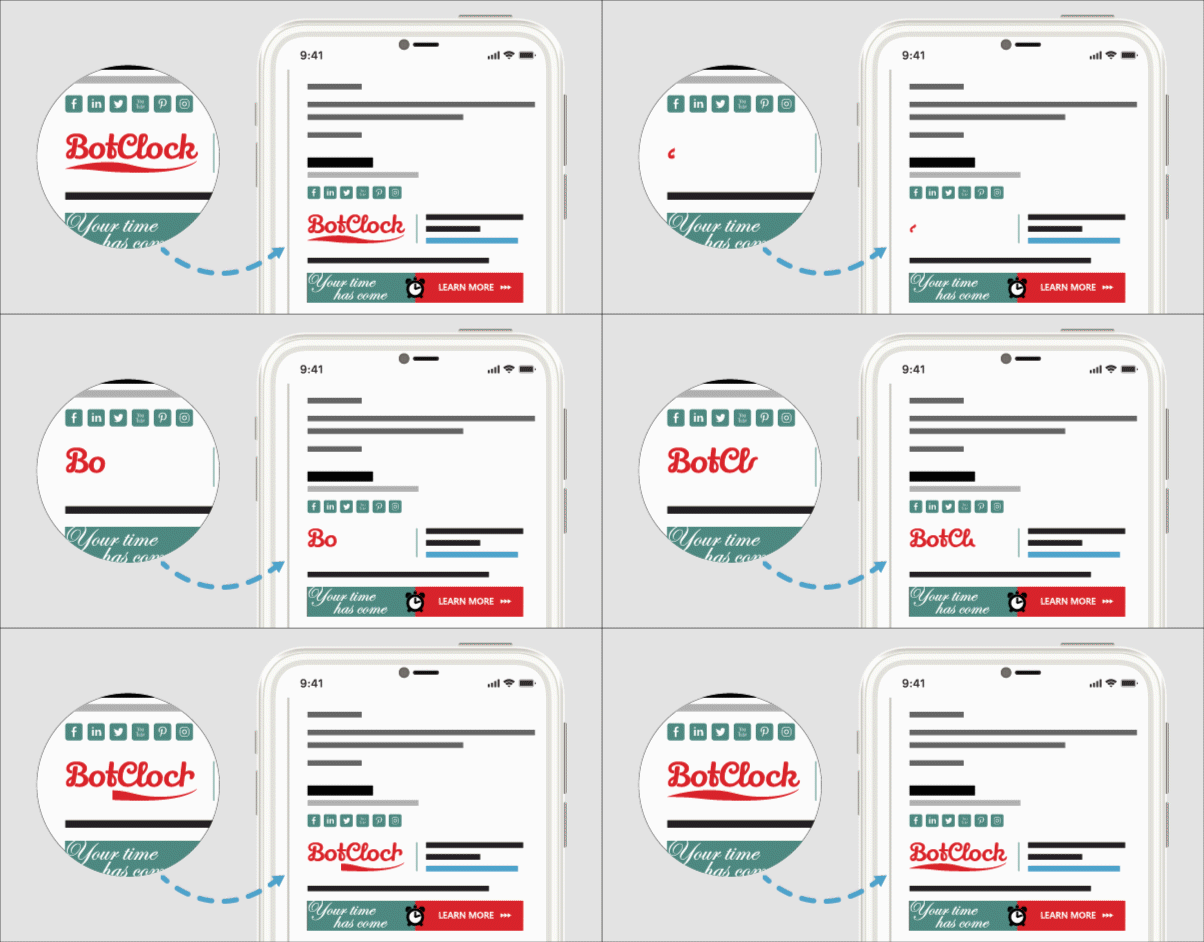
- For best results, use images of the same shape as the sample logo or banner. Using a rectangular logo when the sample logo is square will usually result in deformed graphics.
- Mind the recommended width and height values. It is best to use exactly the same dimensions, or their multiplied values. This way, when a picture is resized, it shouldn’t become blurry.
- After you apply the signature, send a test email to yourself. If you are using image hosting services, links might break or change. It is possible for a picture to show up in the signature preview and disappear after applying the signature.
Useful links:


Hello,
I am using the free gmail signature creator that you suggested and I used the Imgur technique you used, had to switch to the old style of imgur to get a direct link. When submitted to generate the signature, the picture shows up and looks great but when I go to send a test email from my gmail account, it shows my picture as a broken link. The plain text is not elected and my banner shows up. I don’t know what is wrong but I have been trying this for hours…. Any help would be appreciated.
Thank you.
Hi Ashley
Thanks for pointing out the new Imgur interface! We’ll update our article shortly. In the meantime, I’ve run a few tests with the new layout and here’s the way to get a direct picture URL:
After uploading your image, hover over it and click the three dots. Then, select Get share links. The Share options window will appear. You can find the direct link in the BBCode (Forums) field – between the [img] and [/img] tags. Just make sure to copy only the URL (without the tags) into our signature generator.
This is very interesting, You’re a very skilled blogger.
I’ve joined your rss feed and look forward
to seeking more of your great post. Also, I’ve shared your
website in my social networks!
Hi, i tried onedrive…. that too is not working. can you help?
Hi Pavan,
Just to point it out again: OneDrive for Business will not work for embedding images. I did some testing and in case of personal OneDrive everything works fine. If you’re also using your personal OneDrive, please provide more details.
My Shareable Google Drive Link looks like this:
https://drive.google.com/file/d/1FDHeRGsi7xJ_T14rdM4WOWEtUo12wAnF/view?usp=drive_link
How do I make this into a direct link?
As explained in our last article update, Google has prevented hotlinking images hosted on Google Drive, so they will not appear in the signature generator nor in web-based email clients. Even if visible in desktop Outlook, such images can trigger anti-spam solutions so you might end up with your emails categorized as spam. We strongly recommend using any other hosting service we list in our article.
Hello,
I saw that most of the photos with the address in front are used: https://ci3.googleusercontent.com/meips/… How can I make a link like this? I use Google drive, google photos, but don’t give a link like this to me. What can I do?
Hi,
A link like this can be found by using the browsers’ inspector to find the source address of the image (looking for “img ” in the code should do the trick). Normally, right-click + copy image address would be enough, but Google images have this option blocked.
For example, for this photo:
https://drive.google.com/file/d/1evNxiyU9A5yB8LYnUVsOq3--Y6hc4JJq/viewThe src URL right now is as follows:
https://lh3.googleusercontent.com/drive-viewer/AKGpihaieIddZyhEyQsYMC2lfmFnP7rj4jdA45_JVvau5NZUFJjWwwd_pTjzfw-QREoiA3H2R_Wx0ofsHfGncTvehCbnNzv_FWePu1c=w1920-h953From my experience, however, this is a temporary URL, so if you use it in email signatures or on a website, it will stop working pretty soon.
So my advice would be to use another hosting, for your own good. It’s easier and works better, trust me.
Hi! I converted the link but it only works if I click on it, it takes me to the image correctly. However, it always shows as a broken image on my email and on any email I send. What can I do?
https://drive.google.com/uc?export=view&id=1Q8socdpQ7oeRk82hMuY7575TFj70GWDL
Thanks
Hi Andre,
As mentioned in our recent article update, Google has prevented hotlinking Google Drive-hosted images in any external domain. This means that the images will not appear in the signature generator nor in any web-based email client. They might appear e.g. in the desktop Outlook, but they can trigger anti-spam solutions which will send your emails to the spam/junk folder. Therefore, we strongly advise against using those images for email signatures. Use any other hosting service we list in our article instead.
How can I change the social media icon color?
Thank you.
Hi Lara,
if you are referring to social media icons in our signature templates, there’s no such option to do this in the current version of the email signature generator. However, you can replace social buttons manually in your email app’s signature editor, after you apply the signature from our generator. You might also want to check this article if you are looking “standard” social media icons: https://www.mail-signatures.com/articles/free-social-media-icons-for-email-signatures/
Hello. Great presentation!!
I did everything you said. (I think correctly)… but when I then attach the link to the email signature image in Microsoft Outlook, it’s fine. But when I test it and send it to myself at my Gmail address, it still shows up in Gmail as an attachment. 🙁
I’ve been working on this for ages. Can’t seem to get it right. Any extra advice would be greatly appreciated.
Thank you, Joei
Hi Joei,
First thing I would suggest is to use our free email signature generator and to provide your direct URLs there (in the Graphics section). You can use any template from our library to create your personalized signature which you can later paste into the signature editor in your Outlook.
Feel free to write me a message using our contact form. I will help you get the signature working.
i still dont understand the imgur one
Hi leones,
Feel free to write me a message at https://www.mail-signatures.com/contact/. I will help you get the direct picture URL.
Hello,
great post!
I’m searching a solution for our case.
We have multiple MS Windows computers with permanent licenses of MS Outlook (not 365).
We are using HTML signature with a photo at the bottom. If you click a photo, you are redirected to our social media page.
The photo itself is stored in our local network share.
If the photo needs to be replaced in all signatures, it is replaced in the network share (retaining format and filename) and the next time you start Outlook the new photo is already there in your signature.
We are usually embedding photos within email messages (registry key set to “Send pictures with document”) otherwise those cannot be seen outside of our LAN and are slowing down computers of recipients while attempting to download the photos.
Example of our HTML code related to photo and links:
I’m searching for the solution to resolve the issues for recipients and to retain possibility to centrally change photo for all users at once.
Are the options name here suitable to replace the local share with hosted share?
Kind Regards
Hi,
Local network share isn’t the greatest choice for hosting images. This whole article presents some alternatives. If you’re struggling with the right HTML code, you can use any template from our free email signature generator and see how it’s handled there: https://www.mail-signatures.com/signature-generator/
https://drive.google.com/file/d/1SUbPId3RUsJPRfv9hCPNgwT55mrgxwhQ/view?usp=sharing
not able to view pic in the signature
pls help me out
Here you go:
https://drive.google.com/uc?export=view&id=1SUbPId3RUsJPRfv9hCPNgwT55mrgxwhQGreat, very useful. It worked for me, I used dropbox link extraction method you mentioned. Thanks.
Bonjours je n’arrive du tout a changé l’image en lien pour signature pouvais vous me le faire s’il vous plait ?
https://drive.google.com/file/d/1KH6oJVaK33AZzsx0snvDQR5u7d6PBAXE/view?usp=share_link
Merci a vous.
Here you go:
https://drive.google.com/uc?export=view&id=1KH6oJVaK33AZzsx0snvDQR5u7d6PBAXEI couldn’t change this link into direct link. Could you please change this into direct link?
https://drive.google.com/file/d/1HjI54ebiLbfrxDsl4hd5z2nRINFpAwqQ/view?usp=share_link
Of course, here is the direct link:
https://drive.google.com/uc?export=view&id=1HjI54ebiLbfrxDsl4hd5z2nRINFpAwqQ
I don’t know how to thank you enough !!!
I have been trying to do this for the past three hours , no kidding 😭
and NO ONE helped me as much as you did, it finally worked 🤩🤩🤩🤩
Thank you from the bottom of my heart 😊😊😊😊😊😊
I’m excited to find this web site. I wanted to thank you for your time just for this fantastic read!! I definitely savored every little bit of it and i also have you book marked to see new things in your blog.
Pouvez-vous svp me convertir ce lien
https://drive.google.com/file/d/1eX2lAH-yA8rb3OXawQxMijBtmv28OBlz/view
Here you go:
https://drive.google.com/uc?export=view&id=1eX2lAH-yA8rb3OXawQxMijBtmv28OBlz
Hi, can you help me convert this link?
https://drive.google.com/file/d/1u-Y1xSbwtfwPgR9TsNXi2BTX4Y1MfWkT/view?usp=share_link
Sure, here you go:
https://drive.google.com/uc?export=view&id=1u-Y1xSbwtfwPgR9TsNXi2BTX4Y1MfWkT
Hi, can you help me convert this link?
https://drive.google.com/file/d/1SnEJQe83KI3ENP1QdYEN6Z-17AQ6mcG_/view?usp=drivesdk
Here you go:
https://drive.google.com/uc?export=view&id=1SnEJQe83KI3ENP1QdYEN6Z-17AQ6mcG_
Können Sie dies für mich auch Umwandeln?
https://drive.google.com/file/d/1_R-GqMP3Ibcyjs_z2Gy9TUk6jxIL0Two/view? usp=share_link
Bitte sehr:
https://drive.google.com/uc?export=view&id=1_R-GqMP3Ibcyjs_z2Gy9TUk6jxIL0Two
It seems a lot have the same problem as I – how do I get the logo to work – my shareable link is not working. Thanks
The main point of the article is to inform that shareable links won’t work and show how to “convert” them to direct URLs (the ones you need).
If you let me know what’s your shareable link, I can convert it for you.
Could you please convert these for me?
Logo – https://drive.google.com/file/d/1xRflG9J66EQadh-dIYZ49mJ_yUhpyy8i/view?usp=sharing
Banner – https://drive.google.com/file/d/15Ah05K1gStQ4YEuO5zfx96eF5lujw81r/view?usp=sharing
Here you go:
https://drive.google.com/uc?export=view&id=1xRflG9J66EQadh-dIYZ49mJ_yUhpyy8ihttps://drive.google.com/uc?export=view&id=15Ah05K1gStQ4YEuO5zfx96eF5lujw81r
I’ve used the one drive method, the image loads perfectly in outlook, however if i delete anything of the end of the link as suggested in your guide, the image no longer works.
Cheers
Thanks for noticing, Adam!
I’ve just checked a few links from OneDrive, and it seems there have been some changes to how direct links work – after deleting attributes, they don’t work. I removed the final step from the OneDrive instruction.
Hi can you help me convert my logo and banner
Logo
https://drive.google.com/file/d/1K2tqz6mfNhYPv6i1bjE7L9aerduJvRF_/view?usp=sharing
Banner
https://drive.google.com/file/d/1xVnBQlEt6wCSAw7fkly0xI7mLB6zv7oo/view?usp=sharing
Here you go:
https://drive.google.com/uc?export=view&id=1K2tqz6mfNhYPv6i1bjE7L9aerduJvRF_https://drive.google.com/uc?export=view&id=1xVnBQlEt6wCSAw7fkly0xI7mLB6zv7oo
hello,
can you help me to convert to direct link for banner
https://drive.google.com/file/d/1vAjhvwirHWGcPoH-LDz7TSz0kld2oGaW/view?usp=sharing
And for logo
https://drive.google.com/file/d/1RgcSpKLN-yWqcm2-bmwdCLKvHB6YSy5m/view?usp=sharing
Hi,
here are the links for the logo:
https://drive.google.com/uc?export=view&id=1RgcSpKLN-yWqcm2-bmwdCLKvHB6YSy5mand the banner:
https://drive.google.com/uc?export=view&id=1vAjhvwirHWGcPoH-LDz7TSz0kld2oGaWHi Kamil,
Found your article and has been extremely helpful, thank you! Able to create direct link and image shows in my signature. But when I check the sent email and what the recipient sees, it’s just the image icon with an outline of the rectangle (where the image should be).
For Share, our company settings are only “Restricted” and “Company”. There is no option for “anyone on the internet…” Is this the reason?
Thanks
I’m afraid that your company might not allow you to create public links. You can use a private Google account instead of the Google Workspace.
Here is the link Thank you.
https://drive.google.com/file/d/1W81-mmqRP5jEtqhgIv_znGBxpLBFFve1/view?usp=sharing
Here you go:
https://drive.google.com/uc?export=view&id=1W81-mmqRP5jEtqhgIv_znGBxpLBFFve1Nice post Kamil! I used the Dropbox method. Worked perfectly when following the directions.
It may help for folks to know the full workflow.
1. In Dreamweaver (which I used to create the signature code), I replaced the image link with the one generated as you described.
2. I next pressed the “Preview in browser” button to publish the preview in Safari.
3. Finally, I highlighted and copied that preview, then pasted into the email signature fielding in settings in OWA.
It works perfectly so far (fingers crossed!).
hi thanks for your helpful blog
i edited the dropbox link as you explained.
so i changed dl=0 to raw=1 the question is should i use the link with raw=1 in my html email or the link that it generates when i copy paste it into browser.
because i tried to use the link that it gave me by copy pasting the raw=1 version into the browser but after a few hours the link was broken. are they random links?
You should use the link with the raw=1 part. If you use the URL it redirects to, it will always break after a while. The same if you right-click and choose “copy image address” in DropBox or Google Drive. When I first saw this, I was quite surprised. It took me a while to find the link format that doesn’t break and can work with email signatures.
when I shorten my Google Drive link, the link displays a broken question mark symbol when composing an email. Where have I gone wrong?
That’s because shortened links are not direct links. They won’t work in email signatures. The only way to make your Google Drive link work is to you convert it to direct one and make sure the privacy options are set to “generally available”.
Thank You. Working like charm.
Google drive, Image hosting.
Excelente articulo. Muchas gracias, Un saludo
We are unable to get the direct link to Gdrive to work. Please help.
Here is the link Thank you.
https://drive.google.com/file/d/10P_Vhw9HsMZor7pMSNnXYUoc41P1zP9D/view?usp=sharing
Here you go:
https://drive.google.com/uc?export=view&id=10P_Vhw9HsMZor7pMSNnXYUoc41P1zP9DHi I used Google drive to generate a direct link to my logo, which worked at my end. The email generator worked fine, but when I send out an email on gmail with the email signature attached, the logo does not display at receivers end. So incredibly frustrating. I’ve spent hours at this!
If your recipient doesn’t add your address to the safe senders’ list, they usually need to use a dedicated option to display your images. Then, both your images and social media buttons will not appear right away.
And if the recipient can see your social media buttons and cannot see the logo – it might mean that you have either used a shareable URL, or the image’s privacy options aren’t set to Available for everyone on the Internet and Viewers and commenters can see the option to download, print, and copy
Can you please convert this to a direct link? Thanks!
https://drive.google.com/file/d/1NqaGlBuEgQMndSmjqnQghl33UrAw8zK-/view?usp=sharing
Sure:
https://drive.google.com/uc?export=view&id=1NqaGlBuEgQMndSmjqnQghl33UrAw8zK-Thank you!!!
Hi my logo sharable link is this how to turn it into direct link
https://drive.google.com/file/d/1q683OTzIPd90n-Ks7yQZ_cM_vaqki1Nj/view?usp=sharing
Hi,
The direct URL to this image is:
https://drive.google.com/uc?export=view&id=1q683OTzIPd90n-Ks7yQZ_cM_vaqki1NjHi! Can you please help me get the correct link?
https://drive.google.com/file/d/1LtAemipHMlvTLrSdEBRYtCtuCMnAKXUU/view?usp=sharing
Hi Kellie,
Here is the direct link to this photo:
https://drive.google.com/uc?export=view&id=1LtAemipHMlvTLrSdEBRYtCtuCMnAKXUUGot it to work when I put the signature in Outlook, woo! Thanks for the informative article!
On a previous post you mentioned it is not recommended to use an email signature that is all one image. That is what I was hoping to do. Will it not work properly using one of these options?
It should work, but that doesn’t make it a recommended option.
Image-only email signatures make it impossible to copy any signature details straight from an email, can contain only one link (on the whole image) have the tendency of being blocked by email clients (and are rarely unblocked by recipients) are extremely screen-reader-unfriendly. What’s more, text included in such emails tends not to scale correctly. And that’s only some of the arguments against.
The only upside of such a signature (as long as it is actually displayed) is that its layout will not break, regardless of the target email client. However, it applies to correctly HTML-coded email signatures as well.
Hello!
My shareable Google Drive link looks like this: Hello! My shareable Google Drive link looks like this: https://drive.google.com/file/d/1dixPakx-Le1EwkpdPrsUYMXk99CedHoa/view?usp=sharing.
How do I turn that into a direct link?
Thanks in advance for your help!
Carlos
Hello Carlos,
The direct URL is:
https://drive.google.com/uc?export=view&id=1dixPakx-Le1EwkpdPrsUYMXk99CedHoaEhi, ho problemi a ottenere il link corretto per Google Drive
https://drive.google.com/file/d/1fjGEDTVW0aJEmvQrSr1aJ6exT3Z8WqhH/view?usp=sharing
Questo è il collegamento … come posso ottenere un collegamento diretto?
https://drive.google.com/uc?export=view&id=1fjGEDTVW0aJEmvQrSr1aJ6exT3Z8WqhHhttps://drive.google.com/file/d/1pBFZ6OTtR-YfAby2jPYc712QhYc8rvSG/view?usp=sharing
this is the link thats with me 🙁 please help
The direct URL for the image is:
https://drive.google.com/uc?export=view&id=1pBFZ6OTtR-YfAby2jPYc712QhYc8rvSGHey I’m having trouble getting the correct link for Google Drive
https://drive.google.com/file/d/1t2Eo9gM-fUnyYvjVLxXuZ4aXVCtBlX8j/view?usp=sharing
That is the link…how to I get a direct link?
The direct link for this image is:
https://drive.google.com/uc?export=view&id=1t2Eo9gM-fUnyYvjVLxXuZ4aXVCtBlX8jThank you for this post! It is super helpful. I was wondering if you know the trick for Box. Unfortunately, my work uses Box, and I didn’t find any useful information online on how to get the direct URL from Box. Thank you in advance!
Here is the solution in case others need it:
1. Go to the folder where your picture is located in the Box folder.
2. Click “Share”, and then a new window comes up. Create the share link.
3. Change the option for the shared link to “People with the link”
4. Go to Link Settings
5. The bottom of that window contains the Direct Link. Click Copy and there you have your direct link.
Thank you for the quick tutorial!
Hi, I tried what you did but with google drive and imgur. The image is not appearing
This are the links I used:
https://drive.google.com/uc?export=view&id=19igrqpuNg6OdP9ZRLjg57t12Xo1-I_NP
https://i.imgur.com/CTwx8la.png
I’m trying this at yahoomail
Those are the correct formats for direct links, they seem to work just fine. Mind that it is not recommended to use an email signature which is only a single image.
Hello, I have been trying to get the image to appear in the signature. I have tried both Dropbox and Google Drive but it’s not working. They do not show up. Just a cracked or a corrupted logo of JPG. This is the link for the same image saved in said cloud storage.
https://www.dropbox.com/s/bi130xnmq14b31k/provisionsSupplies_logo_black.png?dl=0
https://drive.google.com/file/d/1nXfrC_1AMyhiSXL9MbRgROd-1SZwpITC/view?usp=sharing
That’s because you are using the shareable links, instead of direct URLs.
Direct URLs for those images would be:
https://www.dropbox.com/s/bi130xnmq14b31k/provisionsSupplies_logo_black.png?raw=1and
https://drive.google.com/uc?export=view&id=1nXfrC_1AMyhiSXL9MbRgROd-1SZwpITCHi,
how to convert please help me out
https://drive.google.com/file/d/1jgmN5oftUsEI-gWjasW8RRmJ1UoE_6rj/view
Hi,
Here you go:
https://drive.google.com/uc?export=view&id=1jgmN5oftUsEI-gWjasW8RRmJ1UoE_6rjHello Kamil,
In the posts could not find such an issue.
I use google drive as onedrive did not work. I would say the onedrive and google drive has the same issue.
I shared the link. corrected as per Your instructions. When I copy link in browser – the logo shows.
When I put the link in the Thunderbird and open a new letter the logo shows. But when I get a reply , logo is not showing and also, the person whom receives my email, picture does not show.
What could be the issue?
The same is for onedrive and google drive.
Thank in advance.
Hello Martins,
First, check in Google Drive if the image’s visibility is set to “everyone on the Internet”. Although it might seem as the same as “anyone with the link can view”, the latter option will always break the image.
Next, does it happen to all recipients? Could you check if the image shows when you send an email to a Gmail user, for example? It could break only because the recipient filters out images by default.
Logo not appearing….
https://drive.google.com/file/d/1hFcGhgPU09gH61Zfp8FhNGGldL1Yj3HB/view?usp=sharing
Try the direct URL, instead:
https://drive.google.com/uc?export=view&id=1hFcGhgPU09gH61Zfp8FhNGGldL1Yj3HBwonderful post, very informative. I wonder why the other specialists of this sector don’t notice this. You must continue your writing. I’m confident, you have a huge readers’ base already!
Kindly get direct link for the below link
https://drive.google.com/file/d/13t-Us9j_X6zsqdLQ7DWhtf6q8baCzIy2/view?usp=sharing
Thanks
Here you go:
https://drive.google.com/uc?export=view&id=13t-Us9j_X6zsqdLQ7DWhtf6q8baCzIy2It is very nice to read your site, thank you very much for your work, it’s great!
Hi
My shareable Google Drive link looks like this:
https://drive.google.com/file/d/1qWZ9vM_XEdcankjo14glY68KdYvkdBy3/view
Please help
Hi Mary,
Your direct URL is as follows:
https://drive.google.com/uc?export=view&id=1qWZ9vM_XEdcankjo14glY68KdYvkdBy3I am thankful that I observed this web blog, just the right info that I was looking for!
Wow, wonderful article and I get the answer from your reply to the comments.
Thanks a million, Kamil
Worked beautifully! I have 100s of images I need uploaded to a CMS using a CSV file, but It could not pull in the google drive images. This fixed the problem and saved me thousands of hours uploading one at a time.
Thank you!
What would be the reason why my image is showing up when I create my signature here (using my OneDrive), but when I paste it in outlook signature, it’s not showing there?
Hi Michelle,
It seems that Outlook is picky about those URLs. But if you use the URL without attributes (the question mark and everything to the right from it) the image should show up without any problems.
Hello!
How do I embed an animated banner? It only allows me to upload images.
Thank you for your help.
Hello Ananya,
Following the steps from the article allows you to upload any kind of graphic file that can be used in email signatures. Including an animated gif. Using an animated gif in the signature is the same as using a standard *.png image.
However, all the steps apply to hosted, online images. If you want to use an embedded image/animation, the instruction will be different for every email client. And not every email client allows you to use embedded images.
I figured it out, thanks.
https://drive.google.com/uc?export=view&id=119taW7GISrMENj1vKlJN4oo0eA5RZLIj
Right?
That’s right, glad you figured it out!
Need help with converting direct link
https://drive.google.com/open?id=119taW7GISrMENj1vKlJN4oo0eA5RZLIj
https://drive.google.com/file/d/119taW7GISrMENj1vKlJN4oo0eA5RZLIj/view?usp=sharing
I think that’s the direct link that I have generated, it’s not displaying either. Please help
Hi,
Are you able to create signatures for Gmail App on Android? (Samsung specifically?
Hi Roshi,
Unfortunately, it seems like this feature is still waiting to be introduced in Android.
Hello! My shareable Google Drive link looks like this: https://drive.google.com/open?id=1UPZX0R1aHGWAygKjopDEYFlocZTux3oz How do I turn that into a direct link?
I also tried using OneDrive, but “embed” was not an option when I right-clicked.
Thanks for your help!
Hello,
Your direct link looks like this:
https://drive.google.com/uc?export=view&id=1UPZX0R1aHGWAygKjopDEYFlocZTux3ozThe embed option is not available in OneDrive for Business, otherwise – it should be there.
Thanks for this! I’ve been struggling with this for a while.
Hello, thank you so much for the tutorial!
This is my url: https://drive.google.com/file/d/1OpEi7koyZEyWF7VV2DfU54qmfnCVwAGw/view?usp=sharing
& this is my “converted” url:
https://drive.google.com/uc?export=view&id= 1OpEi7koyZEyWF7VV2DfU54qmfnCVwAGw
It doesn’t seem to work in my code. I get: Not Found Error 404 when I put the link in the google
Please help 🙂
Thank you
Hi Robyn,
It seems you put a space between the first part of the link and its id, try this one:
https://drive.google.com/uc?export=view&id=1OpEi7koyZEyWF7VV2DfU54qmfnCVwAGwHi Kamil, I accidentally stumbled upon this thread in my Google search of trying to solve my problem, which is as follows: When I originally set up my e-mail signature a couple of years ago on my Gmail account, I had an image of my company logo which I stored on my Google drive account and I was able to insert this image with no problem. A few months ago, this image is now showing up as a “broken link” every time I compose a new e-mail. I went through all of your steps to create the direct link and tried to re-insert this image into the signature using the “Web Address (URL)” method. (It won’t work by directly accessing it from “My Drive” and I don’t want to “Upload” because that’s only temporary.) So, when I insert the new “direct link” URL from your instructions, I get returned to my Settings and it shows up as a “broken image” square. In other words, the link doesn’t work. I checked and double-checked that the image is publically accessible, and it IS. What am I doing wrong??? I have racked my brain trying to figure this out. Why can’t I select the “My Drive” option to specify the image like I did when I FIRST set up this e-mail signature? Is that no longer working? If it’s not, then why does Google show that as an option?? PLEASE HELP!
Hi Paul,
If you double-checked that your image URL has the right format and that its sharing properties are set to “anyone on the Internet can find and view”, then it might be a bug reported in this Google Support thread. Try opening the new Incognito window, sign in there and set up your signature image.
If this doesn’t help, I’ll need the link you are using to get to the bottom of the issue.
On gmail i used google drive and the image broke
Hi,
How did it break? Did it suddenly stop working? I’d double-check if no image’s settings were changed and if you converted the link to the right direct URL format.
Hi!
The graphic shareable link is not working, how do I convert it?
https://drive.google.com/file/d/1GgkaHwY3PJhjwTJFDW60BcLUbeqcWJD_/view?usp=sharing
Hi Claire,
By following the step 5 under How to get a direct image link in Google Drive 😉
The direct url of your image looks like this:
https://drive.google.com/uc?export=view&id=1GgkaHwY3PJhjwTJFDW60BcLUbeqcWJD_Need help with the direct link! Here’s the link https://drive.google.com/file/d/1axCjtzX50P7zty6ba4GmXGPwPLHilRIt/view?usp=sharing
Hi Danielle,
here you go: https://drive.google.com/uc?export=view&id=1axCjtzX50P7zty6ba4GmXGPwPLHilRIt
Hi,
I am struggling with converting it to a direct link, please kindly help!
https://drive.google.com/file/d/1i74zGl_c433mMlSMkwMzc78koz9z6VU4/view?usp=sharing
Hi Cherise,
here you go:
https://drive.google.com/uc?export=view&id=1i74zGl_c433mMlSMkwMzc78koz9z6VU4
Hi Kammil,
I’ve done everything you mention on the article, including setting the image as publicly accessible.
I replaced the id part with the image’s id and I end up with this url: https://drive.google.com/uc?export=view&id=1IU1XYyiKRwYAS-bS7CuiE3pfPZx4yDTJ
When I add it on the email signature, the image doesn’t load. I’ve also tried the url on a Chrome browser and I get an error message from Google, saying:
“We’re sorry… but your computer or network may be sending automated queries. To protect our users, we can’t process your request right now.”
There’s another weird thing happening… Here are the steps that I follow:
1) I right click on the image on Google Drive
2) The pop up window opens – I set the image as publicly accessible and click Save
3) Now the link that is generated, (this is the weird part), is not an “id=…” link. It’s the following:
https://drive.google.com/file/d/1IU1XYyiKRwYAS-bS7CuiE3pfPZx4yDTJ/view?usp=sharing
4) Since it’s not an id link, I click Done. And I then right click the image on Google drive and select “Get a Shareable Link” and that’s when I get the id link which is: https://drive.google.com/open?id=1IU1XYyiKRwYAS-bS7CuiE3pfPZx4yDTJ
5) I then replace the id and end up with this link: https://drive.google.com/uc?export=view&id=1IU1XYyiKRwYAS-bS7CuiE3pfPZx4yDTJ
6) I paste that to the email signature generator and it still doesn’t work!!
A few notes:
– The image is 150x150px.
– The image is a png (also tried with a jpg – doesn’t work)
– The folder on Google Drive that contains the image is also set as publicly shared (I’ve also tried with an image outside a folder – same thing, doesn’t work!)
Can’t see what could be going wrong…
Any help would be much appreciated!
Thanks,
Lisa
Hi Lisa,
The URL you are using is a perfectly fine direct URL and it should work without any problems. I’ve just tested it and it works both when I visit the URL and paste it into the generator. The issue lies elsewhere. It seems that Google suspects you are using some kind of automation. There are multiple possible reasons for that and some threads provide answers that can help you. Here is an example with some further links: https://www.linode.com/community/questions/418/i-just-got-the-message-your-computer-or-network-may-be-sending-automated-queries
Please help me get a direct link
https://drive.google.com/open?id=1q6Xn73rCKAwTvLf3GhxNxuayT3_ZVfaa
Hello Anna,
The direct link for this image would be
https://drive.google.com/uc?export=view&id=1q6Xn73rCKAwTvLf3GhxNxuayT3_ZVfaa. Mind that it will not work unless you set the image as publicly accessible (step 4).Any clues on how to get this signature to work on iphones/ipads? I found a page that walked me through copying and pasting into the signature field in settings, and it copies just fine. But when I go to send a message my photo and social media icons don’t come through.
If you can see the graphics after pasting the signature, most probably the signature works fine on your end and the images are blocked by your recipient’s email client. When the recipient adds you to a safe senders list, or clicks the option to download pictures, your images will appear.
It could also relate to the problem with iPhone deleting images from replies and forwards, described in this article.
Very useful for Gmail. Thank you.
HI Kamil,
How can I make sure the direct link I created via dropbox doesn’t expire when I Insert it into gmail’s inline image icon on the signature section? Ive tried this a few times with another image url link generator from online and the image link broke after a few days, but hoping the link I created with dropbox will stay as is. thanks!
If you follow the steps from this article for Dropbox, the link should not expire – the one I have used has been valid since I’ve written the post (around 9 months now). Just make sure you do not delete or change settings of the image from your Dropbox.
Perfect! I love your explanation
This one instead.
https://drive.google.com/file/d/1Ej5YKf_BfoG319I4BQzcg9BVPUa6-FY3/view?usp=sharing
And for this one:
https://drive.google.com/uc?export=view&id=1Ej5YKf_BfoG319I4BQzcg9BVPUa6-FY3Aren’t those a bit blurry?
Hi I also am struggling to turn it from shareable to direct, please help!
https://drive.google.com/file/d/1V5qA0W5jfX9IMWAHMunJ1ZTrECp3VCwQ/view?usp=sharing
Hi Felix,
the link would be
https://drive.google.com/uc?export=view&id=1V5qA0W5jfX9IMWAHMunJ1ZTrECp3VCwQ.How do you get a direct image URL in OneDrive?
step 2 says to “Once the image is uploaded to your OneDrive, right-click it, and choose Embed from the menu. In the menu which appears on the right side, click Generate.”
right click image in browser shows menu which does not offer Embed as a possible action. open file on one drive, view original, right click image , copy link produces:
nifsw-my.sharepoint.com/personal/m16096_mc365vip_com/Documents/photos/20171018_003953.png
the above link does not show image.
Hi Anon,
the problem is that you are most probably using OneDrive for Business and not OneDrive. Using the company’s OneDrive for Business will not work for embedding images.
Thanks for replying. ok so this direct link does not work for onedrive for business. Does this direct link method work for the G suite version of Google Drive? G suite version of Google Photos? which would you recommend Google Drive vs Photos for image hosting to directly link to other apps?
G Suite version of Google Drive should work without any issues. You can follow the exact steps listed in this article to get the direct link.
Thank you for this info. I tried my best to figure it out, copy what you have done for everyone else, however my banner just comes up with a link named “banner” vs. the actual picture. What could i be doing wrong? Here’s my copy – https://drive.google.com/open?id=1sfRQ-NbJY4iLkku48WOkm_-lAle5J_Op
Thanks again for all your help.
Hi Brandon,
I’m pretty sure you haven’t set the visibility of the image to “Anyone on the Internet can find and view it”. Clicking the sharing settings and switching to this option would be the first step to make it work. Now that I look at the article, I don’t think I have mentioned it in the instructions, thanks for noticing!
Thanks so much.. I’ll certainly give that a try. Much appreciated. 🙂
THANK YOU!!! VERY HELPFUL
Ended up using the generator with templates, this looks great, thank you so very much!
Good day
i need to make fixed shared link to be enable to change the photo in it and the link is notchanged
to be able to distribute this signature contain this photo link on many PCs and when change the photo in the sorce changed on this many PCs
Hello Ahmed,
As far as I know, it’s impossible with image hosting services. With your own website – it depends heavily on what tools you use, but should be as easy as uploading an image via FTP and then replacing it with another image, using the exact same path and file names.
By the way, if by “shared link” you mean “shareable link” – it will not work in email signatures. Only direct links will do (as stated in the article).
Hi
My shareble link is
https://drive.google.com/open?id=1qWKKiouSh5YBPFPLHMbNEpJ-F5rNBd0g
Please, please help
Hi George,
The direct link to your image is:
https://drive.google.com/uc?export=view&id=1qWKKiouSh5YBPFPLHMbNEpJ-F5rNBd0g
Tasty banner, by the way.
Hi I also am struggling to turn it from shareable to direct, please help!
https://drive.google.com/file/d/1Yw6xnhnJKPRSnVgQtS_Xc-q_lLNrvdxn/view?usp=sharing
Hi Kelly,
here you go:
https://drive.google.com/uc?export=view&id=1Yw6xnhnJKPRSnVgQtS_Xc-q_lLNrvdxnHI My Sharable link is
https://drive.google.com/open?id=1p2FD93qIZOXtoUPk8itZLA__jRf-lB2z
Hi,
https://drive.google.com/uc?export=view&id=1p2FD93qIZOXtoUPk8itZLA__jRf-lB2zis its direct form.Hi. My shareable google drive link is https://drive.google.com/open?id=10ZhWCdksNr9uVKn0KkN65r9t7XciR0Fh and I can’t figure out how to make turn that into a direct link. Any help is appreciated!
Hi Trish,
the direct link is: https://drive.google.com/uc?export=view&id=10ZhWCdksNr9uVKn0KkN65r9t7XciR0Fh
You simply needed to leave the id part unchanged and replace the first part of the URL.
Hello! My shareable Google Drive link looks like this: https://drive.google.com/file/d/1dixPakx-Le1EwkpdPrsUYMXk99CedHoa/view?usp=sharing. How do I turn that into a direct link?
I also tried using OneDrive, but “embed” was not an option when I right-clicked.
Thanks for your help!
Hello Mel,
The direct link to this image is: https://drive.google.com/uc?export=view&id=1dixPakx-Le1EwkpdPrsUYMXk99CedHoa
My Shareable Google Drive Link looks like this:
https://drive.google.com/file/d/15KMras_g61IueGg8VJu2eYGYIP3mHeG9/view?usp=sharing
How do I make this into a direct link?
This is how your direct link looks like:
https://drive.google.com/uc?export=view&id=15KMras_g61IueGg8VJu2eYGYIP3mHeG9As far as I can tell the direct link option has been removed from imgur. I could be missing something however. If you get the chance you may want to confirm this finding.
I have just checked, and I can still see the direct link field. Make sure you are in the Image section of settings (To access it, you can click your profile name in the top-right corner and go to Image. If you are looking at a post, and not an image, right-click the graphic and choose Copy image address from the context menu to get the direct link.
Thank you Kamil. This is so helpful!!!
Banner didn’t work
Hello Jacqueline,
I would love to help you, but I would need more information to be able to do so. Which hosting service have you used? What is the direct link you have generated? Have you set the image to be visible for everyone?