



Step 1: Design a professional email signature
- Go to the free email signature generator and pick a signature design you like.
- Replace the default data, add your social handles, modify the marketing banner in a tool like Canva (here’s how to do it), and generate your signature once you feel it’s perfect.
- You can use the Remember my details toggle, so that the next time you visit the generator, you don’t have to type everything again. And you can change the signature design at any time. Just keep in mind that not every image will work for every design, so you might need to fine-tune your banners, photo, and logo exports.
Step 2: Open Outlook’s signature settings
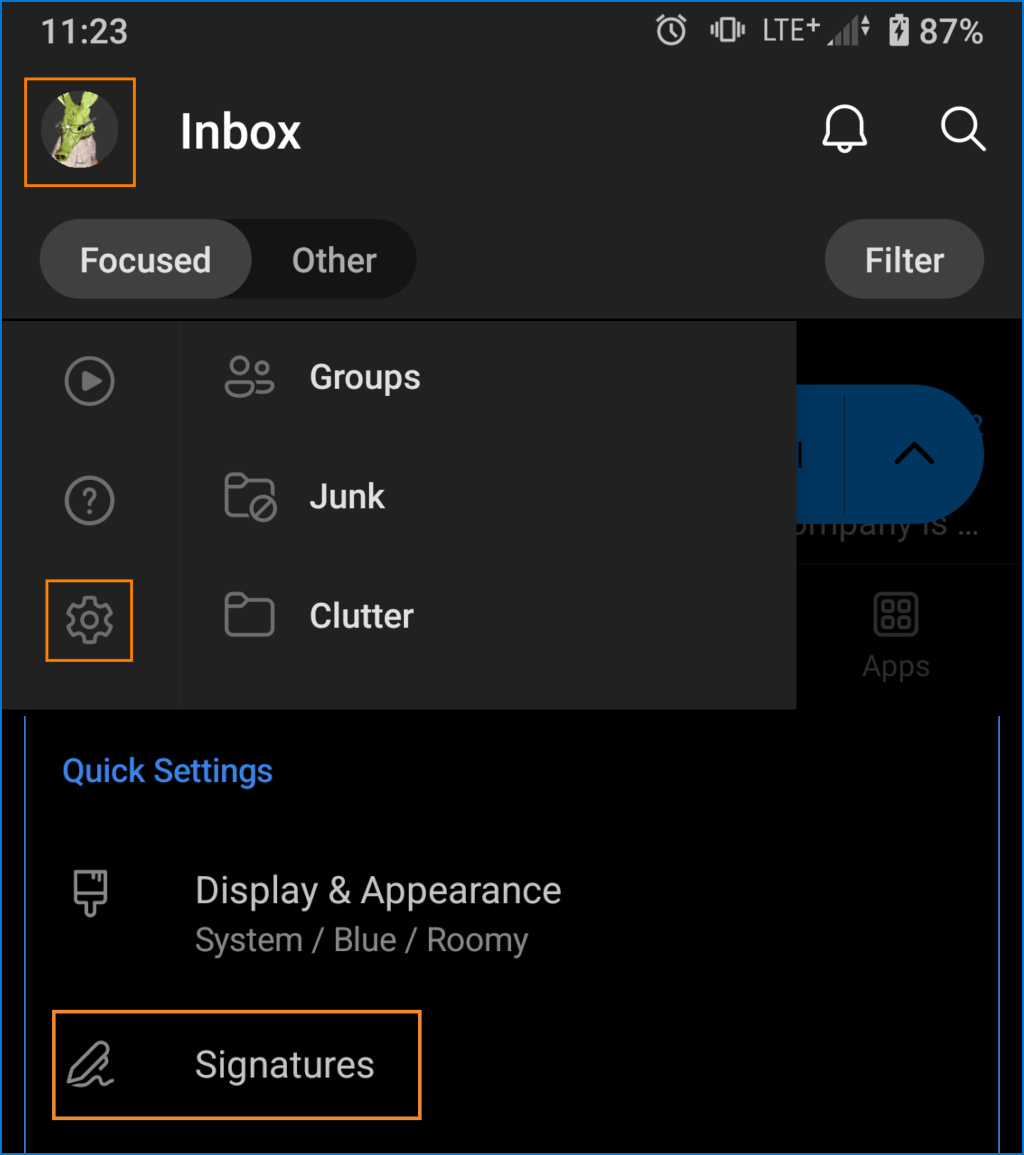
Pick your Outlook version to see how to access your signature settings.
Classic Outlook for Windows
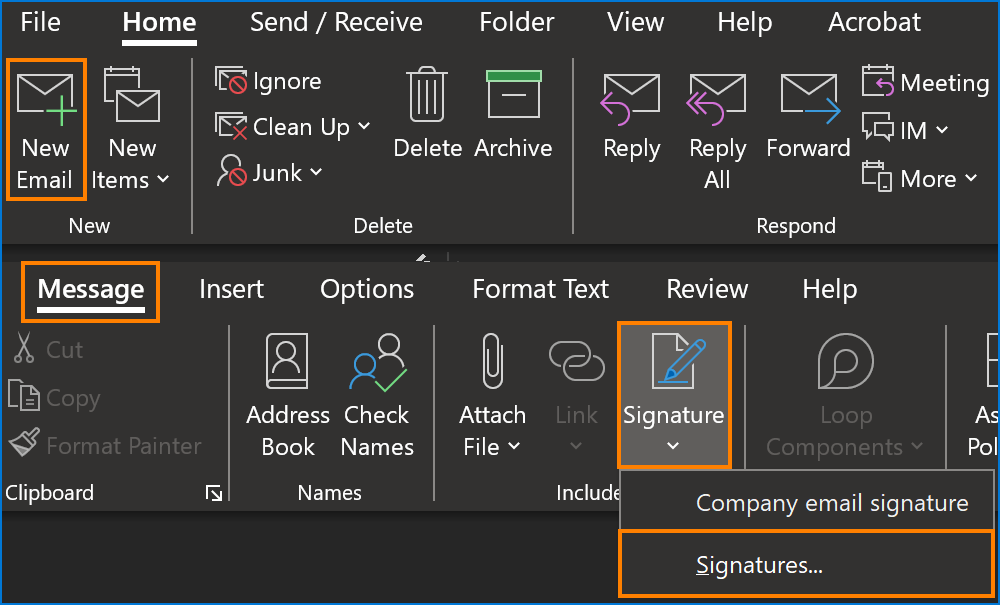
New Outlook for Windows
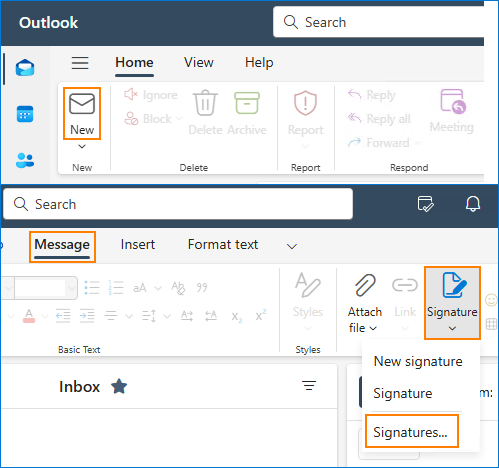
Outlook on the web
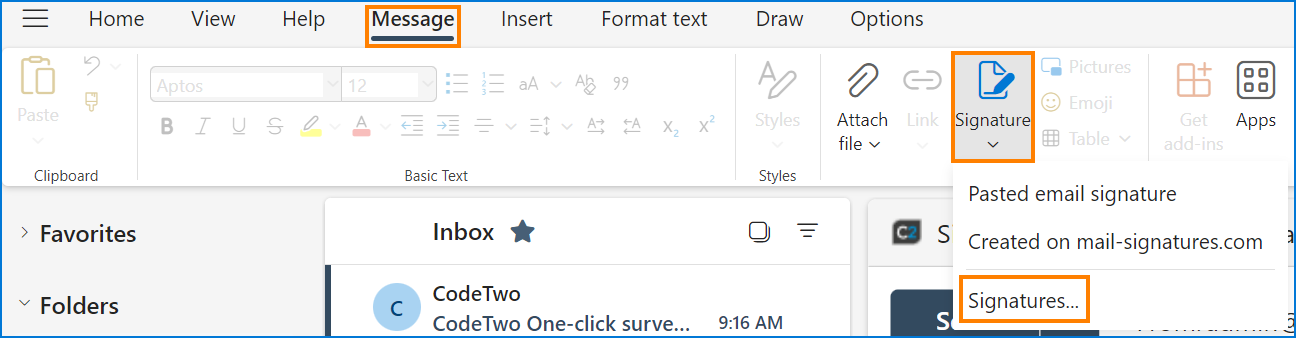
Outlook for Mac
New Email > Signature > Manage Signatures

Outlook for iOS
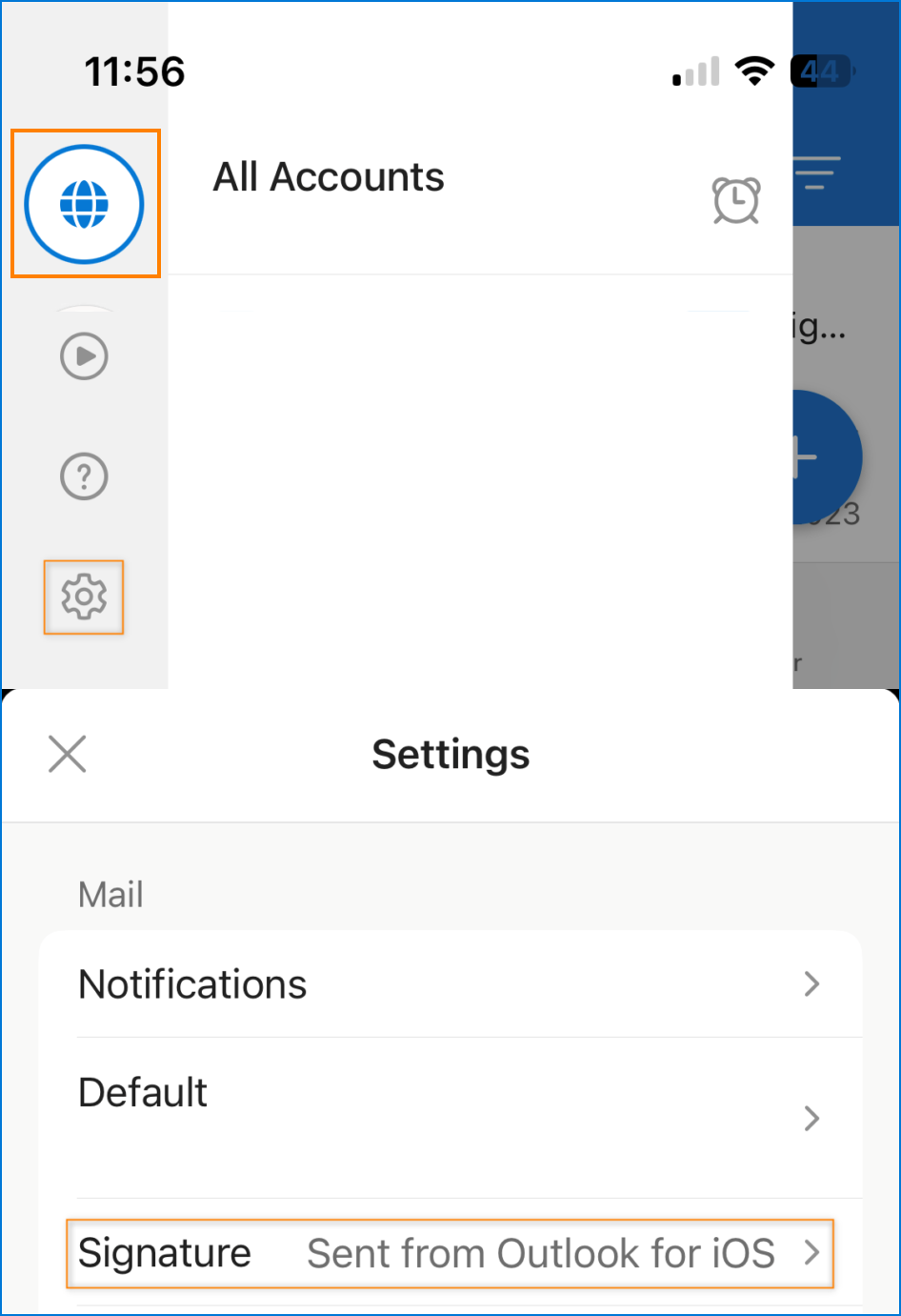
Outlook for Android
All Outlook versions for all users in a company
Wouldn’t it be lovely if you could just design one email signature template and have it added for everyone on all email clients? Well, it’s not crazy talk, it’s possible and easier than you think:
Step 3: Add the signature to Outlook settings
Once you’re in the signature settings, paste (or drag-and-drop) the signature you generated in step 1.
In Outlook for Windows, Mac and on the web, you can set up a separate automatic email signature for new messages and for replies & forwards. Mobile Outlook versions let you set up only one default signature.
Your automatic Outlook signature up and running? Great! Now let’s take a deep dive into email signatures if you’re still hungry for knowledge.
What is a professional email signature?
A professional email signature shows that you and your company are nothing to sneeze at.
Of course, a signature alone won’t turn unprofessional emails into good ones. But it will turn good emails into even better ones. There are the elements that a professional email signature needs:
- A great look every time someone opens your emails.
- Up-to-date contact details.
- Additional suggestions: What to include in a company email signature / What to add to a personal email signature
Why use an email signature generator?
Email signature generators allow you to create a single piece of a great email signature. There are two main reasons to use them.
To make things easier
Designing a signature from scratch is not an easy task. You need to decide which elements are crucial for your company and how to assemble them.
A good email signature generator lets you pick a design you like from a catalog and then convert it according to your needs. It doesn’t get simpler than that.
To make things work
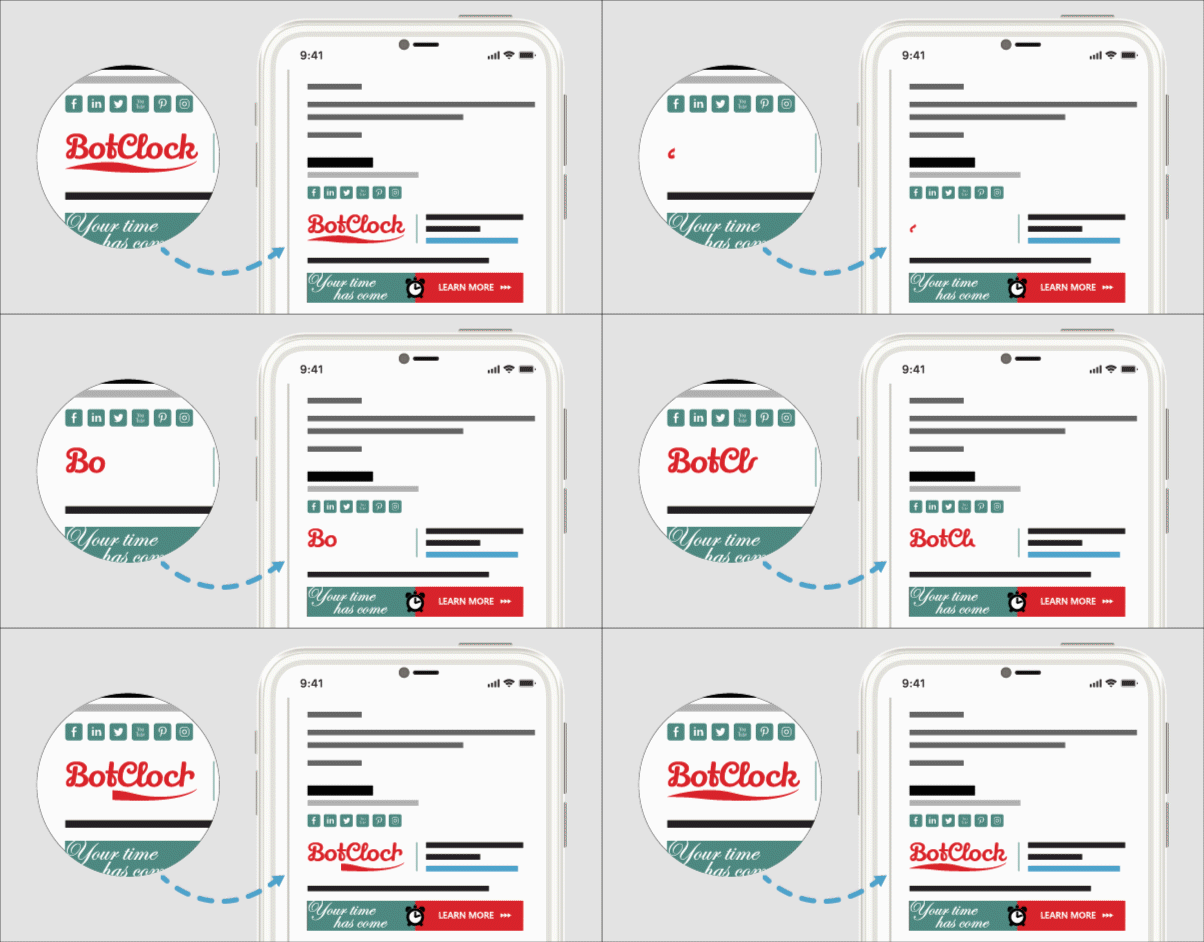
Writing good HTML code is not everyone’s cup of tea. When it comes to email signatures, you need to take a step back in time, use inline styling, and organize everything in tables so nothing breaks. And email signatures can break right after you add them to Outlook or after someone opens them in another email client. Just because something looks good in Outlook doesn’t mean that Gmail or Mac Mail will interpret the same code the same way.
Why does my company need a professional email signature?
Let’s keep it simple and break the crucial info into separate sections:
Marketing
How many emails are you sending daily? This number differs between industries, companies, and teams. But let’s assume you’re around the average of 40 external emails.
Multiply this by your company’s mailbox count. Let’s assume your external-facing team is 100-people-strong.
That’s 4,000 potential impressions of your brand, daily. It’s the channel you own and usually the people you email are your target audience.
So, time to be honest. Are you losing 4.000 impressions daily? Because that’s what you do if you don’t have a professional email signature. You’re wasting potential to promote your hot deals, customer loyalty programs or other campaigns.
Compliance
Business email communication needs to follow certain regulations, which may vary depending on your company’s location. Sometimes, you need to specify your company’s physical address; other times, you need to include an unsubscribe link. Some of the regulations you might have heard of are CASL, The Companies (Trading Disclosures) Regulations, or the friendly-sounding Gesetz über elektronische Handelsregister und Genossenschaftsregister.
All about email disclaimers and why you might need them
Top email disclaimer examples
CSAT
Customers are important. Their opinions matter.
Everyone says that but to put your money where your mouth is (however unhygienic it sounds), you need to gather and act on feedback.
One of the easiest and most effective ways to collect info on customer satisfaction is through email signatures. People rarely enjoy filling out long traditional surveys and are often unwilling to do so. But if all it takes is just clicking one button and adding a comment, they might be more inclined to share feedback that can help your company improve.
Why use an email signature manager?
Email signature managers are a marketer’s headquarters. It’s no longer about creating a single email signature – that’s only the beginning.
A good email signature manager takes your perfect email signature design and turns it into something more. It takes your company data, like names, phone numbers, and user photos, and puts it into signatures. You get automatic Outlook signatures for everyone, no matter if they use Outlook on the web, Outlook for Mac, or any other email client. As long as they are a part of the organization, they will have up-to-date signature designs.
Company rebranding? Launching another marketing campaign? Your marketing can manage it all from one place and push changes to everyone in seconds without any user interaction. There’s no need for IT to help users set up their email signatures. This saves time form everyone and creates marketing opportunities that would otherwise be lost.
Read more:


Great guide on setting up an automatic Outlook signature! The step-by-step instructions are super helpful for creating a polished, professional look for every email.
Hey, how do I add Logo to the signature????
Hello,
The free email signature generator suggested in our article comes with various types of signature templates, both with and without logos. You can change your template anytime – just select one with an appropriate logo placeholder and replace the default image in the Graphics section. Visit the signature generator’s manual to learn more.