


This step-by-step guide will walk you through the whole process:
- Learn how to get a professional email signature for mobiles.
- See how to add the email signature in Outlook for Android.
- Avoid the most common mobile email signature problems.
How to design a mobile email signature
Each email client, including mobile ones, has a built-in email signature editor. But creating a signature with them is not as easy as you might think. Some don’t even let you add images or format your text. While Outlook for Android currently supports HTML email signatures, setting up a mobile email signature with it isn’t easy. In fact, if you want a professional email signature added to your emails, forget about the mobile Outlook’s native signature editor. Here’s why:
- The formatting capabilities are very limited.
- You have no influence on the underlying HTML code.
- There’s a good chance that your email signature will break right after you send your first message.
- The editor is hard to use.
Instead of struggling to make the Outlook for Android’s editor work, use this easy-to-use and free email signature generator – the most convenient way to do that is to run it in your PC’s web browser. Next, save the email signature design as an HTML file and send it to the mailbox that you can access in mobile Outlook.
You could also use the email signature generator directly on mobile. While it’s perfectly doable, the PC path is much easier. Trust me.
Add an email signature to Outlook for Android
To add the email signature to Outlook for Android, follow this guide:
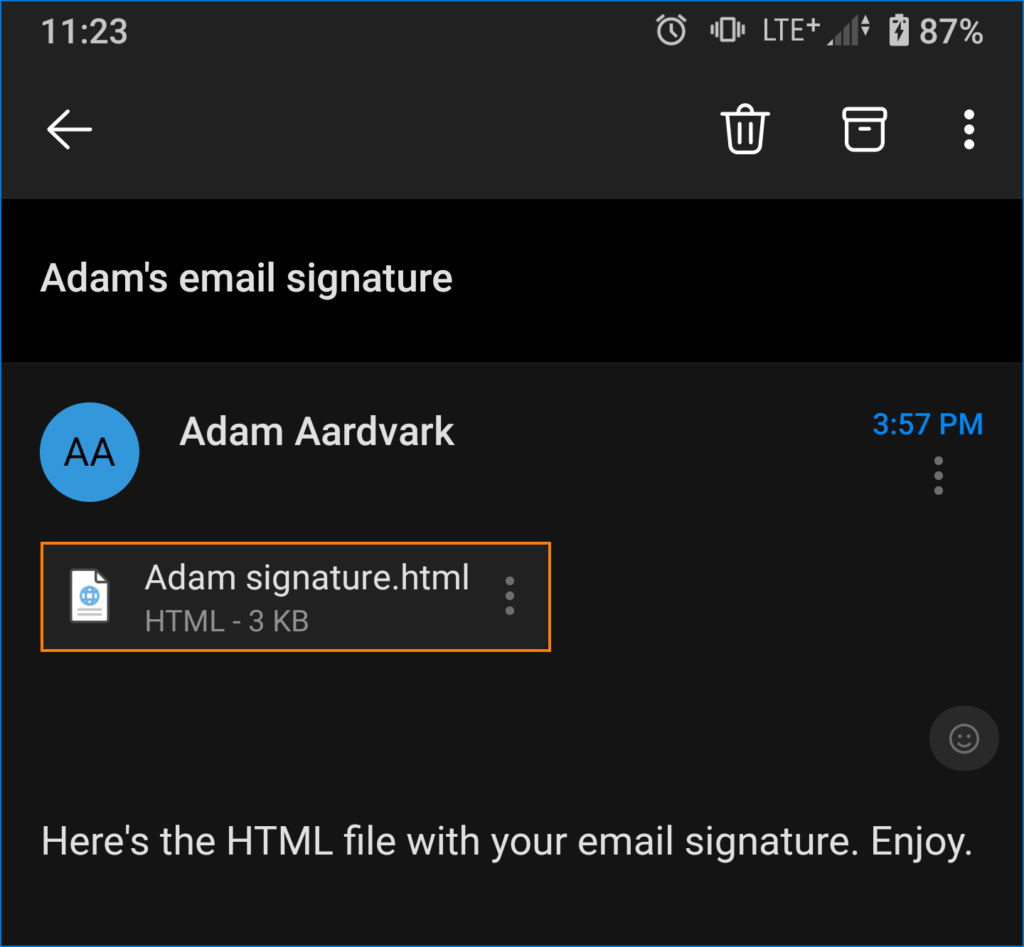
- Before you go to your signature settings, open the HTML email signature you’ve designed and sent to your email address:
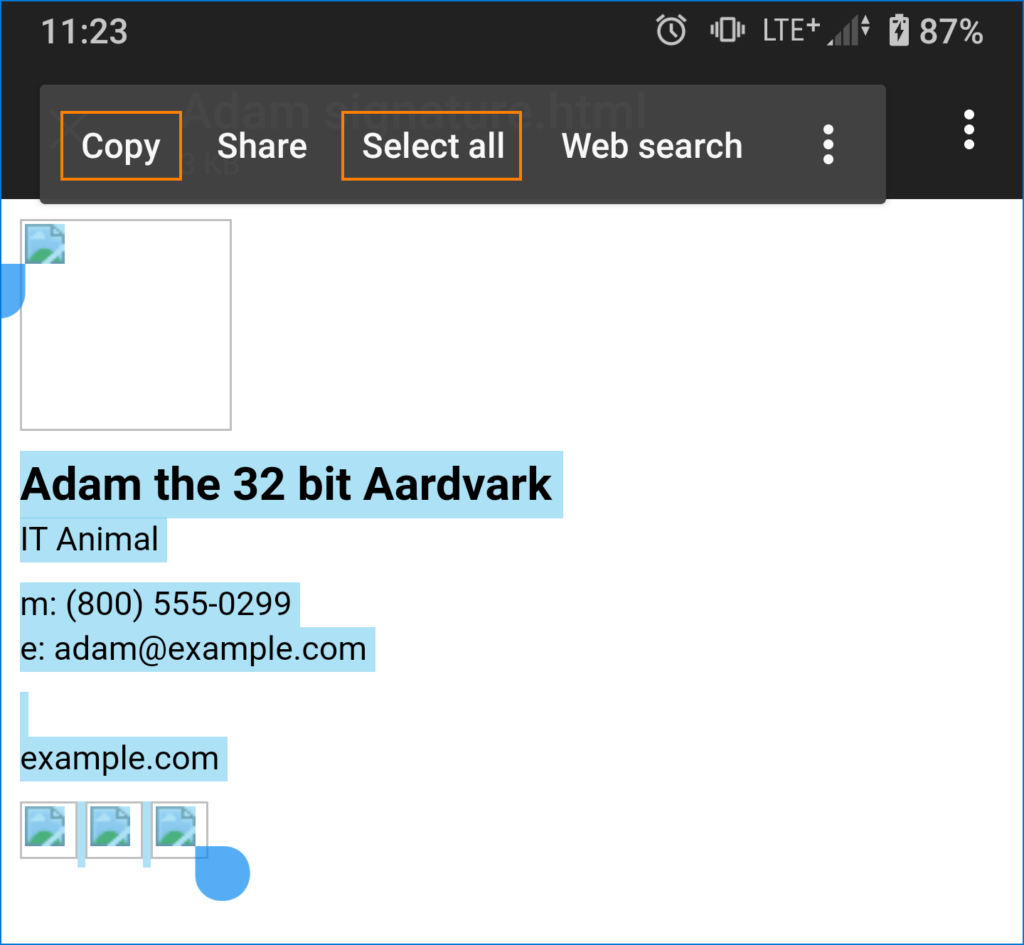
- Tap and hold any text part of your signature and then tap Select all > Copy. The HTML email signature will look like it’s broken, but it’s fine. It will turn out great when you need it.
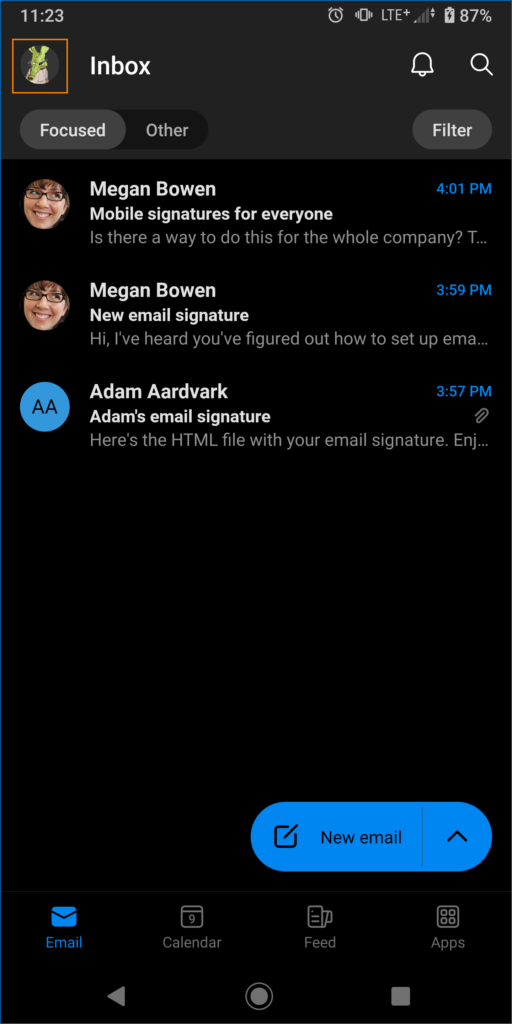
- Back in your Outlook for Android’s inbox, tap your profile picture.
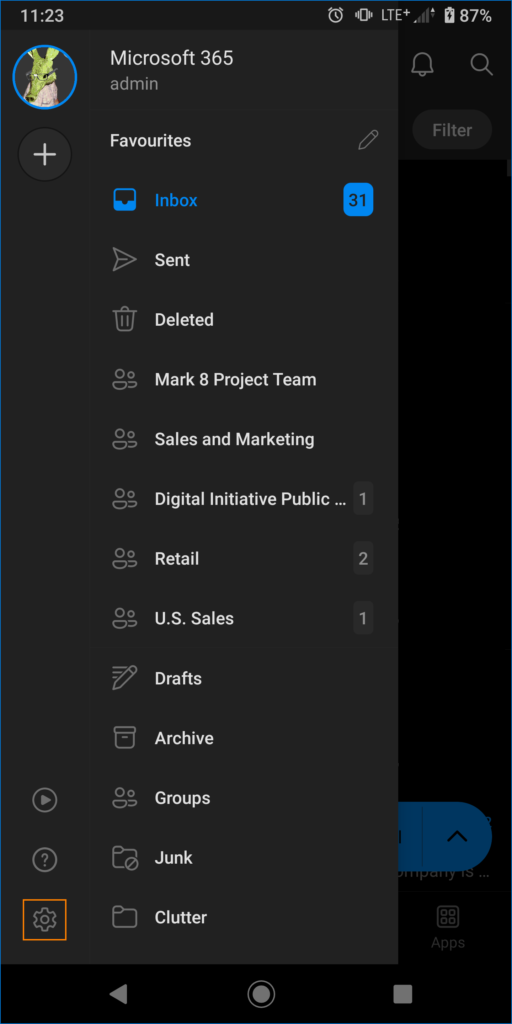
- Then, click on the settings cogwheel.
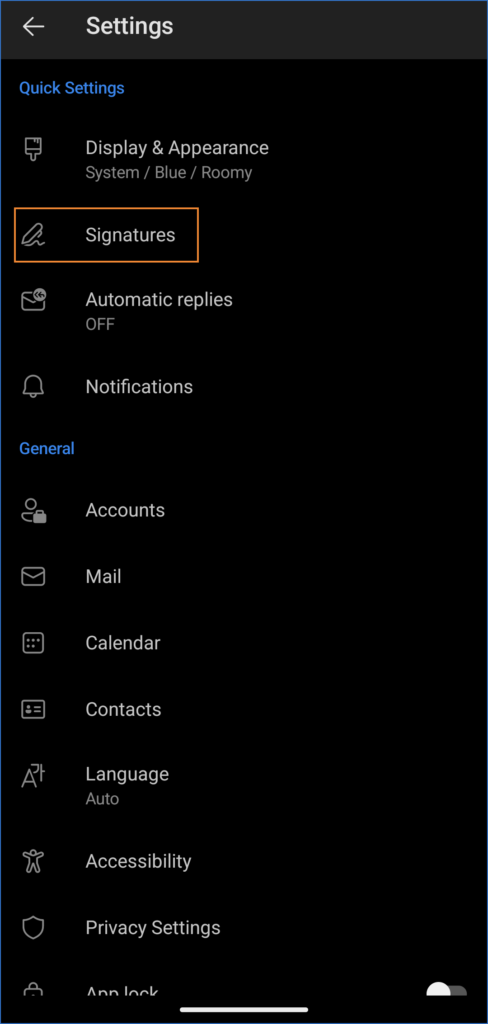
- In the Outlook for Android settings, find Quick Settings > Signature and click it.
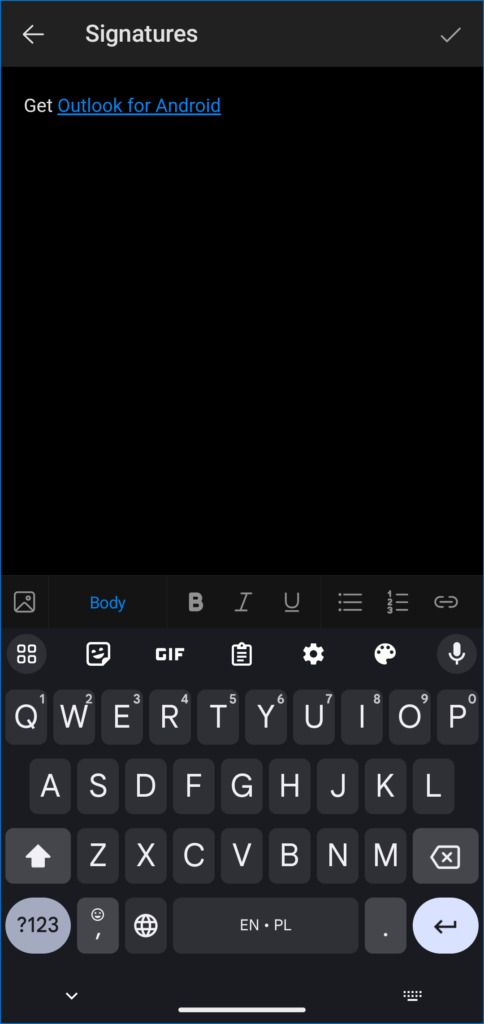
- If you’ve never changed your mobile email signature, the default “Sent from Outlook for Android” or “Get Outlook for Android” will be there:
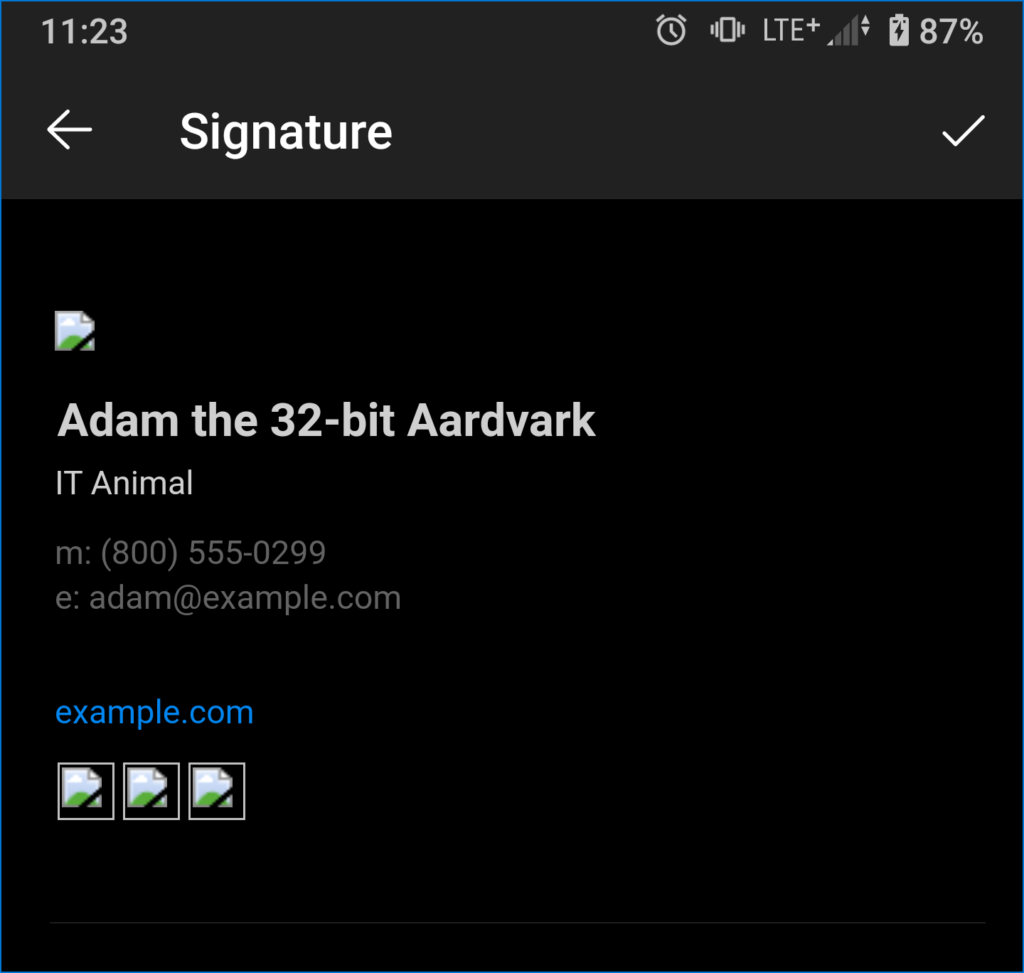
- Tap and hold it, tap select all and then, paste the email signature you’ve copied in step 2. It still looks broken with broken images, but you will see it’s fine when it gets to the actual mobile email.
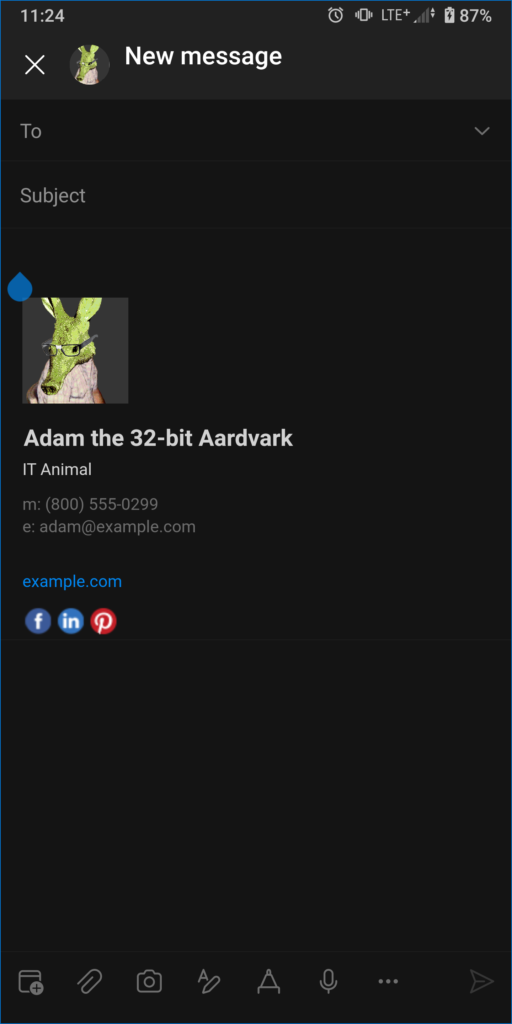
- Finally, when you compose a new message, your mobile email signature will be added automatically to your Outlook for Android email – no broken images & formatted just the way you designed it.
Mobile email signature challenges
While setting up your mobile email signature isn’t that hard, there are some complications you need to keep in mind:
- The mobile email signature is separate from your other signatures. So, whenever you need to update your email signature, you will need to do it separately on every device.
- While Outlook for Android and Outlook for iOS do support HTML email signatures, other email clients might not. It means that you might fail at building your personal or company brand.
- There’s no way to set up separate email signature designs for replies and forwards.
- It simply doesn’t work for company email signatures. Preparing a custom template for users to update ends up with a very low success rate. Preparing a personalized email signature for everyone takes a lot of time and still doesn’t guarantee success.
If you want to manage email signatures company-wide, there’s a much better way.
Company-wide mobile email signatures in Microsoft 365
Manual signature setup isn’t the way to go for company email. It’s hardly doable even for small companies. For a large enterprise, it’s madness.
Meet CodeTwo Email Signatures 365
Here’s how it works:
- One person sets up the tool and designs an email signature template.
- Then, thanks to integration with Entra ID, everyone gets an email signature with their contact details. It doesn’t matter which email client they use – your company branding is safe and sound in Outlook for Android, Outlook for iOS, as well as Outlook for Windows or Mac.
- With the ability to add signatures in transit in the cloud, you can enjoy professional email signatures even with email software that doesn’t support HTML.
Learn more about the right way to manage email signatures and start your no-obligation free trial