



If you want to know how to add or change your email signature in Gmail or a Google Workspace (formerly G Suite) account, follow the instructions below.
Important: Before you start creating an email signature in Gmail, make sure that you don’t have Plain text mode enabled. To learn how to disable it, click here.
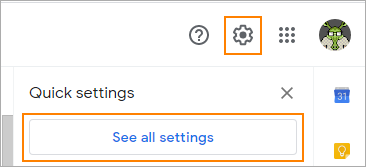
- In your Gmail account, click the gear icon in the upper-right corner and then See all settings.
- In the General tab, scroll down to the Signature section.
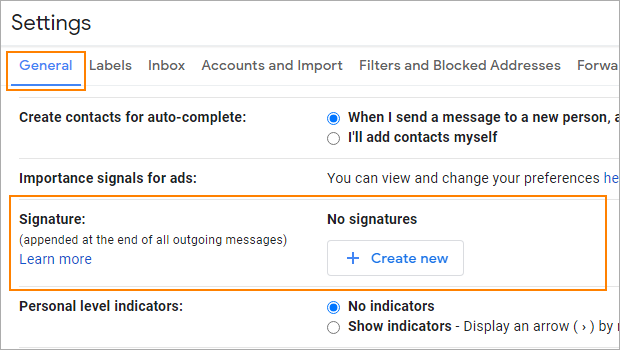

- Click the Create new button to add a new signature or use the formating tools to change the existing signature (if there is one already).
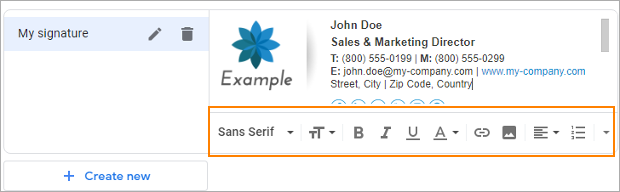

Note: The Gmail signature editor gives you a few basic formatting options such as font face (check out what fonts are best for email signatures), font size (small, normal, large and huge), hyperlinks, images, alignment, etc. To compose more advanced email signatures, use this free email signature generator. Signatures composed within the signature generator can be easily copied and pasted directly to the Gmail’s signature editor. - Create or modify your email signature as per your needs. If you want to add an image to your signature, click the Insert image button.
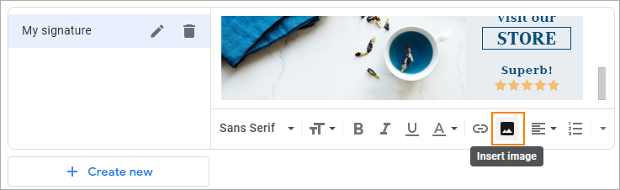

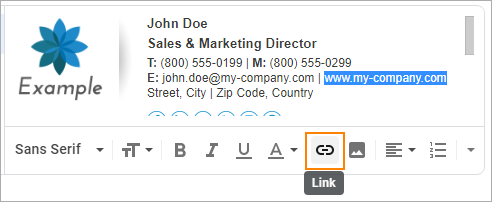
Note: You can change the position of the image in your signature by dragging and dropping.To add a hyperlink to the image or to any text, highlight the part of your signature you want to be hyperlinked, click the Link button and provide link details.

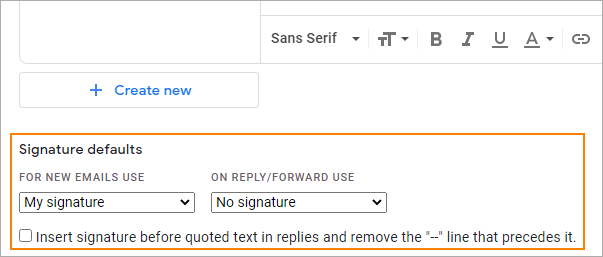
- If you want your signature to show up automatically every time you compose a new message, select your signature from the drop-down menu in Signature defaults. You can have different signatures for new emails and for replies/forwards.

- Once your Gmail signature is ready, scroll down to the bottom of the page and click Save Changes.
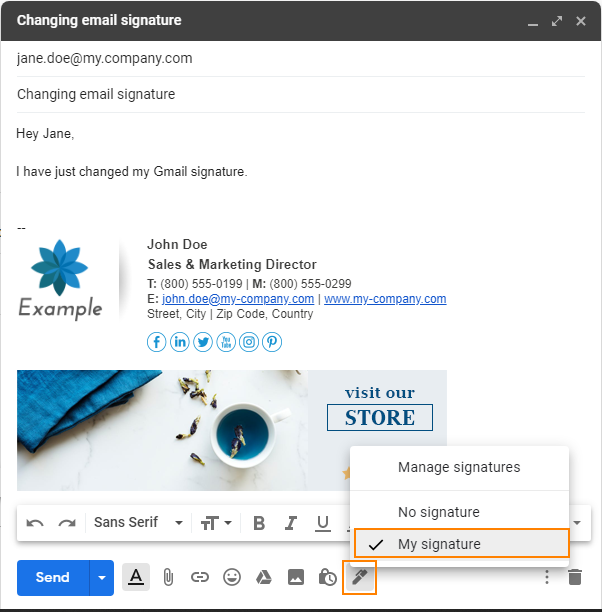
- Go to Inbox, and open a new message window by clicking the Compose button to check if your signature shows up correctly. Use the pen icon to select different Gmail email signatures depending on a situation (if you created more than one email signature).

Note: If in the Gmail’s message composer you have the Plain text mode enabled, you will not be able to use email signature with images, social media icons, or hyperlinks. So to disable the Plain Text mode, click More option (three dots) and deselect the Plain text mode option. You may need to wait a couple of seconds for the changes to apply. You may also need to reload your signature if it was already changed to the Plain Text format.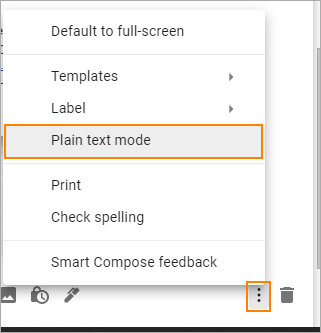

That’s it. Now, every new email, reply or forward message you compose will have your Gmail email signature.
For more on Gmail signatures, consult this Google Help Center article.
See also:



Its good
merci pour ces renseignement
La signature est trop longue. Veuillez la raccourcir. (The email signature is too long) This is the message it apear, I only modify the information in a template, it never accepted.
Hello,
Did you acquire the mentioned template by using our email signature generator? If so, please make sure to choose Gmail as your email platform in the first step.
If that doesn’t help, here are two probable causes for your error:
– Your browser adds unnecessary code to the signature while copying it to the clipboard. The problem can be solved by using Google Chrome or Mozilla Firefox to generate your email signature.
– You’ve pasted a base64 encoded image into the form instead of a link to this image. Check if all links to the images that you used start with http or https and NOT with data: Learn more here
If the above doesn’t help, please provide me with the name of the email signature template you selected for your signature, and I will investigate on my side.
Très bon site
This website is so helpful
I’m trying to save a QR code as part of my signature and Gmail keeps telling me that my signature is too long. I basically have my name and my QR code. So what is “too long” about that?
Hi Yvette,
Did you add the QR code to your signature by copying and pasting? Please try inserting the image as a file using the Insert image button.
Could you please can I create attractive signature using by android? I created a new one by virtue of website but I can’t apply as it was. When I apply it shows only simple text. Could you help me?
At the moment, it’s not possible. The Gmail App on Android doesn’t support HTML email signatures.
Super j’ai une super signature maintenant
Merci beaucoup
C’est tellement utile.
Thanks alot
It’s so helpful.
With respect !!!
Hi
Tried to insert, but not showing as it should.
Hi Camilla,
I’d like to help you, but I need more details. What is the problem with the signature, exactly? Which template have you used? Is the formatting off? Is there any problem with images?
You made some respectable points there. I looked on the web for the issue and located most people will go along with together with your website.
Hi,
My link is not working, please can you help 🙂
https://drive.google.com/drive/folders/1wDSxv077r8wu-TTS-84qcOYyRKNp5gWs
excellent
Hi dude, Im passionately enjoying the posts on your blog. They are organized clearly, easy to read and remember, in spite of English being my 3rd language. Greetings.
How can I create a email signature
The easiest way would be to use the free email signature generator.
Thanks a lot
ÈI have created the signature with text and images BUT when I try to highlight one image it highlights the whole box and not the image….
there is no facility to create signature on Gmail settings without getting in the BIG square box…
Sunil
You could try clicking somewhere inside the box and highlight the image using “shift+arrow keys”. If it still does not work it might mean that you either have your entire signature pasted as an image or you experience some strange bug. In both cases, the easiest solution would be to recreate the signature from scratch. You can highlight everything, copy the signature, paste it into (for example) MS Word to make some changes and paste it back into the Gmail signature editor. Alternatively, you can use our free email signature generator.
I have an email (gmail) account that is for an events coordinator and the previous coordinators name still shows up on emails sent and everyone thinks i am that previous person. I was able to change signature line to my name but cant figure out how to change it on the senders.
Hi Kevin,
You can change your sender’s information by going to Settings > Accounts and Import > Send mail as > edit info There, you can change the name which is shown on mail you send. It might also be a good idea to send an email to people from your address book and inform them that there has been a change in personnel.
have just replaced my e-signature successfully. However it is now auto returning to any sender when I open an email to me. Obviously with no content!
How do I stop this?
Hi Tina,
You might have turned on your auto responder by accident. In the general>settings tab, make sure that at the very bottom your Vacation responder is off. If it is already off or changing the settings does not help, consider contacting Gmail support by clicking the gear icon and selecting Send feedback.
I can’t figure out where to change the website hyperlink text in my gmail signature. The problem isn’t with the signature itself, it’s that the hyperlink picks up text from my homepage on my website that doesn’t fit with the image next to it. I’m not sure if this is a website fix or a gmail signature fix. Thanks.
Hi Lynn,
When you click the link button, you can set the text which is displayed and the address the link leads to, the hyperlink should never pick up text from your homepage. You can also select the text or image and click the link button then – your selection will lead to the link you choose, then.
I’m not sure that I am doing this correctly. I am trying to insert a hyperlink into my gmail signature for my business on Facebook. I put in the Icon and clicked the link and added the URL, but the URL still shows up next to the Icon…is this right?
Jennifer – No, the hyperlink URL should not be visible.
Sunil and Jennifer – I’m not sure what’s causing the issue. Please, try following Adam’s suggestion (https://www.mail-signatures.com/articles/how-to-add-or-change-an-email-signature-in-gmailgoogle-apps/#comment-22130) and report back.
i will be checking for your message in about 45mins hope you can help
Hi any further suggestions?
Nothing can be done????
Dear Pawel,
I guess to and you given up on assisting us.
No worries thank you for all your communications.
Sunil
Hi Sunil
I had the same problem as you and managed to fix it quickly. Instead of clicking the picture directly, try to click and drag to highlight it (the same way you would highlight text) and then insert the hyperlink while the picture is highlighted.
Please let me know if it helped.
https://www.dropbox.com/sh/9nkvnyt47niw3j3/AACAdfr8loDDqmxbAx4X_fQwa?dl=0
hope this link helps…
the first two images are on Safari and the third image as it appears on Firefox settings
The last screenshot suggests that Firefox for Mac does not support modern Gmail. Maybe a screenshot of the faulty highlight would shed some light.
https://www.dropbox.com/sh/9nkvnyt47niw3j3/AACAdfr8loDDqmxbAx4X_fQwa?dl=0
one image is non highlighted box
one is highlighted
another one is to put hyper link
last is with hyper link in text instead of on image
Hi Sunil, Unless your whole signature is one image, I have no idea what’s going on. If the former is true, correct this by creating a signature with text and separate images.
It is one box that I get on Gmail settings and in that I have created the signature with text and images BUT when I try to highlight one image it highlights the whole box and not the image….
there is no facility to create signature on Gmail settings without getting in the BIG square box…
when i signed into gmail on firefox and clicked on settings I can see the signature but no logo and no icon images of social media….
trying to add all those on Firefox then I cannot as I am not getting the options on top the signature box to upload images or the link icon
is there any way i can send you a screen shot please of our signature as to how it appears on safari and google chrome settings and how it appears on Firefox settings
You would have to upload the screenshots to an external photo sharing service and paste the links here.
external photo sharing service????
This is all getting very complicating for me
Guidance please if you okay
can I share via dropbox with you???
Yes, Dropbox should work: https://www.dropbox.com/help/20
but on firefox i cannot upload…
i am trying to do the same in the signature box
it doesn’t even have our logo in the signature box which appears on Google chrome and safari
sorry but totally lost here now
i also tried to compose and get options to uncheck plain text on firefox but i am not getting that options either
getting so frustrated and don’t know what to do
i am trying to use Firefox and its strange that when I am signed on to my Gmail account and go to settings, in my signature box there are no icon images so am at a standstill now
Please try uploading the images and adding the links from scratch via Firefox.
Hi Pawel,
I have just tried using Google Chrome instead of Safari and the same thing happens …
tried to highlight Facebook icon image and the whole signature box got highlighted so hyper link got pasted as in text form and not linked to image
safari Version 10.0.3 (10602.4.8.0.1)
It’s possible that Safari might be the culrpit. Any chance that you could test this on a different browser, e.g. Firefox?
i have taken screen shot and trying to attach to this reply but cannot….
its safari i am using and what technical specifications you need please advise
image i am using is one downloaded from google for all social media
Hi Pawel,
I have inserted social media images on to my signature.
To this I want to add hyperlink.
As per your tutorial it says to highlight image then click on link and had hyperlink.
But this doesn’t work as when i try to highlight image e.g. Facebook it doe not highlight in fact it highlights the whole signature box and the hyperlink then appears as a text at the end of all the images I have added.
I have also disabled Plain Text Mode but yet it doesn’t work.
Please help ASAP.
Thank you
Hi Sunil, Are you highlighting the image by clicking on it?
yes i am highlighting the image by clicking on it
i can send you screen shots if it makes it easier…
i have Facebook, twitter, pinterest, instagram and youtube icons to which i want to add hyperlink.
when i click on the small icon image it highlights the whole signature box rather then the icon image therefore the hyperlink then gets pasted as a text where ever the cursor is placed…
hope it all makes sense
Can you provide the technical specifications of your internet browser and the image you are using?
Hi Pawel,
The photo of instagram I’m using does not show up. It looks like a question mark, but when I go in the settings it shows up fine.
Hi Kris, I do not recommend using Instagram. The best option is to host the photo on your own site. Alternatively, a photo sharing site that does not require signing in to view content: https://en.wikipedia.org/wiki/List_of_image-sharing_websites
I have a gmail account. The signature includes my telephone #. How to I change it number?
Hi Michael, Simply edit your signature as per my article. If you encounter any problems, let me know.
How do I place them next to each other horizontally. For some reason, my icons display vertically. How can I fix this?
Hi Ellie,
If your icons are small enough to fit into the signature horizontally and Gmail still messes them up, I don’t think there’s much you can do on this end.
Is Gmail part of your company’s email service or is this for personal use?
I need to delete an old signature. It keeps defaulting to the outdated information.
Hi Erin, Do I understand correctly that, after you modify the signature and click Save changes it reverts back to the old signature?
I just need to change a phone number in my exsisting signature. Need help
Hi Mark,
You can do this by following the steps from my article. In the signature editor (screenshot in Step 3.), delete the existing phone number and type in the new one.
Google has a 10k limit on signatures, here is what I am trying to use:
our work is to discover your work and then with all your heart to give yourself to it. - Buddha –
I get the message that my signature is too long.
Suggestions?
Disregard, I guess bringing from Word doesn’t work…. Manually typed in just fine.
I am trying to add the hyperlink to my images I have in my signature, but it will only add the link address after the image. How do I make the image hyperlinked to the webpage I need it to go to?
never mind!!! Figured it out!
Hi Breanna,
I’m trying to do the same thing, but I haven’t figured it out. Help!
Hi Bobbi,
You have to make sure that ‘Plain text mode’ is disabled. I’ve added information how to disable it at the top of my article.
Once you disable ‘Plain text mode’, the hyperlink button will be located in the ribbon of Gmail’s email signature editor:
To hyperlink an image, highlight the image by clicking on it (scaling handles will appear around it, as in the above image), and then click the hyperlink button and type/paste the URL you want.
Hope this helps,
Pawel
I am not sure that I am doing this correctly either. It shows the Facebook icon, but it still shows the url next to the icon. I’m trying to make a hyperlink in my signature on gmail for my business that is on Facebook.
My boss wants me to put social media logo with links on her email signature and I did. However, the logos are still big in the email signature and I cannot make it into a tiny social media logos. Please advise and how to do it. Thanks!
Hi Joy,
You can use the free email signature generator to easily create a signature with tiny social media logos.
If you want to do it manually, you either need to shrink the social media icons with inline styling, or resize the social media icons before using them.
I am having issues inserting an image into my google mail.
I’ve tried it with jpegs and gifs. I’ve tried putting my images into flickr and photobucket and even tried sending an email to myself and clicking on the image and using that link. But no matter which URL I use, it won’t show up. I can’t continue because the OK button is grayed out and nothing happens. I’ve tried all the links that will come with an image, I’ve tried re-naming the image, I’ve tried different browsers for the images. Nothing is working for me. Is there some setting in my chrome browser that I need to change? I’ve searched google for a very long time and no help so far 🙁
Using Google Chrome, google mail, PC, Windows 7. The images are 32×32 png images. Tried grabbing images from Chrome and Firefox from the above mentioned sites.
Links from one image: https://flic.kr/p/wj3utr or https://mail.google.com/mail/u/0/?tab=wm#inbox/14eb1c109e32b935?projector=1 and I can’t get Photobucket to work, so I can’t provide that link at this time.
I left out that I am having problems inserting and image into google mail SIGNATURE…sorry. That was important 🙂
Hi Nancy,
If Photobucket doesn’t work, I think your best option is uploading the image directly to your gmail account using the ‘Upload’ option in the image picker:
Is this an option for you?
Best regards,
Pawel
I need help deleting an old email address above my signature. The old one keeps showing up when I compose a new email….Please help…..Phil
Hi Phil,
Please provide more details about your email signature setup + are you using Gmail or configuring the signature in the Google Apps admin panel? + are other changes being correctly applied to the signature (if you haven’t checked yet, please do so)?
Thank you,
Pawel