



Design your Outlook for iOS email signature
If you want to design your perfect mobile email signature, you need to design it in HTML. Without using HTML, there is no way to include your logo, banner or social media links in Outlook for iOS. The easiest way to design a well-formatted and professional email signature is to use our free email signature generator:
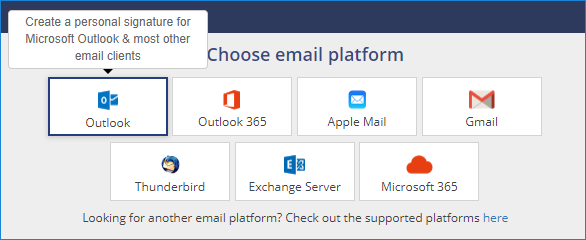
- In the email signature generator, select Outlook as your email signature platform:
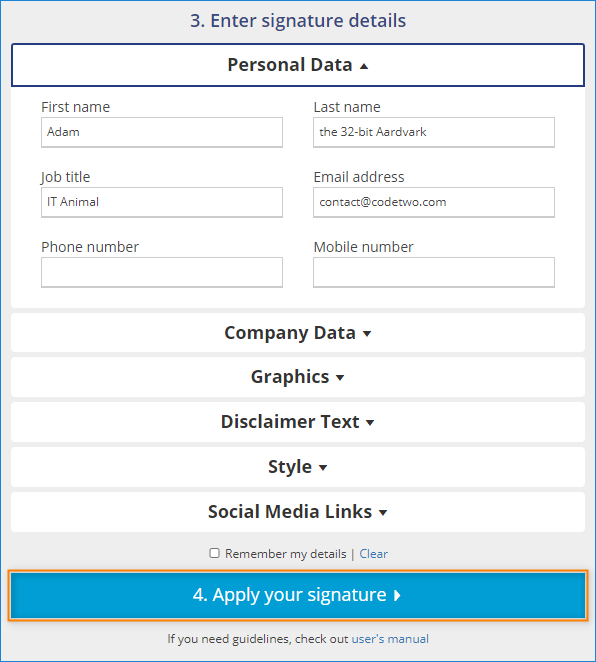
- Pick up your favorite signature design, add your contact info and images. The generator guides you through all the steps. After you personalize the signature to your needs, click Apply your signature:
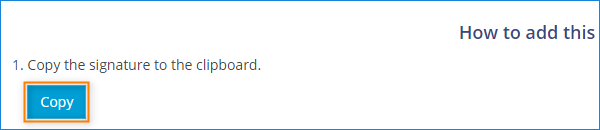
- Next, Copy your signature to the clipboard (AKA pasteboard).
If you use the signature generator on your iPhone, your signature should be already copied to pasteboard at this point. If you find it more comfortable to use the generator on another device, use any email client to send your new email signature to the Outlook app on your iPhone. Simply paste the signature you’ve copied to your email message and send it to your Outlook email address.
Note: it’s safer to use web-based email clients for that, as they don’t tend to distort the signature layout.
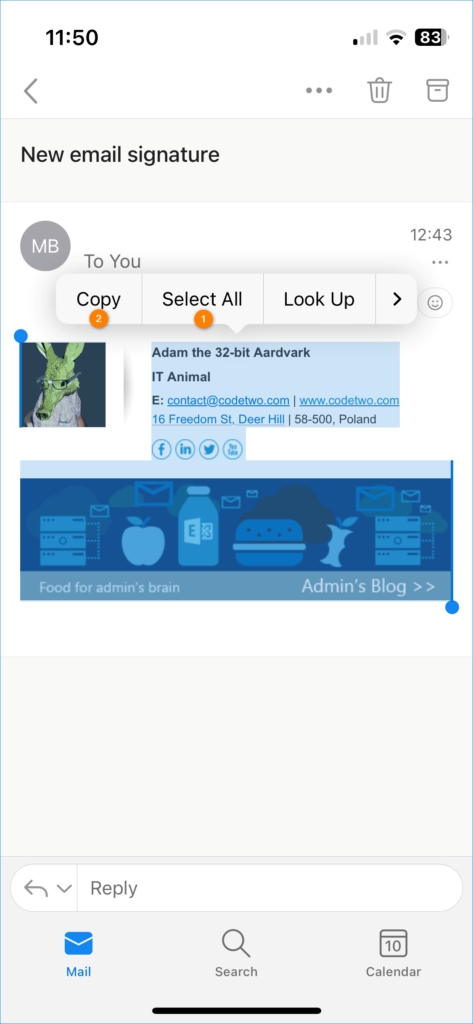
Next, open this email in Outlook for iOS. Press and hold on a part of text that is not a link, then choose Select All and Copy from the context menu:
Set up a signature in Outlook for iOS
Once you have your email signature copied, you need to add it in Outlook for iOS. Here is how to change the default “Sent from Outlook for iOS” signature to one that is both attractive and informative:
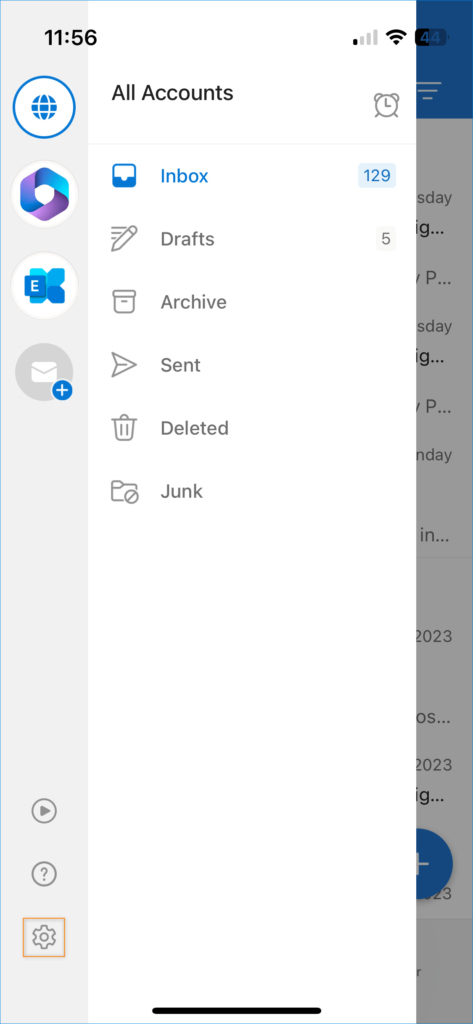
- In Outlook for iOS, swipe the screen right to bring up the option menu. Tap the gear icon to access options:
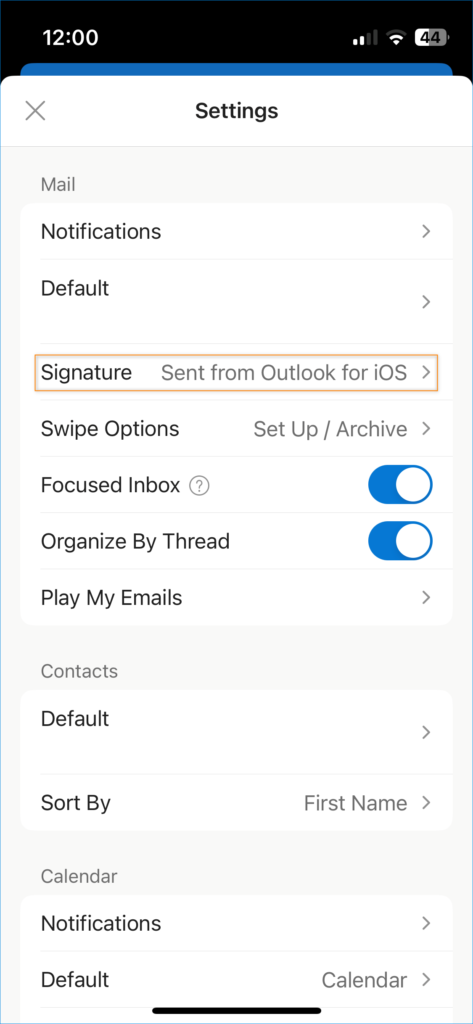
- In the options, scroll down and tap Signature to access the signature editor:
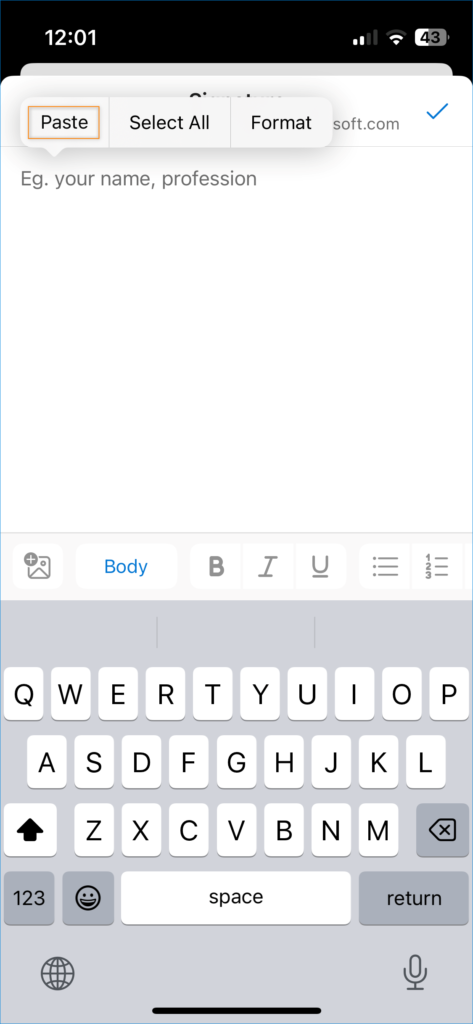
- In the editor, delete your current signature and paste the new one you copied earlier:
- Since changes are saved automatically, you can leave the signature editor after pasting the code.
The next time you compose an email, your new email signature should be there:
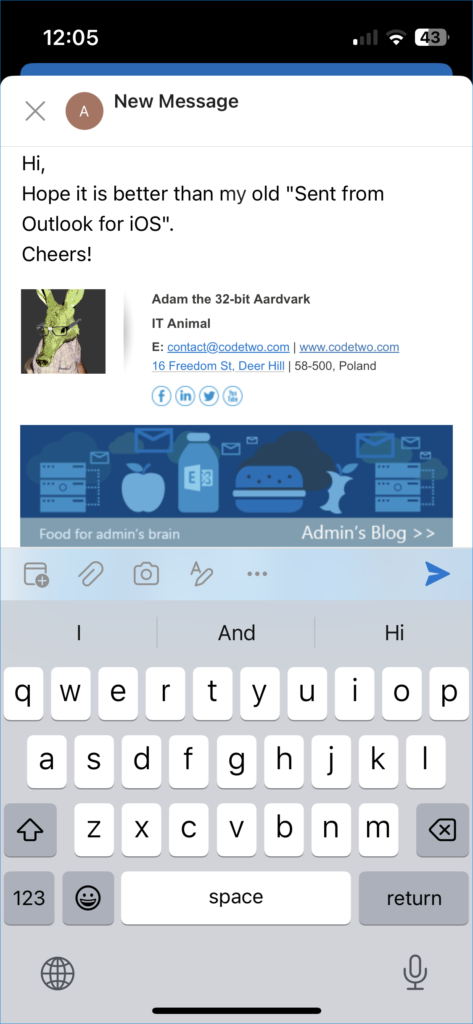
Now, you can enjoy email signatures with social media links, clickable banners and your contact information:
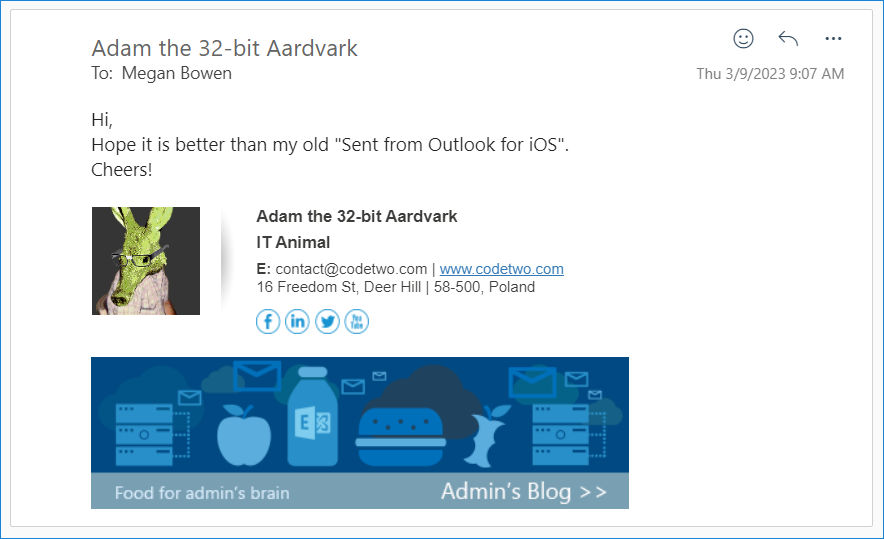
Keep in mind that if you want to promote your brand and build trust with your recipients, the best practice is to unify your email signature across all devices. While this task is doable for small teams, it becomes increasingly cumbersome for a larger number of users. And if you want to handle multiple email marketing campaigns or different signatures for different recipients, the task is plain impossible without signature management tools.
Set up email signatures for all users at once
It is possible to create and manage email signatures for all users at the same time, regardless what they use to send emails. Email signature management tools let you unleash the hidden potential of your email communication. Thanks to such tools, you can:
- Manage email signatures for everyone from one place.
- Set up a single rule to add professional email signatures to emails sent from any email client (including Outlook for iOS and any other app).
- See your signatures as you type an email in Outlook (Outlook for iOS included).
- Set up different signatures for new emails and for replies/forwards.
- Create team-specific email signatures.
- Schedule timed marketing campaigns.
- Easily add one-click customer satisfaction surveys to email conversations.
- Automatically add user photos to email signatures.
- Delegate email signature management to non-IT teams, such as Marketing.
- And much more…



I’m unable to get my signature onto the mobile Outlook for iPhone. When I copy the html I get a partial signature but no hyperlinks or clickable icons.
Hi Shareen,
Have you used the email signature generator on your iPhone or have you generated your new signature on another device and used an email client to send it to the Outlook app on your phone? In the latter case, it’s safer to use web-based email clients for that.
Also, when creating your email signature in the generator, make sure to select Outlook as your email signature platform.
Please help when I add my HTML code in the signature box, I get the same code when creating the email meaning it does not confer it in keeps the code itself showing, do I need to turn on some feature? Thanks.
It will not render in the signature editor but should render in a new email. There is no option or feature that turns it on, if it doesn’t work that way, it might be caused by a bug.
Microsoft has added a better way of handling email signature to their roadmap. It should make things much simpler, but it’s hard to tell when it will be available.
I am blessed that I find another blog that is such a piece of amazing information. I appreciate the way you shared such great information. Hope more to come as I’m an avid reader. I tried to educate myself as much as possible. I love your blog. I don’t normally comment but I really needed this one today – must be at the bottom dip of my roller coaster … So just a thank you!
I cannot get this to work. When I paste the HTML the signature just stays as HTML.
Which Outlook for iOS version are you using? You can check it in Settings > Help & Feedback. Keep in mind that the signature will appear as raw HTML code in the editor and should look well when added to a message.
Microsoft plans to change the signature feature in the mobile Outlook, so it will be possible to paste a complete signature, instead of the HTML code. The feature is planned to be released in February and this post will be updated accordingly.
I can’t get color fonts to work. I can see the color before sending the e-mail but it’s gone when receiving the e-mail. It’s not the receiving side it’s the sending side. 🙁
Could you specify which template you have used and what is the font color before and after sending the email?
This is fantastic! It worked on the first try! Thanks!
Very well written story. It will be supportive to everyone who employess it, including yours truly :). Keep up the good work – for sure i will check out more posts.
Thanks! 🙂
I figured out how to get images to appear (but not fully embedded with links). Simply host the image (upload it from your camera roll) and then copy the HTML code for the full image and paste that in the signature box on OWA settings and it should work. Just tested.
I can’t seem to get this to work. How do I copy the HTML code for the image?
Dear kamil, for the native iOS app this works, but not for outlook afaik.
Hi Marco,
You are right, that is why there are two separate articles – for the native app and for Outlook. The only foolproof way to ensure consistent email signatures regardless of the device and email client used is to centrally manage email signatures on the server.
Has this been updated or is it still the same?
I’m still having troubles setting up the signature for iOS.
Hi Sylwia,
The email signature feature in Outlook for iOS has not changed since the article was published. In which part of the configuration do you encounter problems?
You could also take a look at the following article, to see if it is helpful in your case:
Setting up an HTML email signature with images on iPhone.
They should fix this to work across the platform because gmail signature and logo works automatically with the iphone and it is free. We should not have to figure this out considering we are paying for the service.
Agreed. Our company has strict branding standards. We need HTML signature in Outlook for iOS.
Image paste didn’t work for me either. I don’t think it’s supported.
Hi Bernard,
I have updated the article because it could have been a bit misleading. Image paste works, but only in the desktop OWA. The only way to apply images to mobile signatures sent from OWA for iOS is using third party software, like stated in the last paragraph.
Tried this but the image paste doesn’t work.
Please clarify: “you can copy and paste an image from source into the text box.”
Thanks,
Peter