



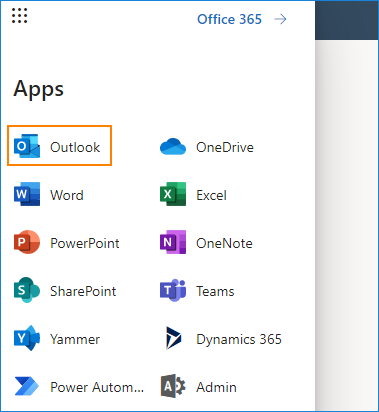
1. Open your Outlook on the web either by clicking the Outlook App in your Office 365 home page, or by using this direct link.
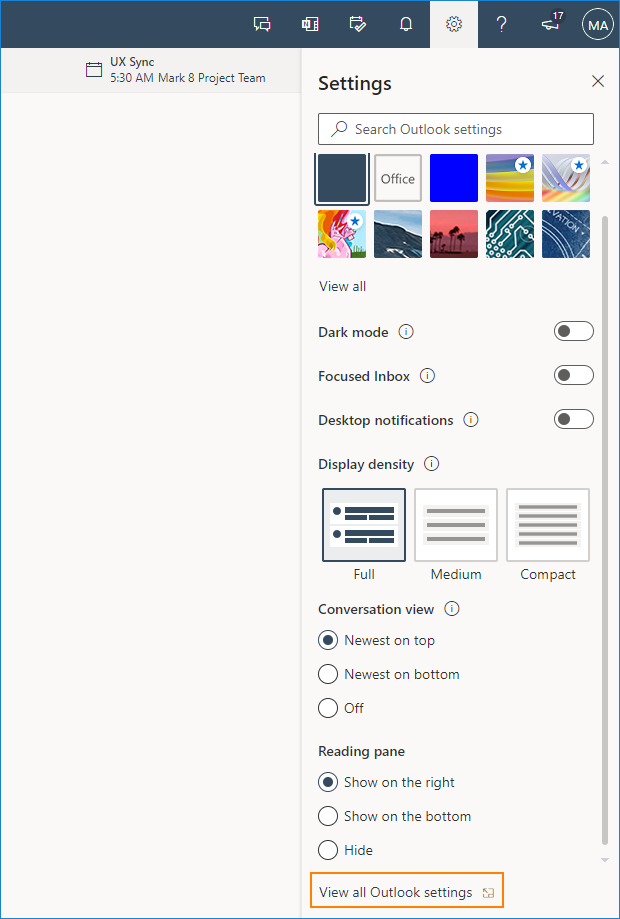
2. Click the Gear icon in the upper-right corner and scroll down to select View all Outlook settings.
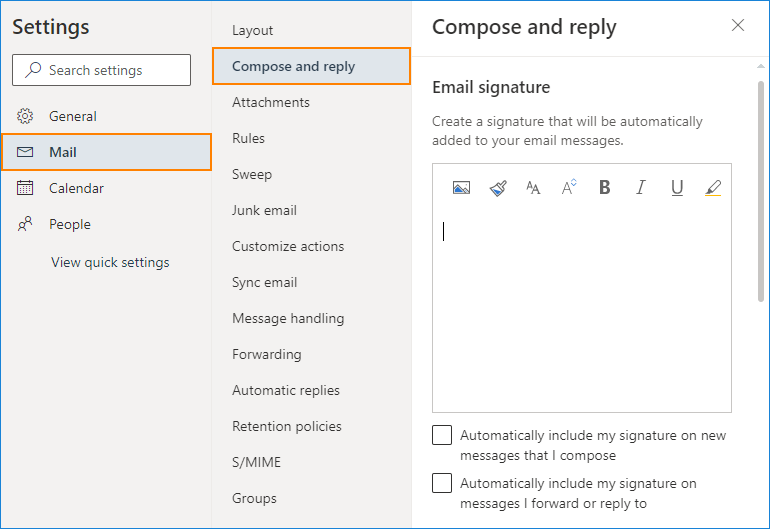
3. In the navigation pane on the left, go to Mail > Compose and reply. The email signature editor is located under the Email signature heading. Use the provided box to enter your signature text, format it and add images or hyperlinks.
Note: You can also use an email signature generator, which offers a bunch of preconfigured advanced signature templates that you can fill in with your personal data, copy into the editor in Outlook on the web and use for free.
Note that it is not possible to create and use multiple signatures for a single mailbox.
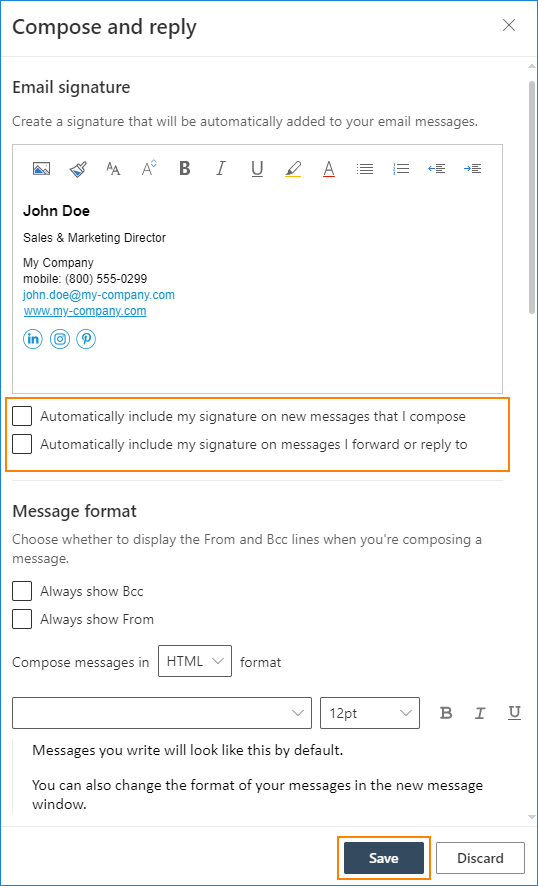
There are two checkboxes which let you automatically add the signature to your emails:
- Automatically include my signature on new messages that I compose – which adds the signature every time you compose a new message in Outlook on the web
- Automatically include my signature on messages I forward or reply to – which will add the same signature whenever you continue an email conversation
Save changes and close the settings window.
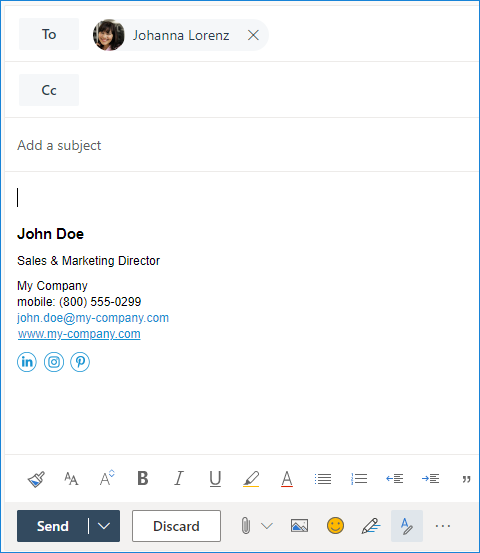
If you checked one or both options that automatically add a signature, it will be visible as you compose a new email (and/or a reply or forward):
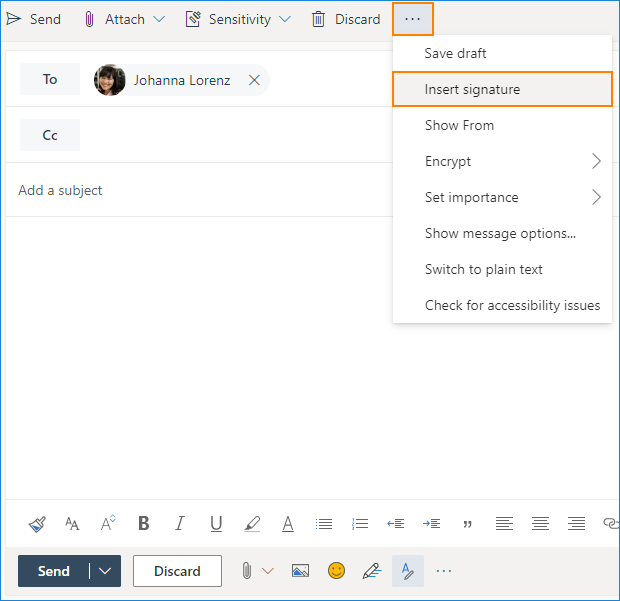
If you didn’t check any of these boxes, you will still be able to add your signature manually in the compose message window.
Software tip
To centrally design and deploy email signatures in Office 365 for multiple email accounts, use CodeTwo Email Signatures 365. This solution offers a number of advantages over the native Microsoft 365 email signature management method (mail flow rules) such as:
- a built-in HTML WYSIWYG email signature template editor,
- an easy method of adding embedded or linked images,
- easy-to-add dynamic fields to update users’ details,
- signatures visible when users compose emails,
- support for all email clients and devices.



I would like to set up server-side webmail signatures for multiple members of a Microsoft 365 organization.
This article provides a step-by-step guide on how to do it with native methods. It also mentions the limitations of this method and presents CodeTwo Email Signatures for Office 365 – an email signature management tool which counters native limitations and makes the whole process much easier.
When i insert my signature in JPF (Picture) format along with Logo then signature is not showing at reeving end. Receiving of email did not see my signature email. Please resolve issue
Hi Khan,
JPF files are not widely supported. The easiest way to ensure your logo is displayed correctly in each email client is to convert your image to, for example, PNG or JPG format.
Very good and interesting article!
I want to use different signatures for new mail and to replies just like the option in outlook app. But here I can use only one signature. Please help me with this.
Hi Abhijeet,
I’m not aware of a way to do this in OWA. You may need to use a 3rd party application. See this article for details: https://www.codetwo.com/blog/add-signature-with-image-in-first-email-and-text-only-footer-in-replies/
Outdated, now it looks different
Hi mistrzipan, Correct. We will be updating the article in the near future.
Some how our users are set to not be able to add a signature on their OWA account. Where do I go to allow them to add this?
Hi Shane,
Check your Outlook Web App policies in Exchange admin center (https://outlook.office365.com/ecp), permissions, Outlook Web App policies.
When you open a policy, go to features, and click More options…. One of the options in the User experience section should be Email signature. It has to be selected for users to be able to manage email signatures.
I have found where I change my email signature, but when I type it is all symbols….how do I get letters?
Hi Neeli,
It sounds like a problem with encoding but I cannot reproduce it in my environment. Do you have the same problem when e.g. creating a signature in Notepad or other editor?
Best regards,
Milena
I am trying to remove a picture I put below my signature, but am not able to do so. How do I remove it?
Hi Cynthia,
Try positioning the cursor just to the right of the picture and pressing backspace on your keyboard.
Best regards,
Pawel
I am not able to place my courser to the right of the image.
I do not even have the option to discard the whole email signature and re enter it.
Any suggestions?
Hi Briana, If you can edit the signature you should also be able to delete it. Just place the cursor anywhere within the signature editor, press CTRL+a on your keyboard and then Delete.
I need to delete/remove a jpg image I uploaded into my signature. I can’t find that option! Help!
Hi Marilou, Try placing your cursor to the right of the image and pressing backspace on your keyboard.
I’m trying to add a hyperlink to this signature, but it keeps coming up blue. Our signatures at HH are purple, so the blue doesn’t look good. I can’t simply highlight the text and click the color, how can I get the hyperlink to be purple?
Hi Maddy,
What Internet browser are you using? And could you provide more details on why you can’t highlight the text (or what happens when you try to)?
I’ve just tested changing the color of a hyperlink on Chrome, FF and IE. The best effect was on Chrome – both the text and underline color in the hyperlink could be changed. In FF and IE the underline remained blue.
Best regards,
Pawel