



In this article I explain how to set up a company-wide email signature using Exchange 2010 Transport Rules in 7 steps. Note that this method has its limitations, such as not displaying the signature in users’ Sent Items folders and no way to add the signature under latest messages in email chains (learn more…).
Fun fact: Did you know that Exchange 2010 reached its end of life on October 13, 2020? It means no more security updates and you’re on your own when trying to keep the server alive.
7 steps to manage email signatures in Exchange 2010
- Run the Exchange Management Console on your server.
- Expand Organization Configuration and select Hub Transport. In the Result pane (middle) select the Transport Rules tab and then click New Transport Rule… in the Action pane (right).
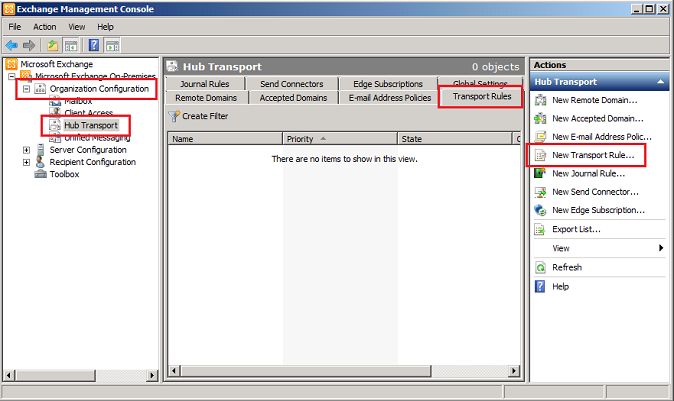
Fig. 1. Transport Rules tab in the Exchange Management Console. - A Transport Rule creation wizard will start up. Type in your rule’s name and a short description, so that you can easily identify it later on, when you have multiple transport rules. Check the Enable Rule option to have the rule enabled immediately after it is created (you can also enable/disable it afterwards). Click Next when ready.
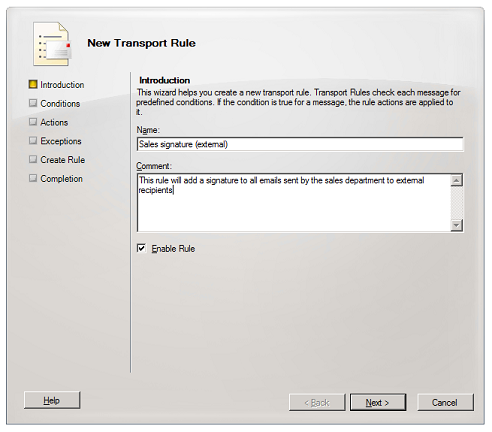

Fig. 2. New Transport Rule creation wizard. - Define what conditions will have to be met by an email for the signature to be added to it. To do this, check one or more options available and then provide the specifics in the Edit the rule description by clicking an underlined value box below. The complete list of transport rule predicates available in Exchange 2010 can be found in this TechNet article. In my case the conditions will be from people (members of the sales department) and sent to users that are inside or outside the organization, or partners (outside the organization). Click Next when ready.
NOTE: If you do not add any conditions the signature will be applied to all emails that travel through your server and do not meet the exceptions you define in step 6.
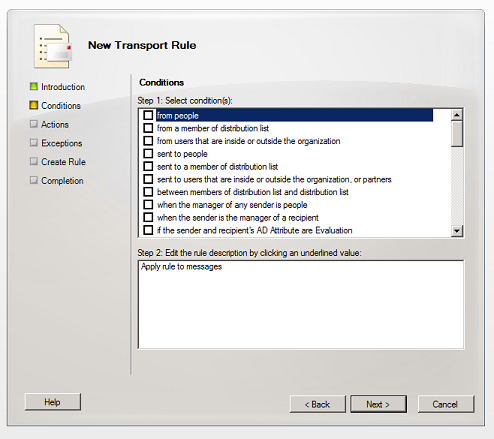

Fig. 3. Defining conditions for a transport rule. - Check the append disclaimer text and fallback to action if unable to apply action and in the Edit the rule description by clicking an underlined value box below click disclaimer text. A new window will pop out – in it type the Plain Text or HTML source version of your disclaimer and press OK. Click Next when ready.
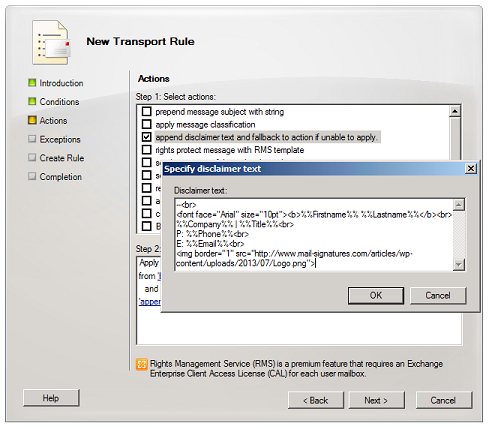

Fig. 4. HTML source of a disclaimer including Active Directory variables and an image.The disclaimer can contain text, Active Directory variables, HTML tags and CSS styles.
To include an image, use the <img> HTML tag with the src attribute pointing to the image’s Web location. E.g.:
<img src="https://www.mail-signatures.com/wp-content/uploads/2013/07/Logo.png">. Keep in mind that the image will not be embedded in the signature – the recipient’s email client will pull it from the Web each time the signature is viewed.To use an Active Directory variable, type %%<name_of_variable>%% (e.g. %%DisplayName%%). For more see: Active Directory data in email signatures
- Define what exceptions would have to be met for the rule not to be applied to an email message. If you do not choose any exceptions, the rule will apply to all emails that meet the conditions defined in step 4. Click Next when ready.
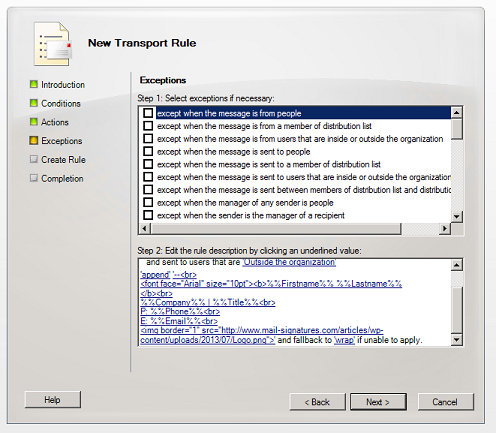

Fig. 5. Defining exceptions to a transport rule. - The wizard will display a summary of the rule and a PowerShell script, which you can use to deploy your disclaimer or save for future use. Click New for the script to be automatically executed – the wizard will notify you whether the disclaimer was successfully deployed (Completed) or not (Failed). Click Finish when ready.
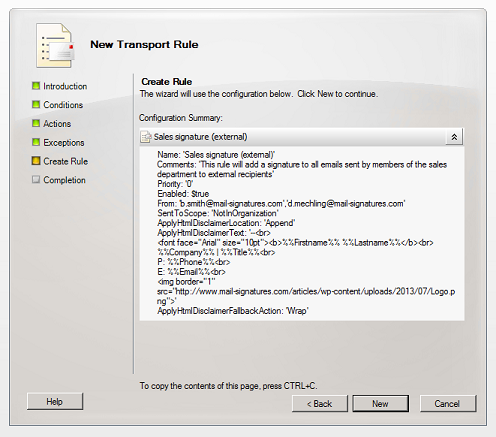

Fig. 6. Final step – rule summary and PowerShell script.The new disclaimer rule should be added to your Transport Rules list. You can disable/enable, remove or edit your rule e.g. by right clicking on it and selecting the option you want:
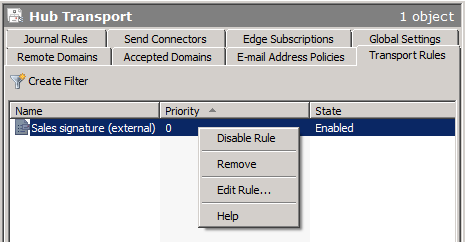

Fig. 7. Exchange 2010 transport rule options.
Read more:



Hi,
The signature is applied to the bottom of the body thus if it is reply/forward to a conversation it will display at the end only, is there any way to append this signature just after the message?
Hi Rajiv,
Such a functionality is not available natively in Exchange. In order to append signatures directly under the newest replies or forwards in an email thread, we recommend using third-party solutions like CodeTwo Exchange Rules for Exchange Server or CodeTwo Email Signatures 365 for Microsoft 365.
I set up a rule to apply to a distribution group with just one picture and no exceptions. It works fine in outlook and OWA but on a mac or a cell phone it will not add the picture. Any idea why?
Hi Brandon,
Macs and cell phones tend to convert replies and forwards (not sure about new emails) to Plain text format, which doesn’t support images. In Mac Mail it’s pretty easy to change the default format (see this article: https://support.apple.com/kb/PH22283?locale=en_US&viewlocale=en_US), but in most cell phones it requires workarounds such as setting an Rich Text signature in the phone.
If you are open to trying 3rd party solutions, check out CodeTwo Exchange Rules Pro: http://www.codetwo.com/exchange-rules-pro/?sts=3021 The software can convert Plain Text messages to HTML before adding the signature. You can trial it free of charge for 30 days.