How to personalize your email signature banner in Canva
Mail-Signatures.com

  • Tips & guides
  • Tools
  • Signature templates
  • Signature generator
  • Contact
  • DE

The easiest way to create email signature banners in Canva

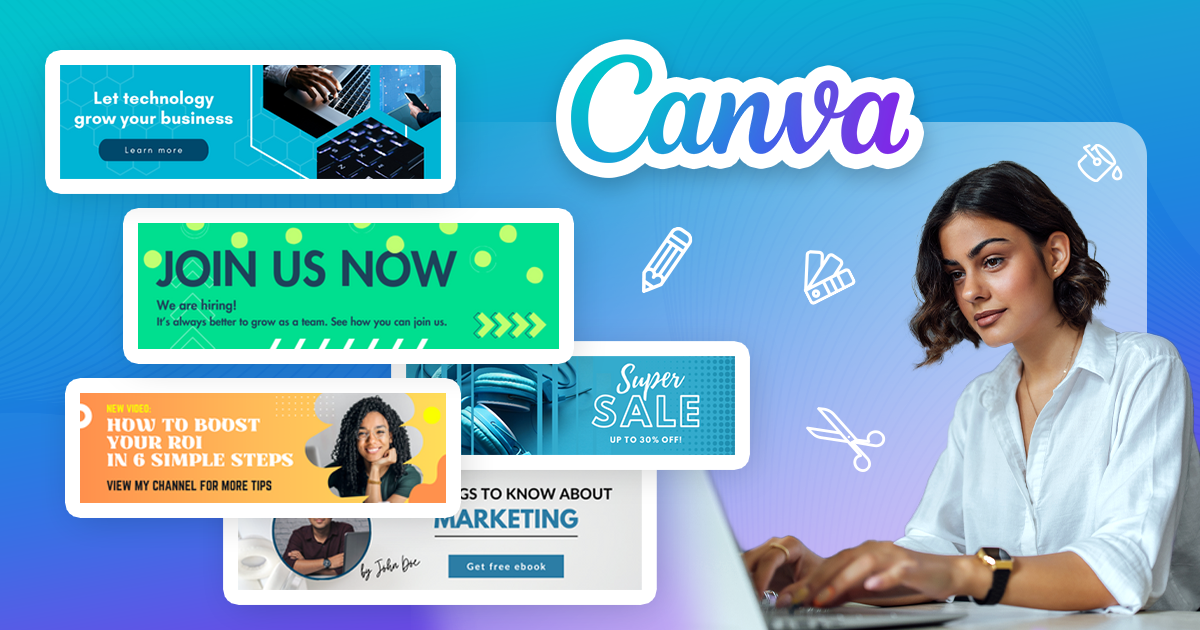
Today, we’d like to introduce a new level of customization at mail-signatures.com – professionally designed email signature banners. This is the easiest way to create an email signature banner to use in a professional email signature design. I’ll show you how to edit those banners in Canva, a free online graphic design tool, and then use with our free to use signature templates.

Twitter test
Linkedin
Facebook
Facebook
Facebook
Written by Łukasz Dydek

Updated: December 23, 2024

Posted: April 26, 2024

How to personalize your email signature banner in Canva

Why pimp up your email signature banners with Canva?

A banner is a distinctive visual element of an email signature that improves the overall looks of your electronic communications. Pure aesthetics aside, a banner can serve a number of purposes like:

  • Featuring your branding (e.g. logo, tagline, company colors).
  • Promoting product launches, special offers, or events.
  • Acting as a Call-To-Action (CTA) button to make your recipients go to a dedicated landing page.

Given this versality of an email signature banner, you might be interested in changing its looks and contents from time to time. That’s why we’d like to share with you some professionally designed banners that you can edit on your own in Canva and then use with selected email signature templates.

This new feature is not only about offering you greater flexibility. It also opens you up for multiple marketing opportunities like:

  • Promoting your brand by adding your logo and brand colors.
  • Easily updating the banner with specific slogans or CTAs.
  • Making your communications more attractive thanks to a more personalized and targeted banner.
  • Increasing your recipients’ engagement thanks to easy and more frequent banner updates.
  • And more.

Updating a banner with an intuitive & free Canva editor is easy-peasy.

Have a look at our inspirations first to decide which template and banner to choose.

How to (re)design banners in Canva for email signatures?

To edit email signature banners from our professional graphic designers in Canva, follow these simple steps:

  1. Click this link to access the project with the banners in the Canva web app.
  2. By default, you can only view the banner designs using the arrows. To open them as an editable copy in your Canva account, click Use template for new design.
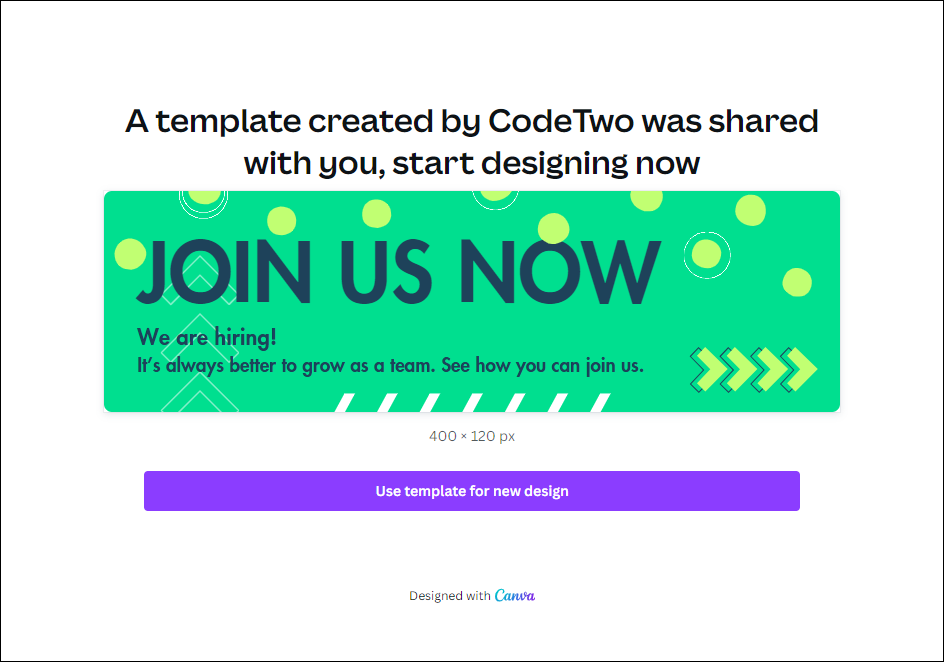
Make an editable copy of the banner designs in Canva
  1. Sign in (if you’re an existing user) or sign up to Canva using a chosen social media account, email service, etc. To see more sign in/up options, click Continue another way.
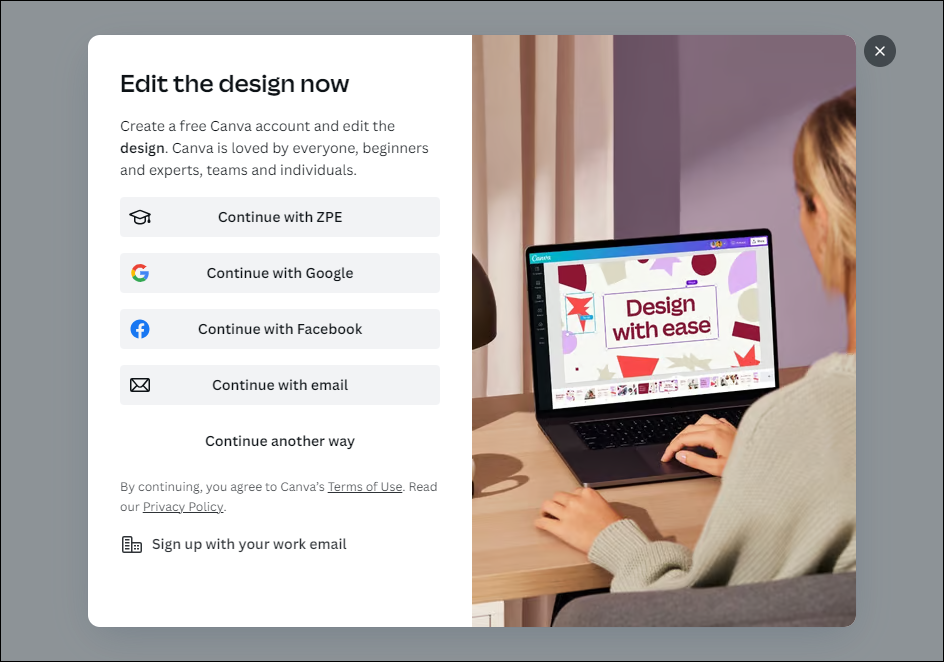
Sign in or up to the Canva web app to start editing the banners
  1. Whatever you choose in the previous step, the Canva editor will open showing all the six banners you can edit.
  2. To modify an existing element of a banner, click it and:
    • use the options above the editing area to fine tune the settings of the element (e.g. font size). Use the frame around the element to move or resize it – the editor will help you align it with other elements by displaying visual cues.
    • (for text only) click inside the frame to enable cursor and use your keyboard to edit text.

If you make a change that you don’t like, you can always use the Undo/Redo arrows on the colorful bar at the top.
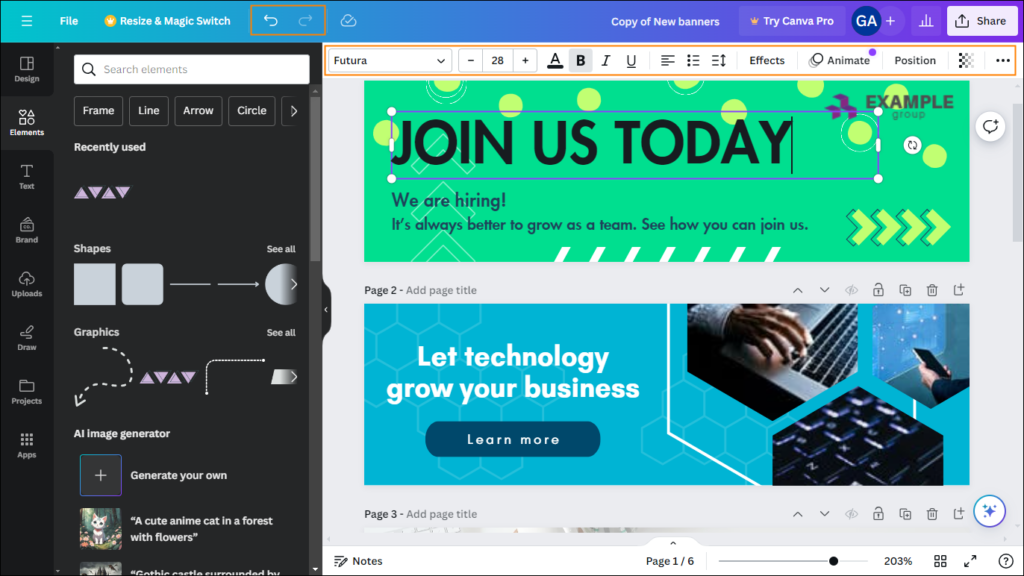
The editor in the Canva web app
  1. To delete an element, click it and choose the trashcan icon from the popup menu.
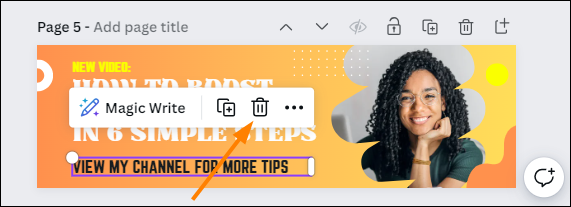
How to remove an element in the Canva editor
  1. To add a new element, use the tabs in the left-hand menu. Keep in mind that some features might require the non-free Pro account (these are marked with the crown icon), and certain media might be subject to separate terms and conditions (e.g. cannot be used for commercial purposes). You’re most likely to explore the following tabs:
    • Elements – to add ready-made visual elements like shapes, images, etc. to your banner.
    • Text – to add new textual elements.
    • Uploads – to upload images & other media, e.g. your logo, to use in the banner design.
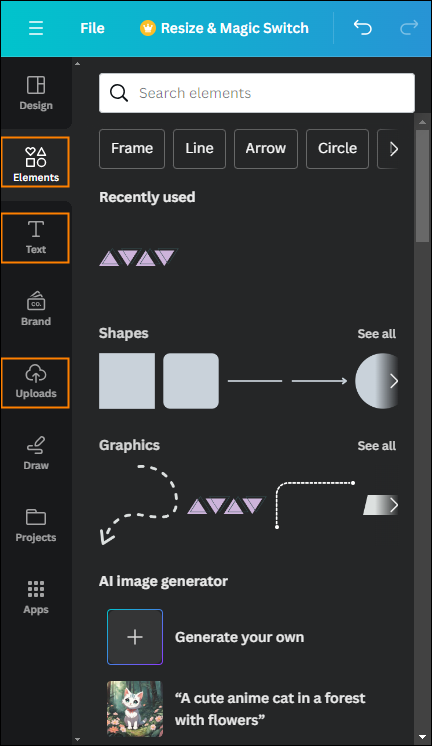
Canva editor pane allowing you to add new elements to your banner
  1. All your changes are saved automatically, so you do not need to worry about losing your progress.

If you still feel you could use a tutorial, explore those learning materials showing how to use Canva step by step:

  • Getting started with Canva
  • Canva for Beginners

How to add the Canva-updated banners to email signatures?

Once you’ve updated a banner or banners according to your liking, now it’s time to put these into your email signature templates.

Downloading the banners

  1. While in the Canva editor, click File and choose Download.
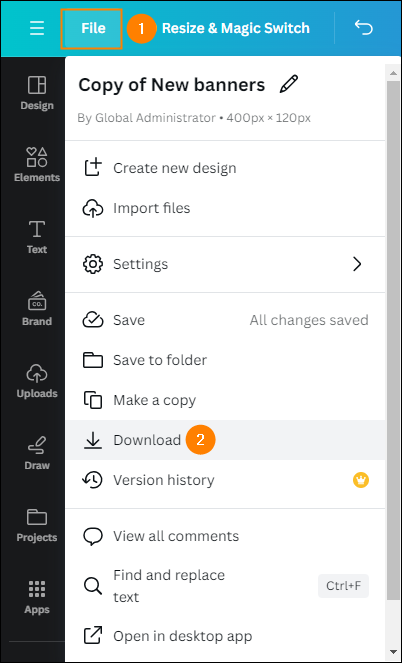
How to download updated banners from the Canva web app
  1. Select which banners (pages) you want to save to your disk using the Select pages dropdown menu and click Download. Canva will generate a ZIP archive with the selected banners.
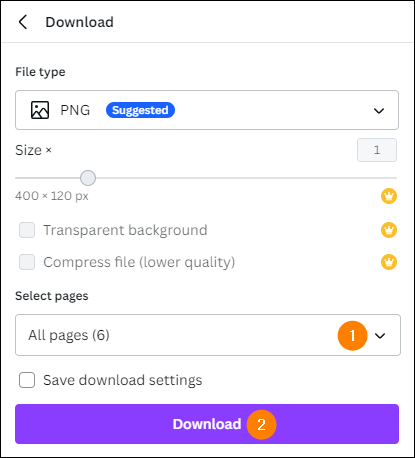
Choose which updated banners you want to download from Canva
  1. Unzip the banners and upload the resulting PNG files to your own server/website or a common file hosting service like OneDrive, Dropbox, etc. Hint: Do not use Google Drive, because it doesn’t allow you to link to external services. In other words, images from Google Drive won’t work well in email signatures. Learn more

Adding email signature banners in the generator

  1. Open one of the email signature templates (see our email signature inspirations) in the free email signature generator.
  2. Copy the link to an updated banner:
    • If you’re using your server/website, simply copy the link to the banner image, e.g. https://my-company.com/images/banner1.png
    • If you’re using a file hosting service, use instructions from this article to get the direct link to your banner.
  3. If you’re using a file hosting service, use instructions from this article to get the direct link to your banner.
  4. In the generator, click Graphics in the left pane and paste the link to the banner in the Banner URL text field – the email signature preview will be updated with your Canva-customized banner.
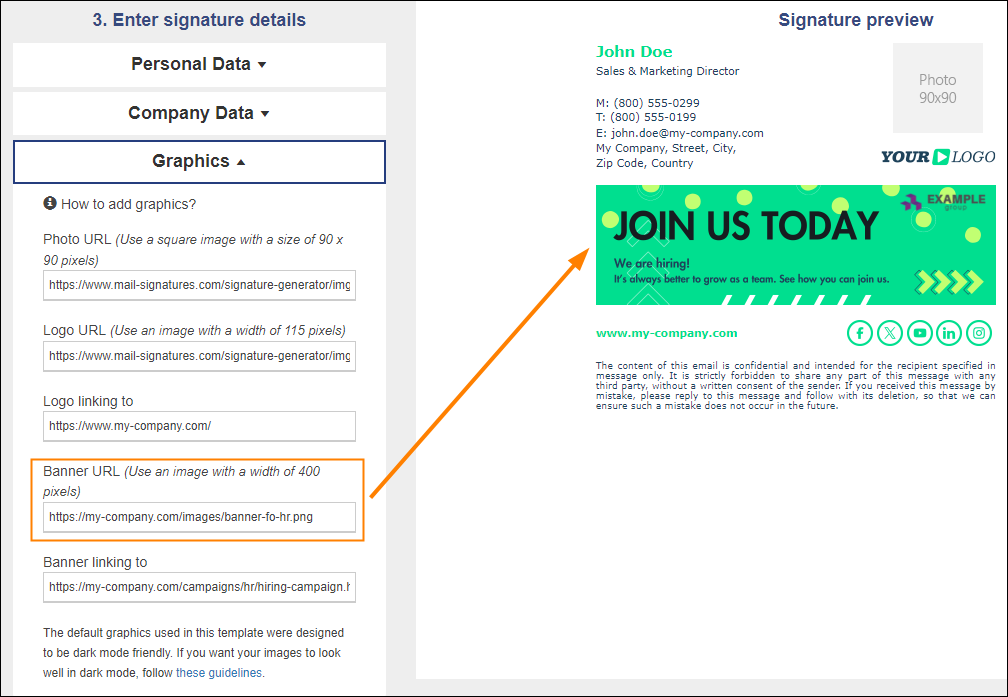
Insert Canva-updated banner in the free email signature generator
  1. (Optional) To make your email signature banner clickable, paste the landing page’s web address in the Banner linking to text box just below.
  2. Customize other aspects of the template and click Apply your signature to add it in your email app. See detailed instructions
  3. Repeat steps 1-5 if you want to use another Canva-updated banner with another email signature template.
Suggested reading

  • 15 good email disclaimer examples – get your own email disclaimer
  • 7 best email signature designs for 2024 – get inspired!

Recommended articles

Human or bot? Mark your emails with “Human-written” badges
May 05, 2025

Human or bot? Mark your emails with “Human-written” badges

Download free, white-label badges to add to your email signatures. These badges inform your recipients you are a human.
Read more »
Free animated Christmas email signatures
December 04, 2024

Free animated Christmas email signatures

Yes, it’s that time of year. Almost everyone is getting ready for the holidays. Elves make their way to shelves, reindeer enter the spotlight and snowmen just stay frosty. Decorations find their way to almost every nook and cranny of homes and companies alike. Emails are no exception – it’s a great time to refresh your company email signature design. And if you want to do it in style, animated Christmas email signatures are the way to go. Check out our holiday-themed signature examples and get inspired. Best Christmas email signature examples We’ve prepared some Christmas email signature ideas for you. See our examples to get inspired and start crafting your animated email signature right away. All these designs are available in our free email signature generator, so changing your email signature should be easier than decorating a Christmas tree. See how to compose a perfect Christmas email signature Each of the designs below includes an animated banner designed in Canva. You can use our project to create your own email signature banner. For example, you can: change the animation however you like, add your logo or introduce colors that better match your brand, add a custom CTA, add your own holiday wishes. How to edit our Canva-made email signature banners? Let It Snow – an animated holiday beauty Add a “Merry Christmas” banner with snow falling from the sky and sparkling stars in the distance to immediately bring warmth and a sense of safety to mind: You can easily replace “Merry Christmas” on the banner with “Happy Holidays” or another festive greeting by using another design (also available in this Canva project): Feel free to add a custom CTA and a link to your Christmas campaign. Edit the signature banner in Canva Animated Christmas – attention-grabbing but classy Animated email signatures are perfect for catching attention. Even a slight animated element works wonders, especially when you refresh a design everyone has gotten used to. So, if you want your email signatures to be noticed but don’t want them to be to flashy, Animated Christmas is for you. Want to change something on the banner? Use our free Christmas banner Canva design to do that in just a few minutes! There are a few other great designs in the project as well. Just look at them go: Need more inspirations? Did you think that was it? That’s only the tip of a snowman’s nose! Check out our library of Christmas-themed signature ideas. A little bird tweeted us (because it couldn’t have X-ed us) that snowflake-shaped social media icons are one of the all-time favorites. Also, see this article to download a free bundle of Christmas banners for email signatures. Most of these banners are animated! How do animated banners work? Email signatures are peculiar. They’re built on HTML, but not the kind that allows you to do virtually anything. That’s why all non-standard elements need to follow certain rules if you want your email signatures to work across all email apps. That’s why, if you want an animated signature (holiday-themed or not), you’re forced to use GIFs. They’re supported in almost all popular email apps, except for some old-school ones like Outlook 2016. And yes, people still use it. If a certain email app doesn’t support animations, it will show the first frame of the GIF. That’s why we made sure the first frames of our
Read more »
How to design a professional email signature for freelancers
October 04, 2024

How to design a professional email signature for freelancers

If you’re a freelancer, you know that every interaction with your potential and existing clients counts. And whether you’re looking for high paying jobs or the most interesting offers, at some point, you will be exchanging emails. To make the most out of those interactions, you need to show professionalism from every angle. And email signature plays a crucial part here, especially for freelancers. Let’s start with showing you the best email signature designs for freelancers, then I’ll get deeper into the whys and hows of freelancer email signatures. Top freelance email signature examples Check out this gallery with some of the best freelancer email signature examples. They are all available in our free email signature generator. You can easily edit and adjust them to your or your clients’ needs. Focus on the layout that works best, because you can freely remove a banner, disclaimer or irrelevant social media buttons. Why do freelancers need to work on their email signatures? Freelancer job opportunities have been on the rise for years now. And with high popularity of freelancer platforms like Fiverr, Freelancer or Upwork, it’s easier to start out. At the same time, it means that the competition is getting fierce. No matter what kind of freelance projects you’re doing, more and more freelancers bid on the usual job offers. To land a job, you need to have the skills, sure, but it’s not enough. It’s just as important to be great at selling this to your prospects. You can do it by making your email signature stand out. No matter if you’re looking at entry or expert level job opportunities, a professional email signature is a perfect way to make a good impression. Think first impressions – when you’re reaching out to your new prospects and maintaining your image when you’re emailing with your current clients. Potential clients When reaching out to new clients, whether responding to some offers, or looking for opportunities, you need to show your best side. An email signature plays a vital role, as it tells a story about you in the way you want it to. Sounds simple, but the closer you look, the more questions you’ll have. That’s why I’ll give you a checklist with signatures that just work. Current clients When you’re emailing with your current clients, it’s best to focus on your availability and building a strong relation. Make sure that your email signature looks well even when you’re emailing from a mobile device. Also, compose the signature in such a way that no matter who gets the email, they will know who you are and what you do. It might turn out that someone at the company might need your services, too, except from your main point of contact. Make it easy for others to reach out to you. What to include in your email signature? Freelancer’s email signature is a mix between a personal and company email signature. On the one hand – it’s super important to promote your personal brand. On the other, as a freelancer you’re usually not a part of a specific company. If you are, your freelancer’s career probably focuses on some side hustles, and you won’t necessarily want to promote your affiliation with the main income source. So, it’s good to lead with the obvious basics and then use your secret weapon to seal the deal. Here’s what to include in your email signatures: First & last name. Unless you’re a superhero – t
Read more »
Go to articles list

Leave a Reply Cancel reply

Your email address will not be published. Required fields are marked *

Are you human? Please solve:Captcha


CodeTwo

About us
Blog
Our products
Why partner with us?
Guides & infographics
Follow us on:

Follow CodeTwo on Facebook Follow CodeTwo on Twitter Watch CodeTwo Channel on YouTube Watch CodeTwo Channel on Instagram Watch CodeTwo Channel on Pinterest
Powered by CodeTwo
Copyright 2026 CodeTwo
All rights reserved
Trademarks
Terms and Conditions
Privacy Policy
Cookie settings