
Set up email signature depending on email address in Outlook
Mail-Signatures.com

  • Tips & guides
  • Tools
  • Signature templates
  • Signature generator
  • Contact
  • DE

How to set up an email signature depending on an email address in Outlook 2013?

Setting up your own email signature is not a strenuous task for a single user (please see how to create or modify an email signature in Outlook 2010 and 2013). However, the perplexities may build up if you aim to set up several individual signatures for various email addresses you operate on in the same Outlook client.

Twitter test
Linkedin
Facebook
Facebook
Facebook
Written by Adam the 32-bit Aardvark

Updated: January 29, 2024

Posted: August 31, 2015

How to set up an email signature depending on an email address in Outlook 2013?

Begin with accessing the email signature settings. The easiest way to do it is to click the New Email button on the ribbon. Then, in the new message window, go to Signature (the Include group) > Signatures.
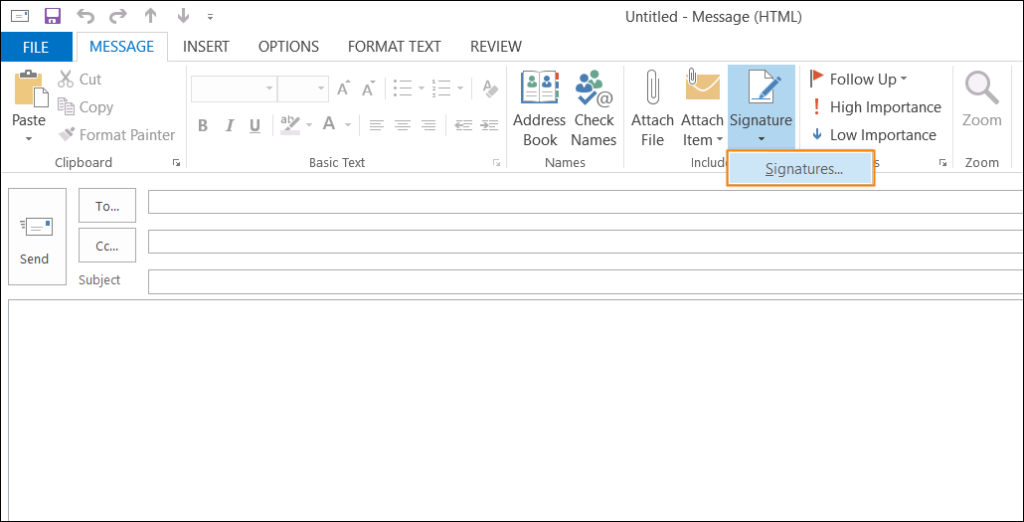
Accessing email signature settings in Outlook 2013

Now, compose a signature for each account by clicking on the New button, and then setup signatures to each account separately. It can be easily done by:

1. First selecting an email account in the Choose default signature part on the right hand side in the Signatures and Stationery window.
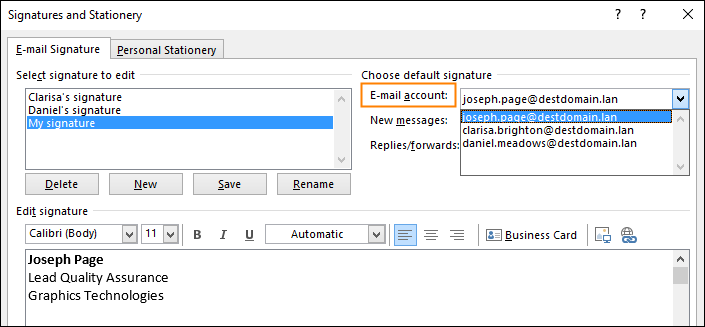
Choosing an email account for email signatures in Outlook 2013

2) After the selection of an email account, choose a predefined signature for this account in New messages and in the following Replies/forwards option.
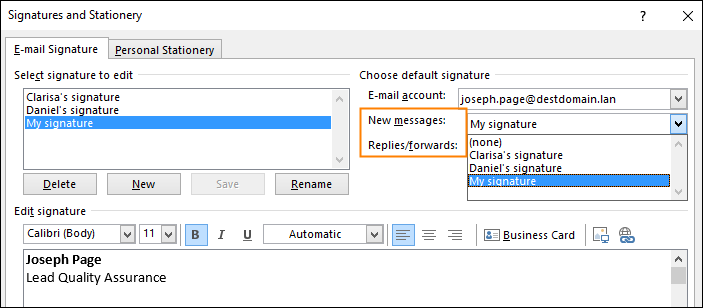
Choosing email signature for new messages and replies/forwards in Outlook 2013

Please note that for Replies/forwards purposes you can choose a pre-modified (shorter) version of the actual signature for new messages; or even set a completely new one.

3) For the subsequent email accounts please repeat steps 1 and 2.

Having completed all above mentioned instructions, remember to confirm your setup by clicking on the OK button at the bottom of the Signatures and Stationery window.
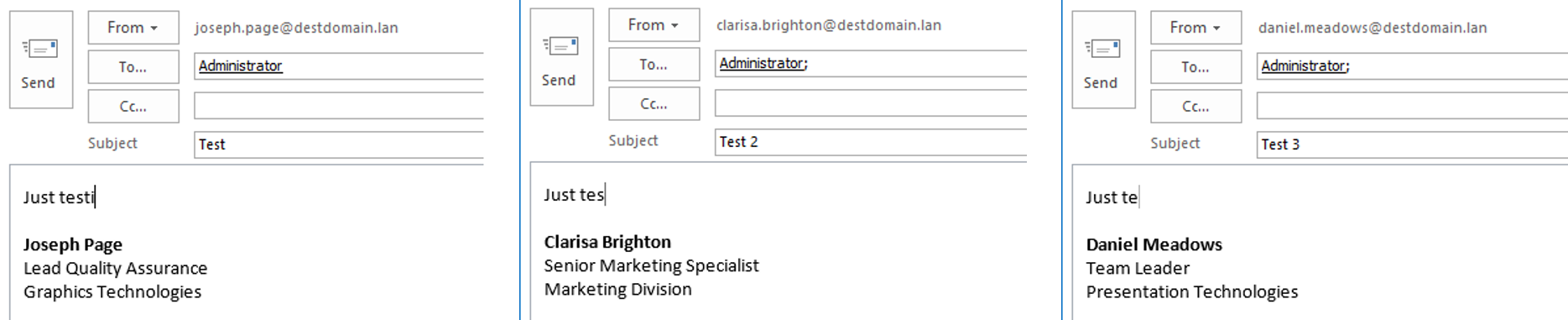
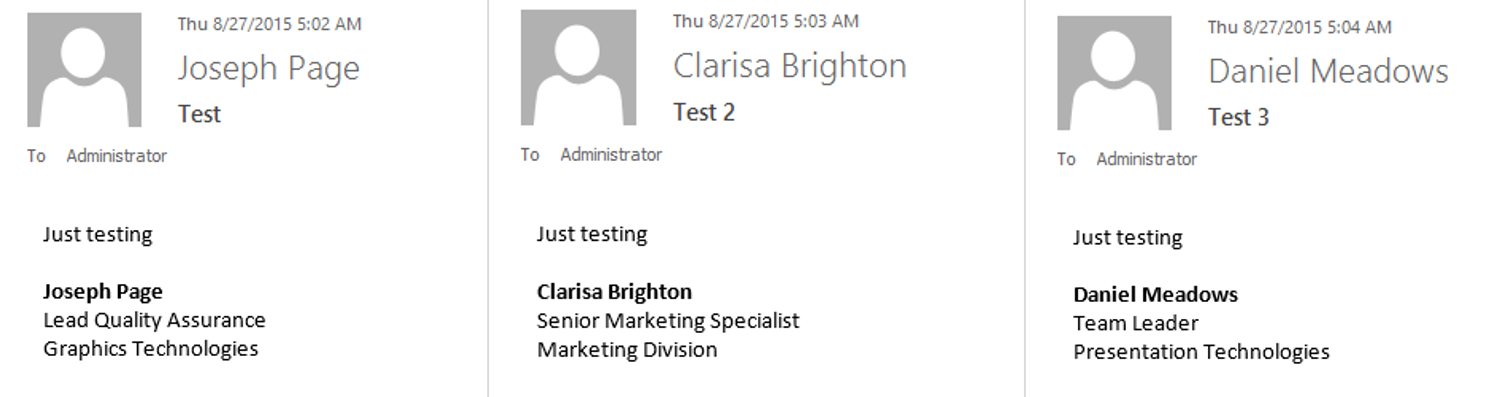
test mails

test mails with predefined signatures

Well done! You’ve just managed to arrange all specified signatures to your individual email accounts on your Outlook client. But before we go into high-fives there’s one more thing to consider. What if the exact number of your active email accounts on your Outlook exceeds rational amounts? And manually setting up such a number of signatures would be an enormous effort? In that case there are a few solutions that should put you at ease.

First of all, you should try to establish rules on your mail server, which will automatically manage signatures for all outgoing messages (see these tutorials for Exchange 2010, 2013 and Office 365 platforms). If you cannot arrange it yourself, contact your mailbox administrator and ask him / her to fulfil this task if convenient.

Just bear in mind that Outlook and native Exchange Server tools have rather scarce possibilities in terms of modification and general optimization of signatures. The easiest way would be to use third party solutions like CodeTwo Email Signatures On-prem (for Exchange Server SE) or CodeTwo Email Signatures.

See also

  • Use a free email signature generator to compose modern emails signatures
  • How to use multiple email signatures in Outlook?


Recommended articles

How to create or modify an email signature in Outlook 2016, 2013 and 2010
January 29, 2024

How to create or modify an email signature in Outlook 2016, 2013 and 2010

Option and menu names and locations used in this article are the same for Outlook 2016, 2013 and Outlook 2010.
Read more »
Find out the location of Outlook email signatures and how to back them up
November 17, 2023

Find out the location of Outlook email signatures and how to back them up

The Outlook email signature location depends on which Outlook you’re dealing with. In this article, I’ll list the possible locations of Outlook signatures and show you how to back up and restore them.
Read more »
How to use multiple email signatures in Outlook?
November 07, 2023

How to use multiple email signatures in Outlook?

This guide will show you how to effectively juggle multiple email signatures in Outlook.
Read more »
Go to articles list

Comments

  1. avatar
    tremendous says:
    January 26, 2021 at 3:32 am

    Ԍreat article, totally what I was looking for.

    Reply
  2. avatar
    Lawrence L. Adkins says:
    September 23, 2020 at 1:44 pm

    What do I select for ZOHO

    Reply
    • avatar
      Kamil Glaser says:
      September 28, 2020 at 8:34 am

      In our email signature generator? You can leave the default option (Outlook) and the generated signature should be fine for ZOHO.

      Reply
  3. avatar
    Richard says:
    April 7, 2020 at 12:07 am

    Doesn’t work. The signature refuses to appear with the specified address, and instead appears only with the primary address

    Reply
    • avatar
      Kamil Glaser says:
      April 9, 2020 at 11:21 am

      Could you specify the Outlook version you are using? I’ve just tested it in Outlook 2013 and Outlook 365 ProPlus. In both clients, changing the from field, while creating an email, changes the signature to the one assigned for a specific account.

      Reply
      • avatar
        Sangeet Malhotra says:
        July 30, 2020 at 10:28 am

        Dear Kamil,

        I am also facing the same problem. I have got two mail addresses but signatures are getting linked to only one e-mail and other id is not appearing.

        Reply
        • avatar
          Kamil Glaser says:
          July 31, 2020 at 1:29 pm

          Can you confirm that you have those two email addresses listed in Outlook File > Account Settings > Account Settings > Email? Or are there two separate Outlook profiles you are using?

          Reply
  4. avatar
    Vivek P says:
    October 9, 2019 at 4:45 pm

    not able to see shared mailbox e-mail address in dropdown menu under signature

    Reply
    • avatar
      Kamil Glaser says:
      October 14, 2019 at 7:59 am

      Hi Vivek,
      First, here’s a detailed guide written specifically for shared mailboxes. If you don’t see the shared mailbox in the email account dropdown, it might be a permission issue. You might need full access permission for the shared mailbox for it to appear.

      Reply

Leave a Reply Cancel reply

Your email address will not be published. Required fields are marked *

Are you human? Please solve:Captcha


CodeTwo

About us
Blog
Our products
Why partner with us?
Guides & infographics
Follow us on:

Follow CodeTwo on Facebook Follow CodeTwo on Twitter Watch CodeTwo Channel on YouTube Watch CodeTwo Channel on Instagram Watch CodeTwo Channel on Pinterest
Powered by CodeTwo
Copyright 2026 CodeTwo
All rights reserved
Trademarks
Terms and Conditions
Privacy Policy
Cookie settings