
How to add NMLS ID to email signatures in Office 365?
Mail-Signatures.com

  • Tips & guides
  • Tools
  • Signature templates
  • Signature generator
  • Contact
  • DE

How mortgage loan originators can automatically add NMLS ID to email signatures in Office 365?

In this article, you will find out how to automatically and globally add NMLS unique numbers to email signatures in Office 365. For this, you will need a subscription to CodeTwo Email Signatures 365 – a cloud-based service for central email signature management in Office 365.

Twitter test
Linkedin
Facebook
Facebook
Facebook
Written by Milena Szyrwiel

Updated: May 11, 2023

Posted: August 7, 2019

Email Signature with NMLS ID for mortgage loan originators

NMLS ID is a unique number that every mortgage loan originator (MLO) needs to include in their business documents and correspondence with potential clients (borrowers). MLOs need to display this number to their customers before they make any commitments. This is regulated by the SAFE Act. 

Note: To follow this guide make sure to first get the CodeTwo Email Signatures 365, set up custom attributes in Office 365 and sync them to the signature management app. Thanks to this, you will be able to see Custom Attributes 1-15 when creating your email signature template in the program’s signature template editor.

Automatically add NMLS IDs to Office 365 email signatures

You can easily add your NMLS ID to every email providing you have CodeTwo Email Signatures 365 and you configured custom attributes in Office 365. Below, you will find out how to add NMLS IDs to custom attributes field in Office 365 and then how to use those custom attributes to automatically insert NMLS IDs to email signatures.

Prepare the ground for new email signatures with NMLS unique numbers

  1. First, access custom attributes in Office 365 as shown here. Then, provide NMLS IDs for all mortgage loan originators in your organization. You need to set up the custom attribute for each user separately. For example, if not already used, add the NMLS unique number to the first custom attribute of a currently edited user. Click OK to confirm the changes:
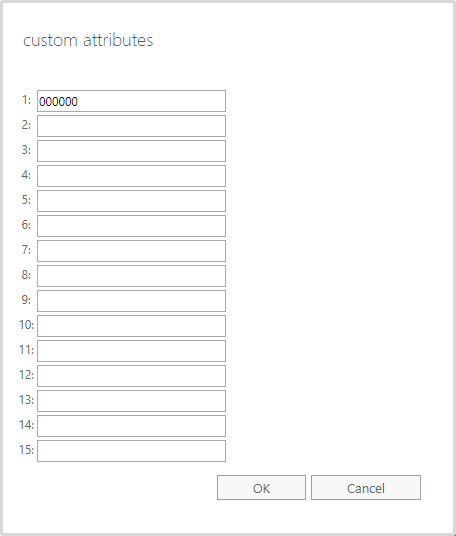
    Custom attribute with NMLS ID
  2. You should see the newly added custom attribute under the General tab of the user properties window. Repeat this steps for all users who need NMLS IDs in their email signatures.
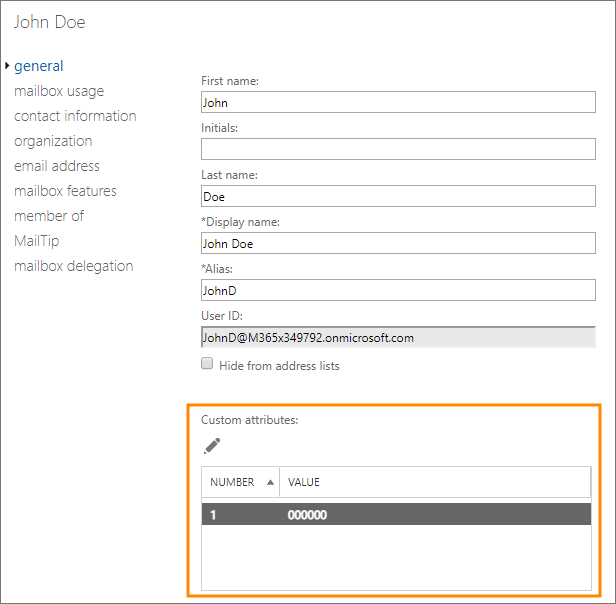
    User properties with NMLS ID added.
  3. Now, you need to sync custom attributes to CodeTwo Email Signatures 365. See this instruction for details on how to synchronize custom attributes.
  4. Once the synchronization is finished, custom attributes will be available in the built-in signature template editor of CodeTwo Email Signatures 365.
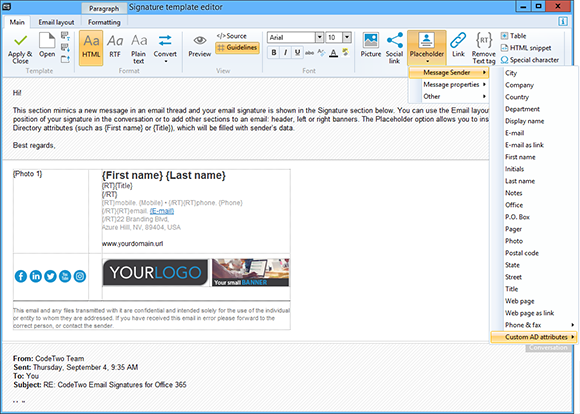
    Adding custom attribute

Let’s now create the signature template that will automatically use the NMLS unique numbers in the employees’ Office 365 email signatures.

Create an email signature template with NMLS unique numbers

To automate the management of email signatures for all loan officers in your organization, you first need to create a proper signature template. The template needs to consists of dynamic placeholders, which guarantee that each employee gets a personalized email signature based on their Active Directory data (for the same reason you needed to provide NMLS numbers in custom attributes).

Follow the steps below to create your signature template that supports NMLS unique numbers:

  1. Sign in to the signature management app and create a new rule. Configure it as per your requirements.
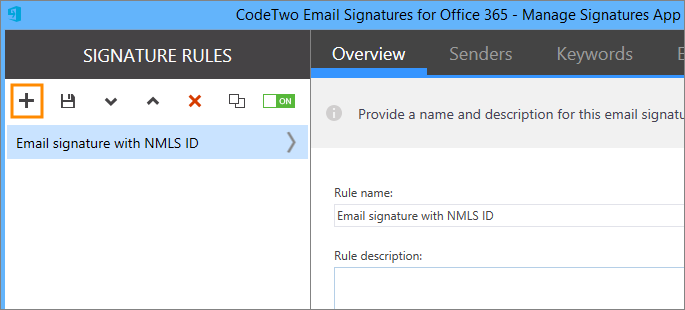
    Add a new rule
  2. In the Design step, click the Edit signature button. Then, in the Signature template library, choose a template you find most suitable for your needs and clicking it.
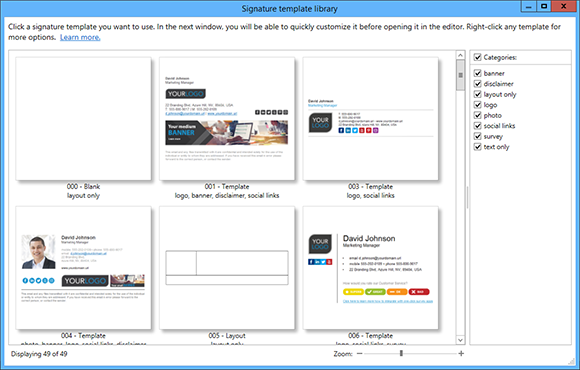
    Template library
  3. Before opening the template in the editor, the template opens in the Quick customization window where you can easily make some quick tweaks. Deselect unwanted sections of the signature block and once it looks fine, click Open.
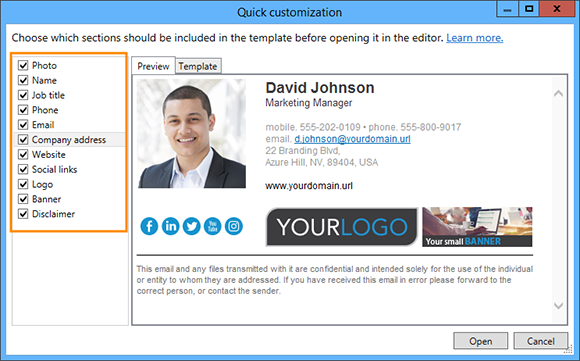
    Adjust the signature layout
  4. In the Signature template editor, place the cursor where you want the NMLS number to appear in the signature. Then, type NMLS ID # and insert a placeholder of the custom attribute containing your users’ synchronized NMLS numbers.
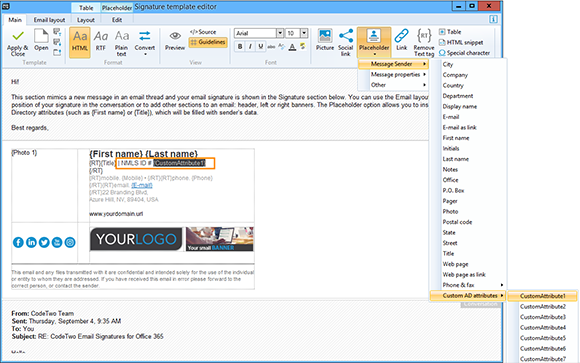
    Custom attributes in editor
  5. Click the Preview button in the View group to see what your template would look like in a real email message. If you are happy with the results, click the Apply & Close button. Here is an example of an email signature with NMLS ID.
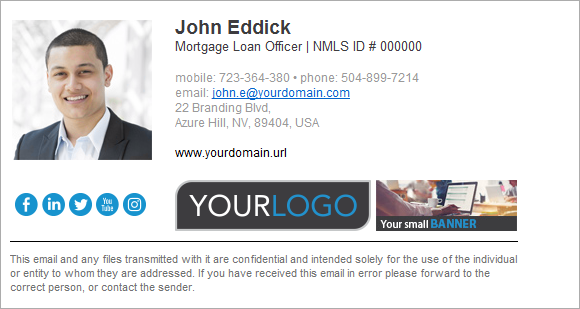
    Professional email signature with NMLS ID.

That’s it. From now on, CodeTwo Email Signatures 365 will automatically add professional email signatures with NMLS unique numbers to let you stay compliant with legal regulations.

Additional benefits of using CodeTwo Email Signature for Office 365

After all, you can get a lot more from CodeTwo Email Signatures 365. Here are some examples of how you can benefit from the application:

  • Your signatures will work on all email clients and mobile devices (because they are added directly in the cloud, not on the client side);
  • Email signatures can be placed right after your response, not at the bottom of email thread;
  • You can implement one-click CSAT surveys to easily find out what your clients think about your services;
  • Access rights feature allows you to delegate signature management rights to someone else;
  • And more.

For more features, visit the website of CodeTwo Email Signatures 365 or run a free 14-trial.

See also:
  • How to set Office 365 custom attributes and use them in email signatures
  • Email address in email signatures – to use it, or not?
  • Microsoft Teams deep links in email signatures
  • Perfect email signature and disclaimer for a lawyer

Recommended articles

Problems with email signatures in Microsoft 365
June 22, 2026

Problems with email signatures in Microsoft 365

Here’s a list of the most common signature problems in Microsoft 365 and how to fix them.
Read more »
Microsoft Teams deep links in email signatures
November 19, 2024

Microsoft Teams deep links in email signatures

Are you using Microsoft Teams? Advertised as “the ultimate messaging app for your organization”, in most cases it allows employees to communicate and collaborate with high efficiency. If you are using it as a primary means of communication, it is vital to direct your co-workers to this channel. So, is there an easy and efficient method to link to Teams? There is! The secret is to use the so-called deep links.
Read more »
What to include in internal email signatures?
July 26, 2024

What to include in internal email signatures?

Why should you care about internal email signatures? Email is still one of the most common media for internal business communication. The right email signature can make this communication more effective. In the article below, I explain what to include in an internal email signature. As we’ve already explained in this series of articles, email signature marketing & branding have a huge impact on corporate communication. And while those principles don’t work the same way for internal emails, they do apply here, too. Below, I’ll show you the best business practices on what to include in an internal email signature. Things to include in an internal email signature The list below shows the most important elements of an email signature meant for internal communication: Employee name and surname. Job title and department – let people know who is who. Preferred contact method – emails are asynchronous which makes them perfect for well-thought, long-term communication. Sometimes, though, you need to notify someone ASAP. Email signature is the first place to search for such a method. It can be a phone number, Teams link, WhatsApp link, or any other contact method. Optionally: Location – if your company has several offices around the world, it might be a good idea to let the recipient know which office your email originates from. Small photo – it adds a more personal touch when communicating with other employees. Email address – this has been subject to some heated discussions. This article lists pros and cons of using email addresses in signatures. Long story short, yes, they can be useful. What to avoid in internal email signatures Legal disclaimers – they are usually very long and completely unnecessary in internal communication. However, if you are sending classified information in your email you might have to include a short confidentiality note. Multiple telephone numbers or emails – do not include more than two telephone numbers in a company email signature as this will be confusing for others. Full company physical address – when it comes to intra-organizational correspondence this is unnecessary. Personal social media links – an intra-organizational email signature is still a kind of business email signature and should not include this kind of content. However, it is acceptable to include a link to a personal blog with job-related articles. For more ideas on what to include in internal email signatures, see our in-depth article on internal email signatures. How to handle email signatures for a whole company Deploying unified email signatures for the whole company (especially one that employs thousands of people) could be challenging, unless you use third-party signature software. Email signature management tools let you create well-thought signature templates which are automatically personalized for every employee. This ensures a unified email signature branding for everyone while saving everyone’s time and nerves. The best email signature management tools See also Free email signature generator – easily create your own email signature A complete email signature definition
Read more »
Go to articles list

Leave a Reply Cancel reply

Your email address will not be published. Required fields are marked *

Are you human? Please solve:Captcha


CodeTwo

About us
Blog
Our products
Why partner with us?
Guides & infographics
Follow us on:

Follow CodeTwo on Facebook Follow CodeTwo on Twitter Watch CodeTwo Channel on YouTube Watch CodeTwo Channel on Instagram Watch CodeTwo Channel on Pinterest
Powered by CodeTwo
Copyright 2026 CodeTwo
All rights reserved
Trademarks
Terms and Conditions
Privacy Policy
Cookie settings