



Here’s an easy guide on how to update email signature in (almost) any Outlook, if you need it
Outlook email signature location
The exact location of email signatures depends on the type of Outlook and the OS you’re using.
Classic Outlook for Windows
The easiest way to find the signature location in classic Outlook is through the app’s settings. Go to File > Options > Mail. Then, hold Ctrl and click the Signatures button to open the folder where Outlook stores your signatures:
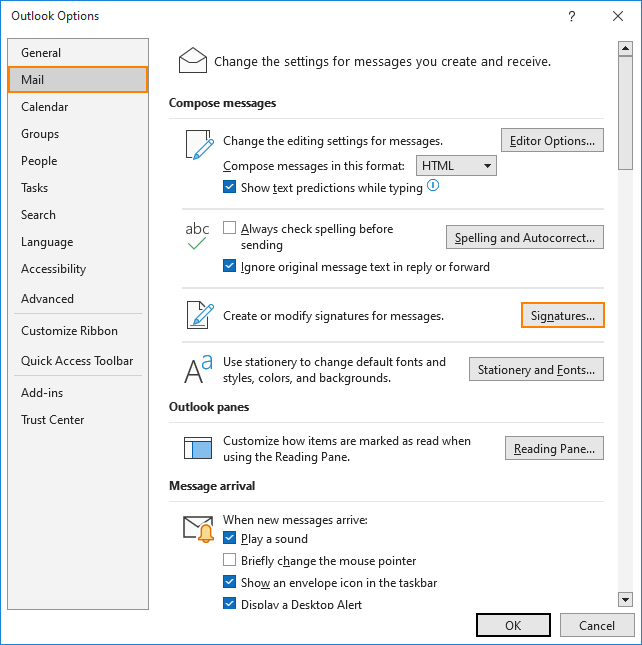
You can also navigate to this location manually. Classic Outlook for Windows stores signatures in the following locations:
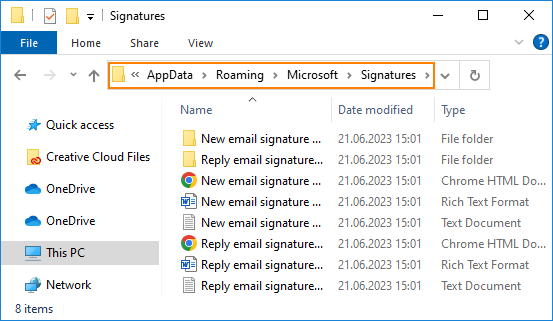
For any Windows version after Vista (Windows 11, Windows 10 included): C:\Users\%username%\AppData\Roaming\Microsoft\Signatures
If, for some reason, you forgot to keep up with technology, the location for Windows XP is as follows: C:\Documents and Settings\%username%\Application Data\Microsoft\Signatures
NOTE: If your Windows language setting is other than English, the path will be your language equivalent of the above, e.g. (Dutch): C:\Gebruikers\%username%\AppData\Roaming\Microsoft\Handtekeningen
You can access the signature location either by pasting the appropriate path into the Windows File Explorer address bar (marked orange below):
Signature cloud settings
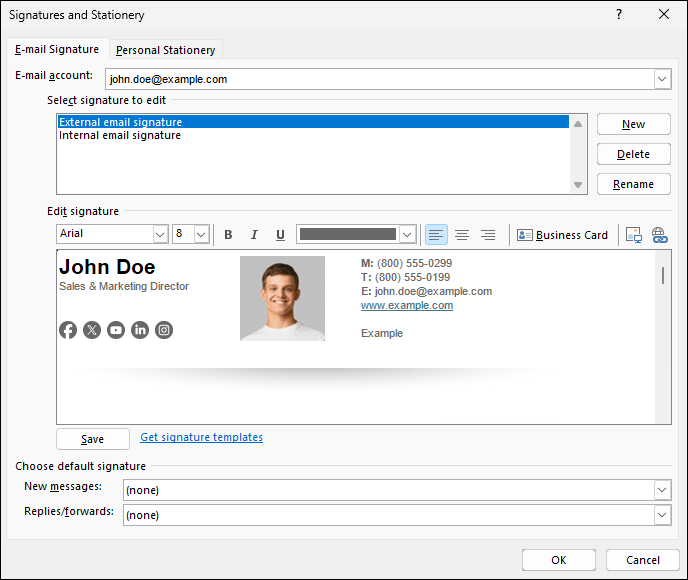
In Microsoft 365, there is a setting that changes the default location of your Outlook signatures. It’s called signature cloud settings (roaming signatures). If they are enabled, signatures are no longer stored locally. They are saved in your mailbox settings, in the cloud. It means that you cannot access them using File Explorer. Instead, you can locate your signatures by going to File > Options > Mail > Signatures, which opens the Signatures and Stationary settings:
New Outlook for Windows
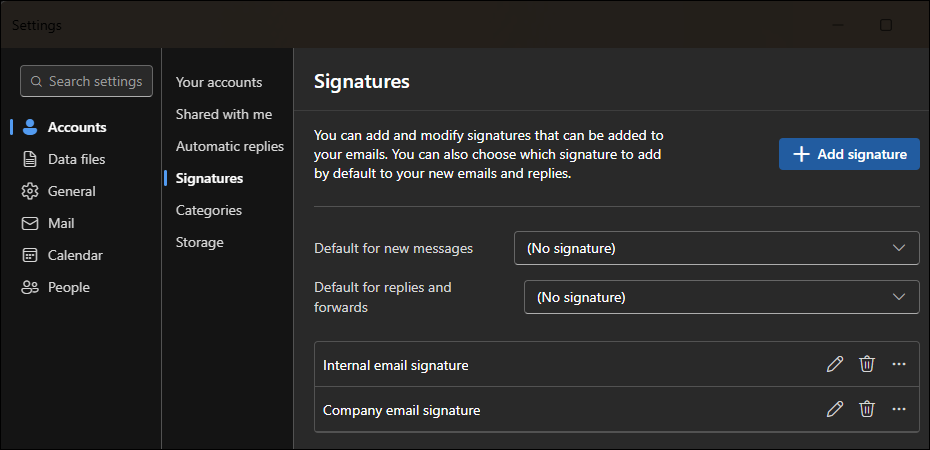
In the new Outlook for Windows, signatures are stored in your mailbox settings. To access these settings, go to:
File > Settings > Accounts > Signatures
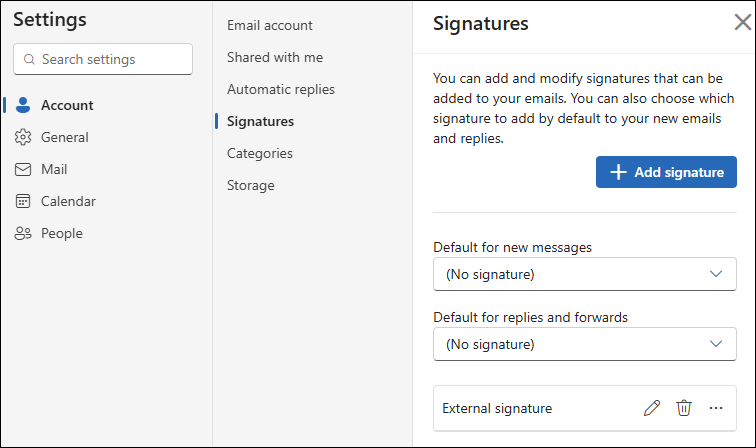
Outlook on the web
Just like in the new Outlook for Windows, signatures are stored in your mailbox settings, and can be accessed from:
File > Settings > Account > Signatures
You can also open these settings directly using the link below:
https://outlook.cloud.microsoft/mail/options/accounts-category/signatures-subcategory
Outlook on the web
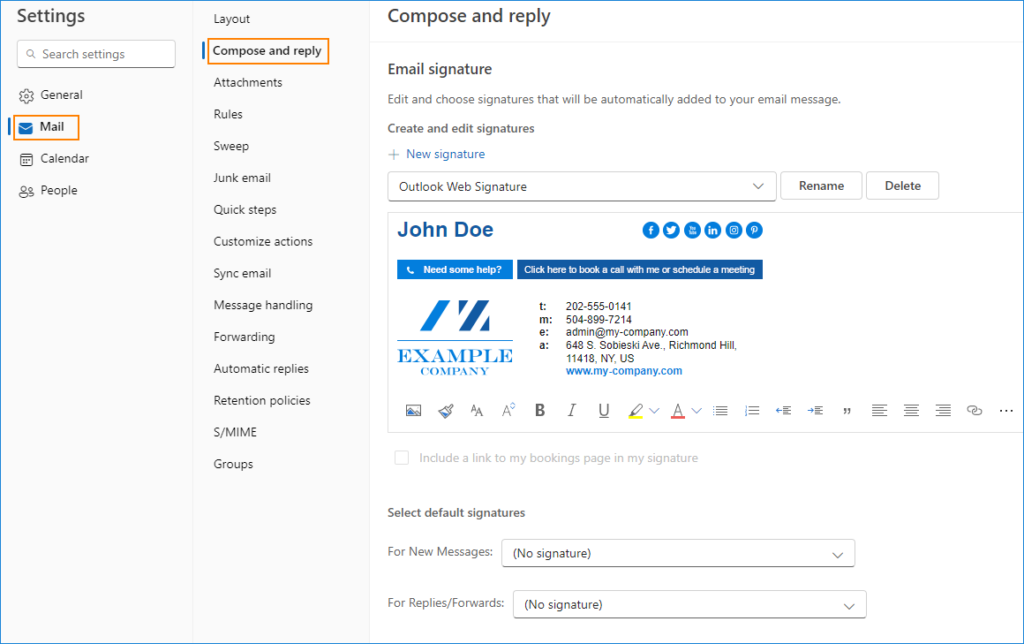
Just like with the new Outlook for Windows, the path is Settings > Mail > Compose and reply:
Outlook for Mac
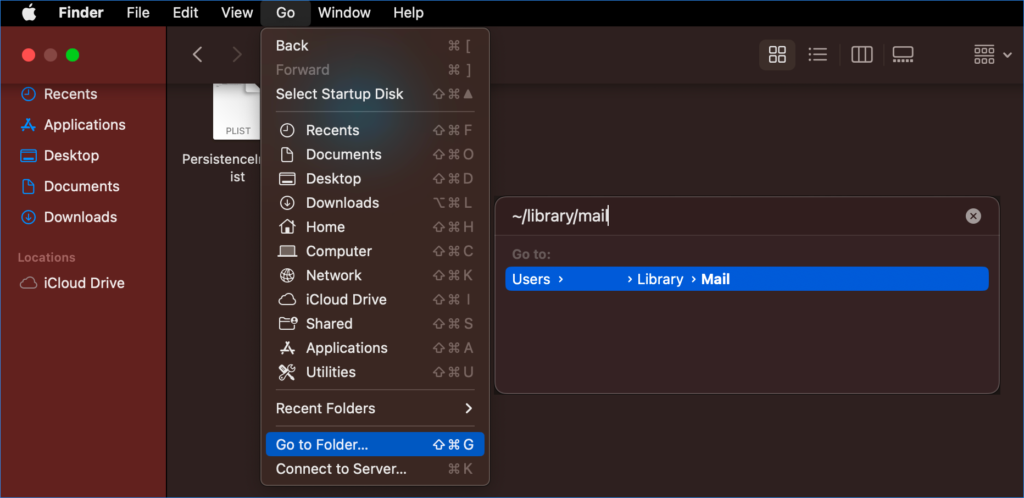
To access the physical location of your Outlook signatures on Mac, launch Finder, go to Go > Go to Folder and enter the following path:
~/library/mail
Then choose the folder with the version (V9, for example) and go to Signatures. That’s where your HTML email signatures are stored.
Mobile Outlook
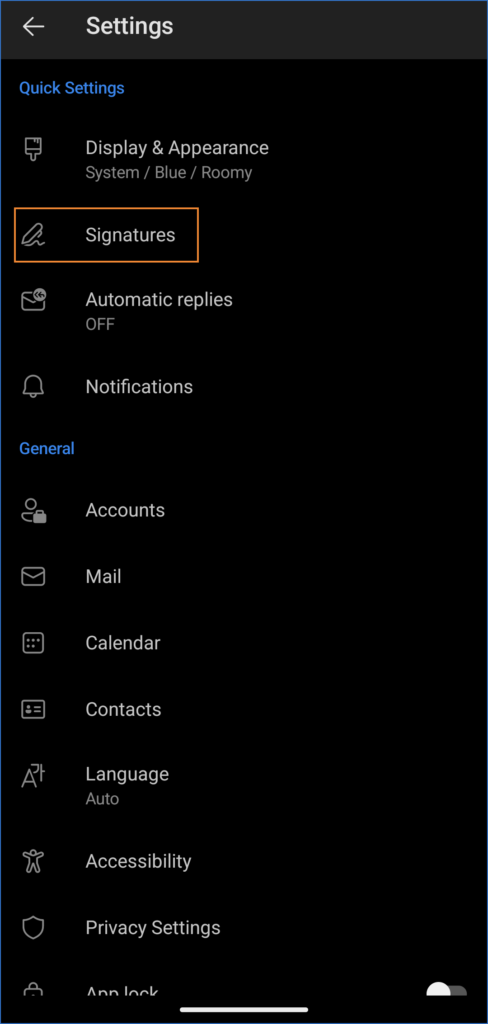
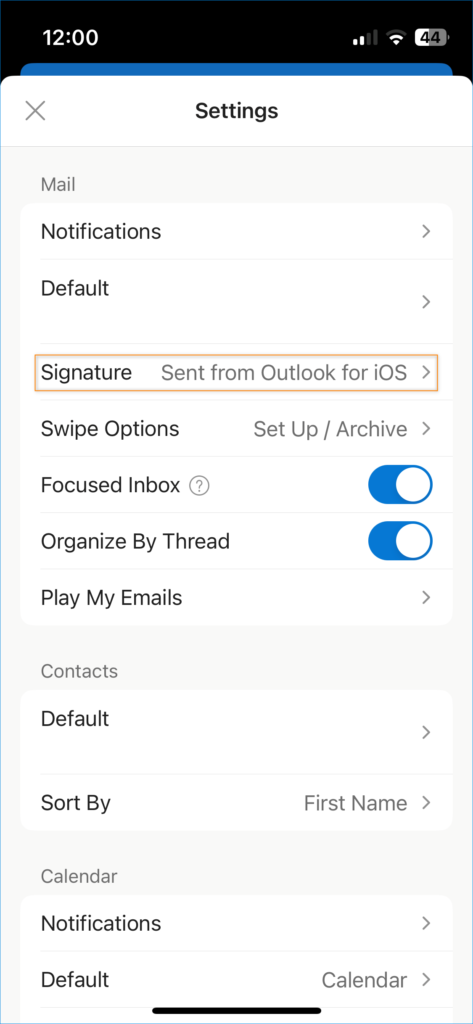
In both Outlook for Android and Outlook for iOS, the access path to your email signature settings is similar.
- In Outlook for Android:
Settings > Quick Settings > Signatures
- In Outlook for iOS:
Settings > Mail > Signature
Back up and restore Outlook signatures
To back up your Outlook for Windows or Outlook for Mac email signatures, simply copy all the contents from their location to another place.
It’s a bit more complicated if you try to back up Outlook signatures that have no local copy, like in the new Outlook for Windows, Outlook on the web (OWA), Outlook with roaming signatures turned on, or mobile Outlook. In this case, you need to get those signatures into HTML files.
One way to do that is to send yourself an email with a signature included and save it in the HTML format. Then you can delete the message body and save the signature as an HTML file. The problem is, most email clients add some invisible formatting information to the HTML code. This information might be invisible but can manifest itself in some unexpected ways. For example, when you later try to set your backed-up signature up in your email client’s settings. That’s why it might be a good idea to start using the free email signature generator. This way, you can create as many email signature designs as you need and back them up. To restore one of your backed-up email signatures, open its HTML file in a web browser, copy the signature and paste it into your email client’s signature settings. For more detailed guides on setting up your email signatures, check out our how-to articles.



If you’re using a cloud-based email service like Gmail or Outlook.com, your signatures will be automatically backed up as part of your account. Your blog proved to be an absolute gem! It gave me valuable insights and made the seemingly complex a breeze of understanding. Thanks for making learning so enjoyable and enlightening.
THANK YOU!!! This saved me a lot of time
Windows XP: your c:\ information does not exist in my Windows XP. Not even close. OK, now where is my signature really located?
Thank you…
Hi Daisy,
Have you tried the second method of getting to the target folder? Clicking the Signatures button while holding the ctrl key takes you to the signatures location. You can check the exact location of the signature folder in your system, then.
Thank you for the simple but crucial information of where the Signatures folder was stored in the user’s profile. Curiously, Win 7 search on the profile did not find “signatures” in AppData, but I am away now and will add this gem to my documentation. Isn’t it fascinating how the simplest bits of “everyone knows THAT” information are such show-stoppers when not known :).
I just did a clean install of Windows 10 Pro (after the upgrade from 8.1) and I was surprised to find that all of my signatures were gone. Thank you for helping me find them Boy, am I glad I backed up my AppData before the install. File History does not backup anything in AppData.
Pawel,
Thank you very much ! I was getting very FRUSTRATED trying to setup a simple HTML signature…… I tried several other posts and couldn’t figure anything out. 5 minutes after reading your post I was good to go.
Thank you again. Best Regards,
Jim
Jim,
I’m glad it helped! Follow us at https://twitter.com/codetwosoftware to get updates about new articles.
Best regards,
Pawel