



It’s becoming more and more common to find name pronunciation details when going through business emails. People want their names to be spoken correctly. In this article, I will highlight the importance of name pronunciation and show you how to use it in email signatures in your company. I’ll also show you how Microsoft addressed this subject with a new name pronunciation feature, that came to profile cards in May 2025.
The importance of name pronunciation
Names matter – they help shape a person’s identity and represent who they are as an individual. It’s safe to say that their correct pronunciation is just as important. Being called by our name is powerful and allows us to feel respected. Mispronunciation of someone’s name, on the other hand, can be even seen as microaggression and cause lasting damage. This becomes especially important in the workplace, where the right pronunciation of someone else’s name can make or break a deal or compromise a working relationship.
Proper name pronunciation – similarly to the correct use of gender pronouns – can sometimes turn out to be easier said than done. No pun intended. Some people spend a lot of time wondering how to pronounce the name of the person they are supposed to have a meeting with. To save their time and avoid the embarrassment and unpleasantness of mispronouncing one’s name, it is best to inform your co-workers and clients about the correct pronunciation upfront. As email reigns as the most popular business communication channel, one of the best ways to do this is to add name pronunciation into email signatures.
Examples of name pronunciation in signatures
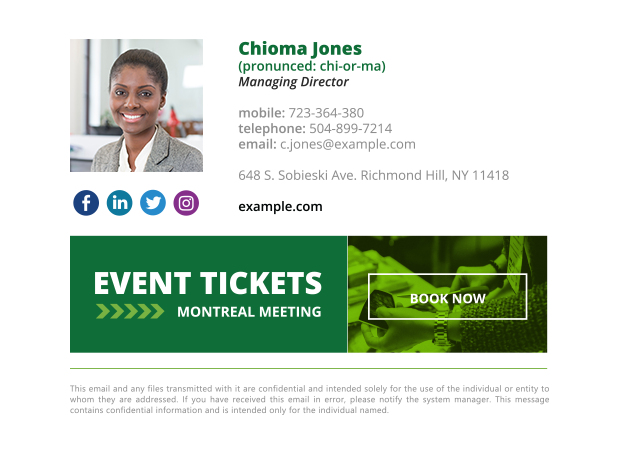
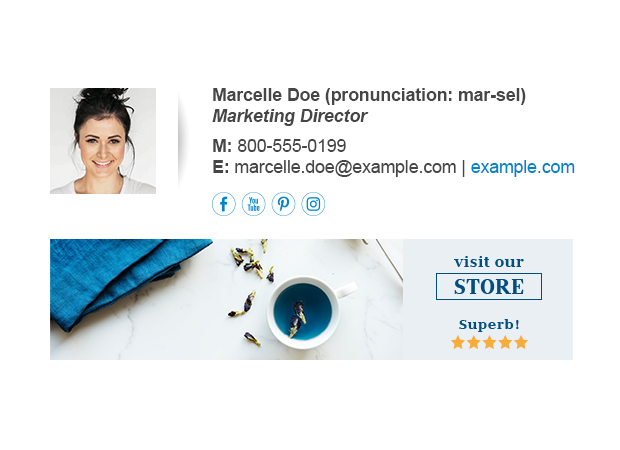
How you add name pronunciation to your email signature template is determined by the design of your signature. If you decide to include name pronunciation details, you should ensure that they form an integral part of the signature. The best practice is to add them next to or below your name. That’s where most people will expect such information to appear.
See the examples below to learn how to best include name pronunciation details in email signatures:
Sample signature 1
Sample signature 2

Sample signature 3
How to set up
Follow the steps below to set up an email signature with name pronunciation details. This example shows how to set it up in Outlook, but the process is similar in most email clients:
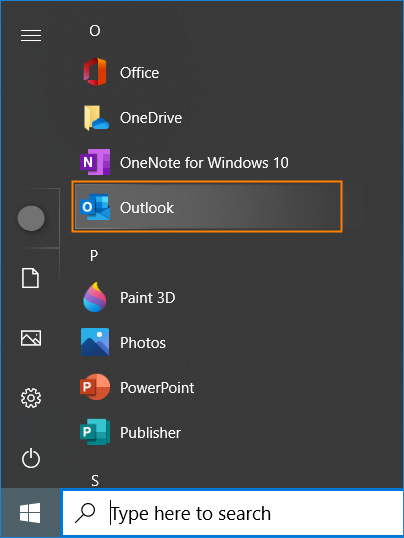
- Open the Outlook for PC app from the Start menu or from the taskbar.
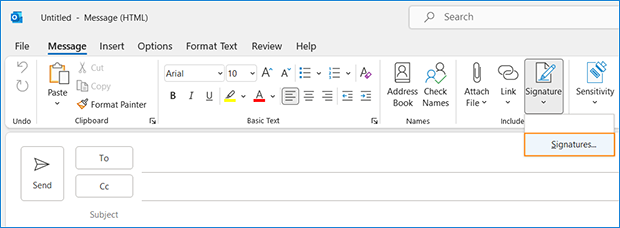
- Open a New Email message, click Signature in the Include group and again Signatures.
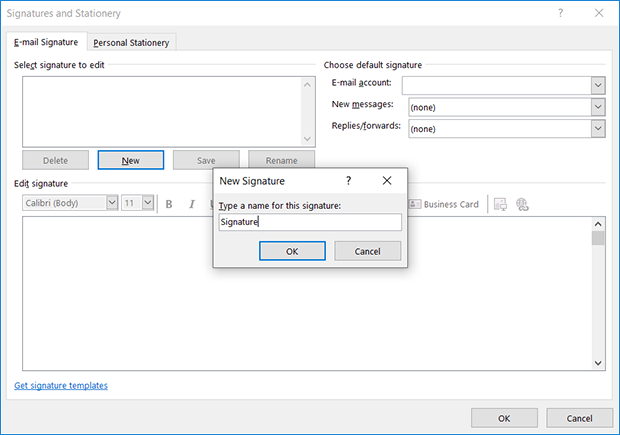
- In the Signatures and Stationery window, click New and provide a name for your signature.
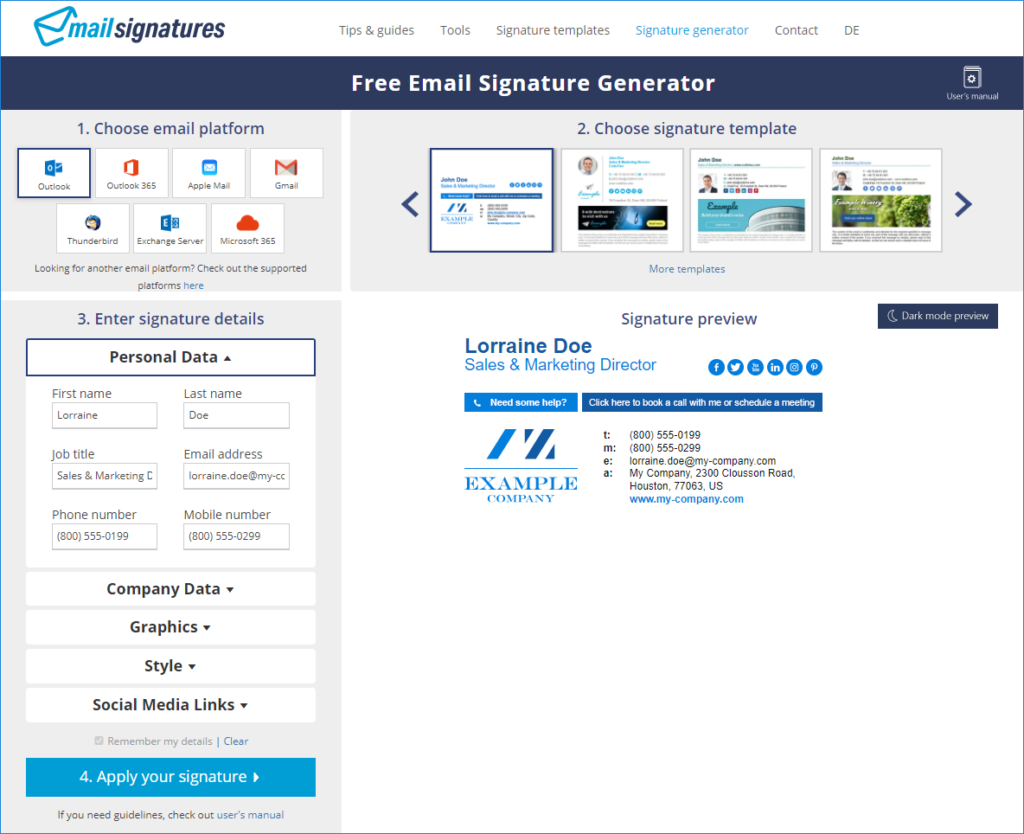
- The Edit signature section is where your email signature should be placed. Instead of creating your signature from scratch, you can use the free email signature generator to quickly create an advanced signature template. Simply choose Outlook as the target email platform, select one of the many available templates, adjust it to your needs and there you go. Your signature is ready to be copied and pasted into the signature editor. For detailed instructions and FAQ visit the generator’s manual.
- Once your email signature template is pasted into the editor in the Outlook’s Signatures and Stationery window, add your phonetic name pronunciation. It’s best to provide this information right below or next to your name. The signature editor allows for some basic editing – you can simply type in the details (and optionally create a new line by hitting Enter) and apply formatting, just like you would in Microsoft Word.
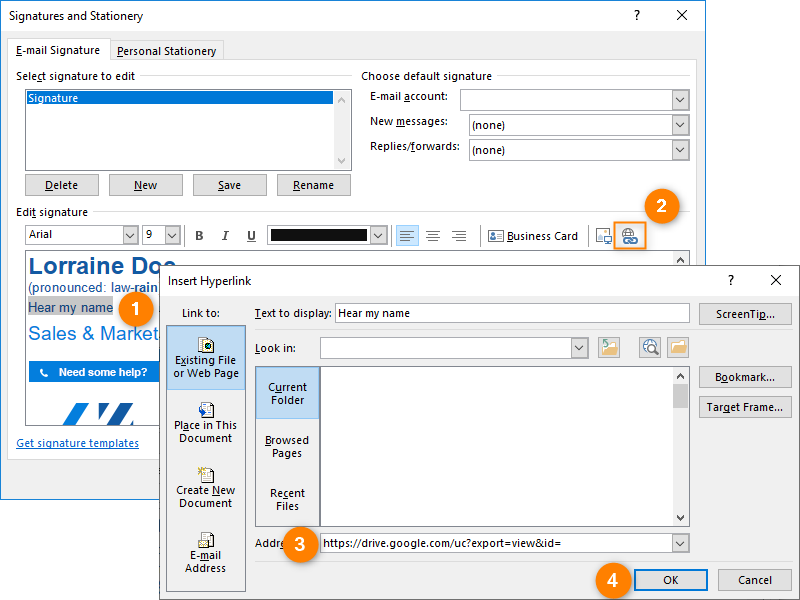
Note: If you are having trouble with figuring out how to write your name phonetically, don’t worry – there are a few ways to do that. It’s a matter of finding one that works for you. First of all, mind to separate individual syllables with hyphens. Stronger syllables can be shown with CAPITALS or bold. Write what you think and get someone (a native English speaker would be best) to say it back to you. This way, you will nail the pronunciation easily. Alternatively, you can use online resources such as Pronounce Names, NameShouts or HowToPronounce to find the pronunciation that suits you best. - Besides a phonetically-written form, you can also provide your email signature with a link to a recording of your name. For this, you can, e.g., use the Windows-native Sound Recorder app to save a basic audio file and upload it to Google Drive to create a link you can put in your signature (just remember to allow access to anyone with the link). Another way to get a shareable link to an audio file is to use services such as NameCoach or NameDrop. With the link created, in Outlook’s signature editor type in and highlight the phrase (e.g. Hear my name) to be linked and click the button for adding a hyperlink (#2 in the screenshot below). In the dialog that opens, paste the audio file link and click OK. Apply the finishing touch by personalizing your link’s appearance – make sure it is highlighted and use the available formatting tools. See this article for further tips on how to add links to an email signature.
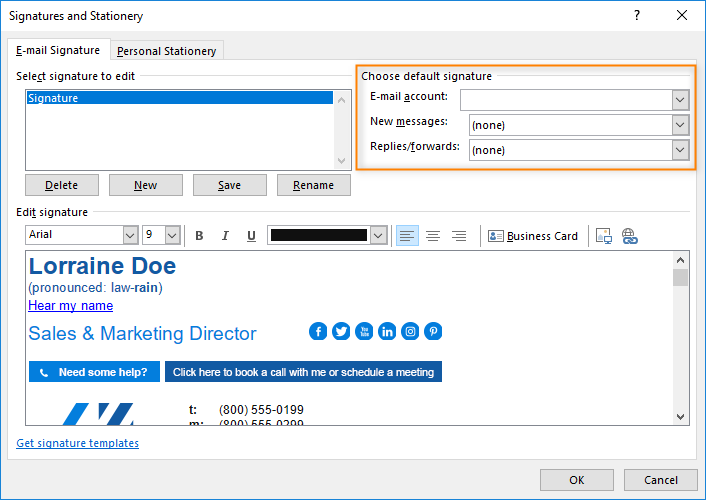
- In the Choose default signature section, you can configure which email account should get the signature (in case there is more than one email account set up in Outlook), and whether it should be added to new messages and/or replies/forwards. Once you are done, save changes by clicking OK.
That’s all there is to it. If you wish to create more Outlook signatures, simply follow the steps from point 3 onwards. You can create as many of them as you need – they will appear on a list visible after clicking the aforementioned Signature button in the Include group.
Limitations of signatures set up by users
As you can see, adding name pronunciation to email signatures requires some manual work. From an organization’s point of view, such an approach has its limitations and poses risks:
- If a company wants to have a unified look of their emails, every user would have to add pronunciation individually/separately. Such an approach is effort- and time-consuming, especially in case of less savvy users who will require support to properly set up their signatures each time an update is needed.
- The more users, the higher the risk of incomplete or outdated data, inconsistent design or missing legally required information (disclaimers or company details).
- Creating an original and visually appealing signature (which will be displayed properly regardless of email clients and devices used) requires proficiency in HTML and CSS.
- Nothing stops users from using incorrect personal details or applying a custom design and more.
Overcoming limitations with CodeTwo Email Signatures 365
Being aware of the above issues, you may want to consider another way of managing email signatures within your organization. Instead of leaving this task to end users, many companies decide to centralize the management of their email signatures. A dedicated third-party solution, such as CodeTwo Email Signatures 365, can do just that and much more.
With this software, you have complete control over email signatures so that you can ensure they are always up-to-date, consistent in design and personalized across the entire organization.
What’s more, the tool comes with the User attributes manager – a free feature for all licensed users of CodeTwo Email Signatures 365. With this tool, you can create a custom attribute for name pronunciation, include a corresponding placeholder in your organization’s signature and allow end users to provide the details via a web-based interface. This way, the entire setup and control over name pronunciation details can be handled conveniently within the cloud-based email signature management service. What’s more, as the details are stored in a custom attribute, there is no risk of modifying your organization’s AAD data. This means that email signatures can be carefully crafted (and implemented company-wide) and at the same time allow individual users to add their name pronunciation details – without compromising the signature’s design and consequently the company’s image.
See the product’s page to learn more and test the tool for free or watch the following short video to learn why companies all over the world choose our software:
Name pronunciation in Microsoft 365 profile cards
In May 2025, Microsoft released a feature that lets users record their name pronunciation. Once an admin enables the feature, users can go to their Microsoft 365 profile card (previously known as Delve) and after a click of a button, record their name. Later on, anyone from their company can listen to this recorded pronunciation. Personally, I wonder how many people will try to be funny and record a creative name pronunciation or something else entirely.
In my environment, the feature went live in September 2025 after turning it off and on again more times than I’d like to admit. Right now, I can record my name when I hover over my name in an email conversation in Outlook on the web. It’s not yet available in places like My Microsoft 365 profile, which is the first place I expected to see it.
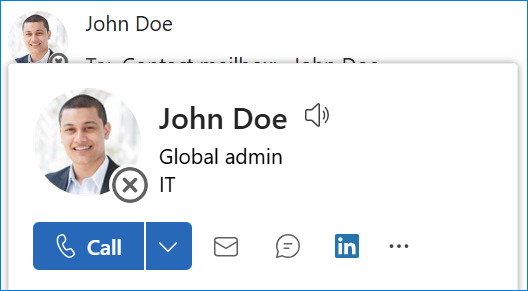
Here’s how it looks when you hover your cursor over someone else’s profile:
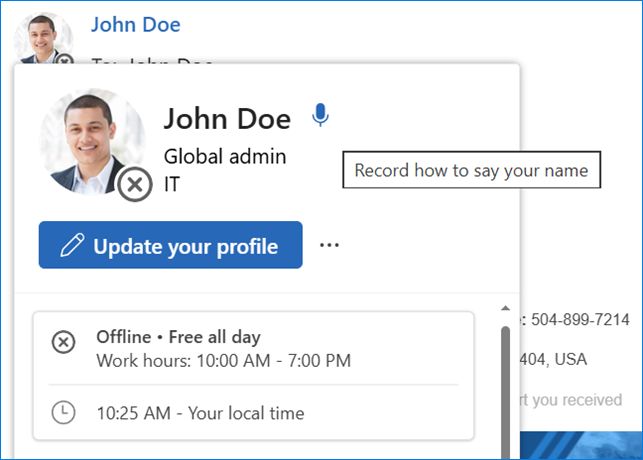
And here’s how it looks when you hover over your own profile photo in Outlook (if you haven’t recorded your name yet):
And finally, here’s how the name pronunciation icon looks once you’ve recorded your name.
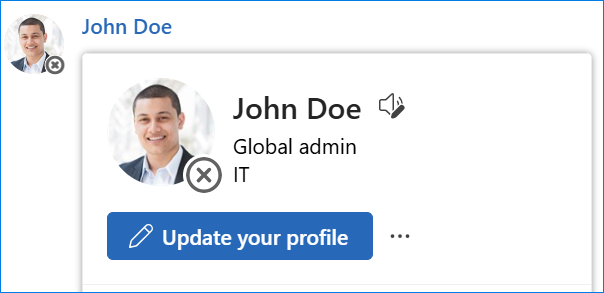
I realize that John Doe isn’t the perfect example for this feature, but I bet you can use your imagination to come up with some less obvious names.
Personally, I find it quite useful, especially for international organizations that want to be inclusive. Still, it’s not perfect just yet.
What’s great about M365 profile cards (and the name pronunciation feature):
- They’re easy to access straight from Teams, Outlook, and other apps.
- Recording your own name pronunciation is easy and convenient.
What’s not so great about them:
- Profile card info is only available within a Microsoft 365 organization.
- Pronunciation is stored separately from other user contact details, so there’s no way to integrate it directly into, say, global email signatures.
How to turn on the name pronunciation feature
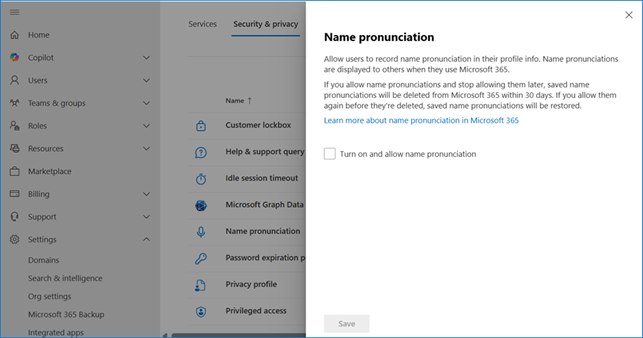
To turn on the name pronunciation for an organization, a Microsoft 365 admin needs to go to the Microsoft 365 admin center > Settings > Org Settings > Security & Privacy > Name Pronunciation (or use this direct link to pronunciation settings) and click the Turn on and allow name pronunciation checkbox.
See also:

This is such a thoughtful and timely topic! I love how you highlight the deeper meaning behind name pronunciation — it’s not just about courtesy, but about respect and inclusion. Adding pronunciation to email signatures is such a simple yet powerful step toward creating more empathetic workplaces. Your explanation makes it feel easy and natural to implement, and the examples are incredibly practical. A wonderful reminder that small gestures can make a big difference in how we connect with others.