



Why use links in your signature
An email signature is a perfect carrier of your contact data. Adding a website, blog, or social media links to an email signature lets your recipients conveniently access these resources. Thanks to that, signatures become more interactive and… attractive.
Additionally, you can now use other link types which can facilitate communications between you and your recipients, e.g. ones that let your recipients directly contact you over the phone or an instant messenger.
In general, hyperlinks are an essential element of contemporary email signatures. Using them lets you stay up-to-date with the latest trends, and ensure effective and fruitful communications.
How to make use of links in your signature
In this section, I am going to show you how to add various link types to your email signature. Each type serves a different purpose but, in the end, it all comes down to making your communications more convenient for your recipients.
How to insert a link to a website
A simple, quick, and free way to start is to use our signature generator. Once you choose a template, you can easily add a link to your website, by typing its address in the Website field of the Company Data section. The change will be reflected in the preview and the link will be preformatted to suit the color theme of the signature template. You will be also able to test your link immediately.
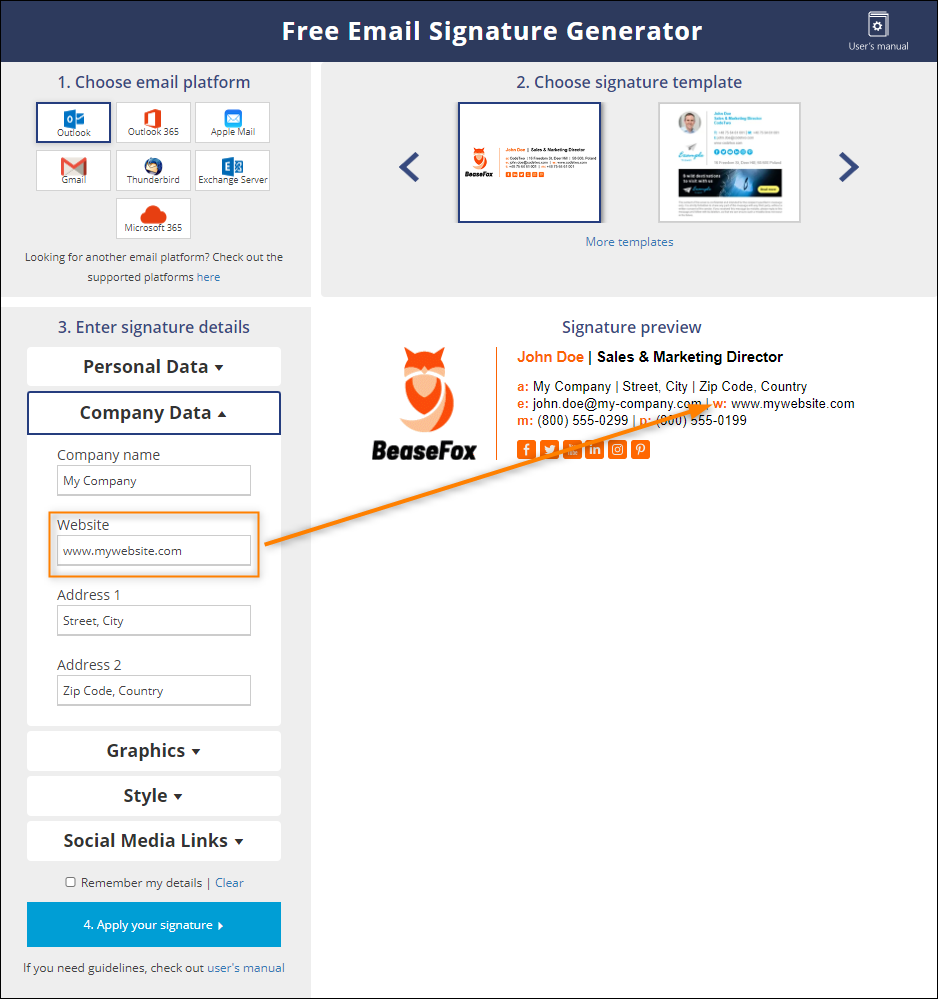
If you need more personalization options, copy your signature template from the generator by clicking Apply your signature (see screenshot above) and Copy. Below the Copy button you will see detailed instructions on how to paste the template into your email client’s editor.
In the examples below, I’ll use Outlook 365 but you should easily grasp how to do it in other email clients, as procedures are quite similar.
Going back to the gist (and Outlook 365), if you simply want to change formatting of your link (e.g. color, apply bold, etc.), highlight your website address and use one of the options available in the Outlook’s editor. You can format any link in your email signature in the same fashion.
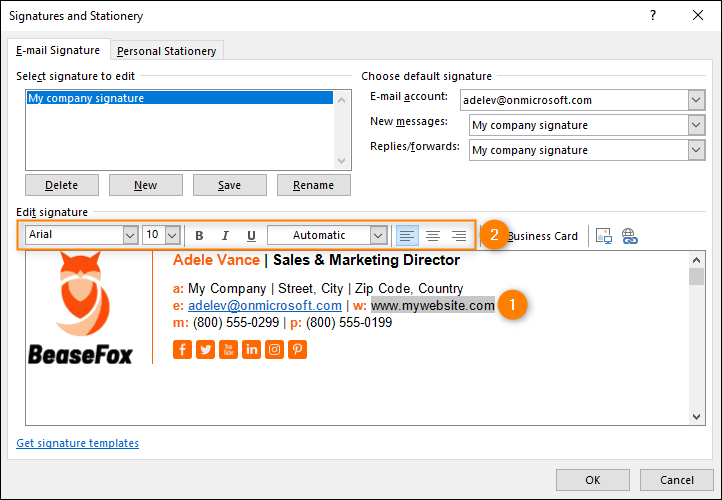
If you don’t want your recipients to see merely your website address but prefer to use a phrase (e.g. Visit our website) which will be linked, you need to first delete your website address from the signature. Next, enter the phrase (to be linked) and highlight it. Finally, click the button for adding a hyperlink (#2 in the screenshot below), type/paste your website address in the dialog that opens, and click OK. Save your signature template, and close the Outlook’s signature editor.
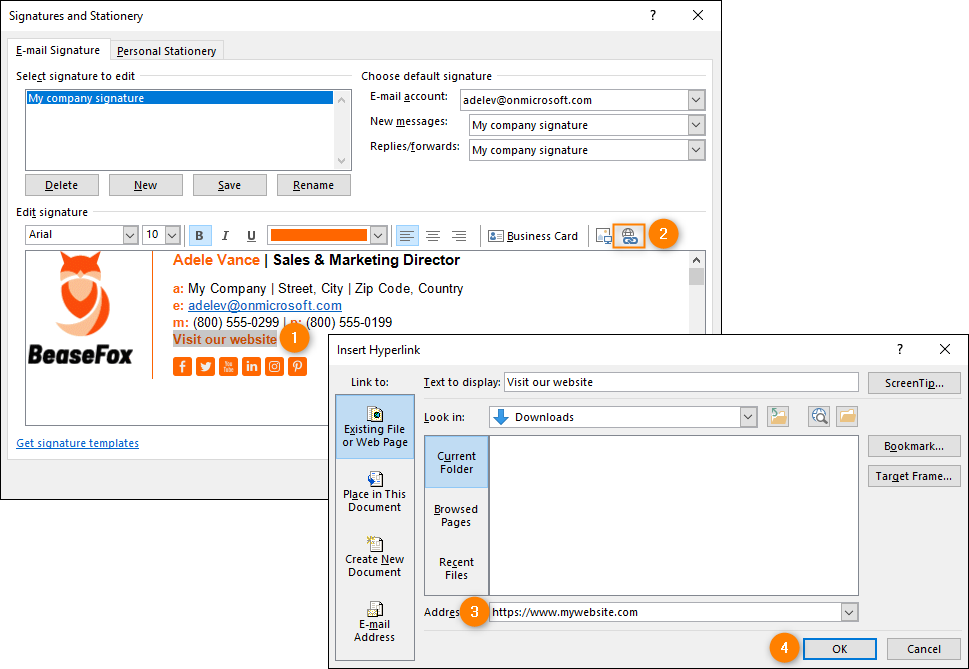
Keep in mind that Outlook’s editor will change link’s formatting to the default one (blue font with underline applied). So, to finally personalize your linked phrase’s appearance according to your needs, highlight it and use the formatting tools shown in the previous screenshot above.
If you need to insert more links, simply move the cursor to a place where a link is to be inserted, click the button for adding a hyperlink, and fill in all the details (address, text to display). As simple as that.
How to use additional link types
Apart from common website hyperlinks, you can use special types of links that link to phone number, email address or an instant messenger app. Such links are very useful – once clicked or tapped, they automatically take your recipients to an appropriate app, inserting relevant contact information of yours. For example, if someone clicks a link to your email address, their default email client will open with your email address inserted in the To field. Or when a recipient clicks a link to your phone number, a phone app will open with your phone number dialed. This is especially convenient when your recipient reads emails on their mobile phone.
To make use of this type of links, prepare your signature template in our free email signature generator, and next copy and paste it into the signature editor of your email client (e.g. Outlook 365, as shown in the previous section).
Create a link to an email address
Signature editors of the most popular email clients (e.g. Microsoft Outlook, Outlook.com, Gmail.com) usually use smart features to automatically turn the email address in your signature into a link to your email address. However, if your client doesn’t offer such smart solutions or, for whatever reason, fails to apply them, proceed with the instructions below.
Highlight your email address and click the link-adding button. Next, select E-mail Address on the left and in the E-mail address field type mailto: immediately followed by your email address. Optionally, you may provide a phrase which will link to your email address by changing the text in the Text to display field. Finally, click OK, save your signature template, and close the signature editor.
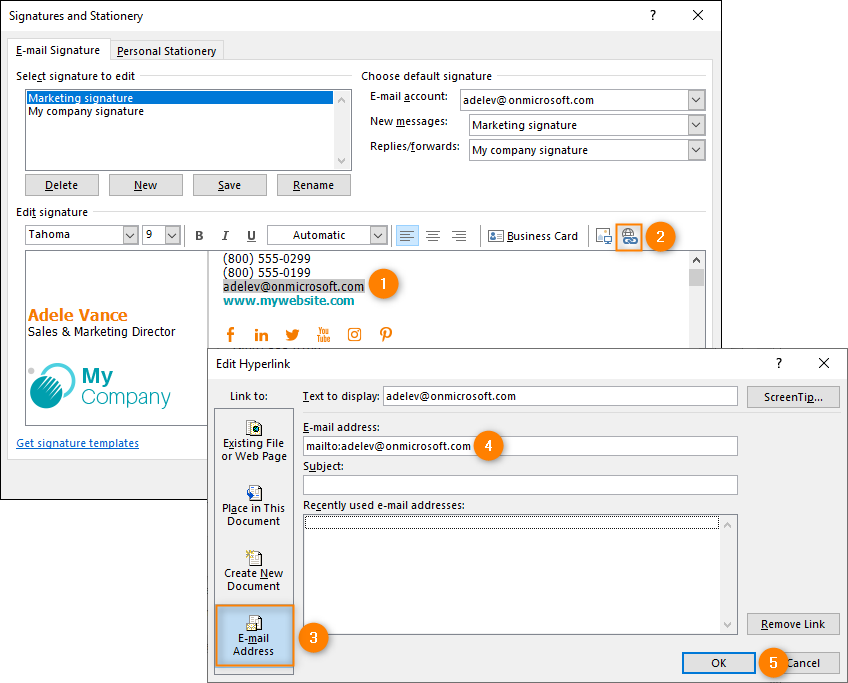
This is the most basic version of the email hyperlink. However, there are many more possibilities (e.g. you can add a predefined email body text). To learn more, read this article.
Create a link to a phone number
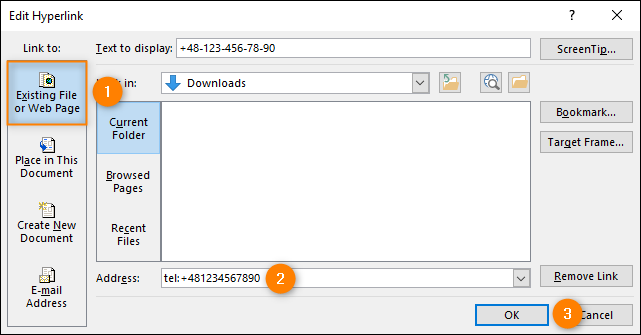
Creating a phone hyperlink is fairly similar to the email one. After highlighting the phone number in your signature and clicking the button to insert link, you need to choose Existing File or Web Page on the left and type tel: immediately followed by your phone number. Remember to precede your phone number with the plus sign (+) and your country code. That way, your recipients will be able to reach you over the phone, regardless of which country they call you from.
Examples of other useful link types
Apart from the most popular mailto: and tel: link types, there is also a bunch of other ones, e.g. callto: which should initiate a Teams call or sms: which allows your recipients to go straight to their SMS app to send you a text message. Remember, however, that these may not be supported that well and may not always work as intended. Learn more
How to add a link to an image
If your email signature template includes a photo or any other graphical element, you can add a link to it as well. That way, for example, when your recipient clicks your banner, they will be taken to your special offer landing page.
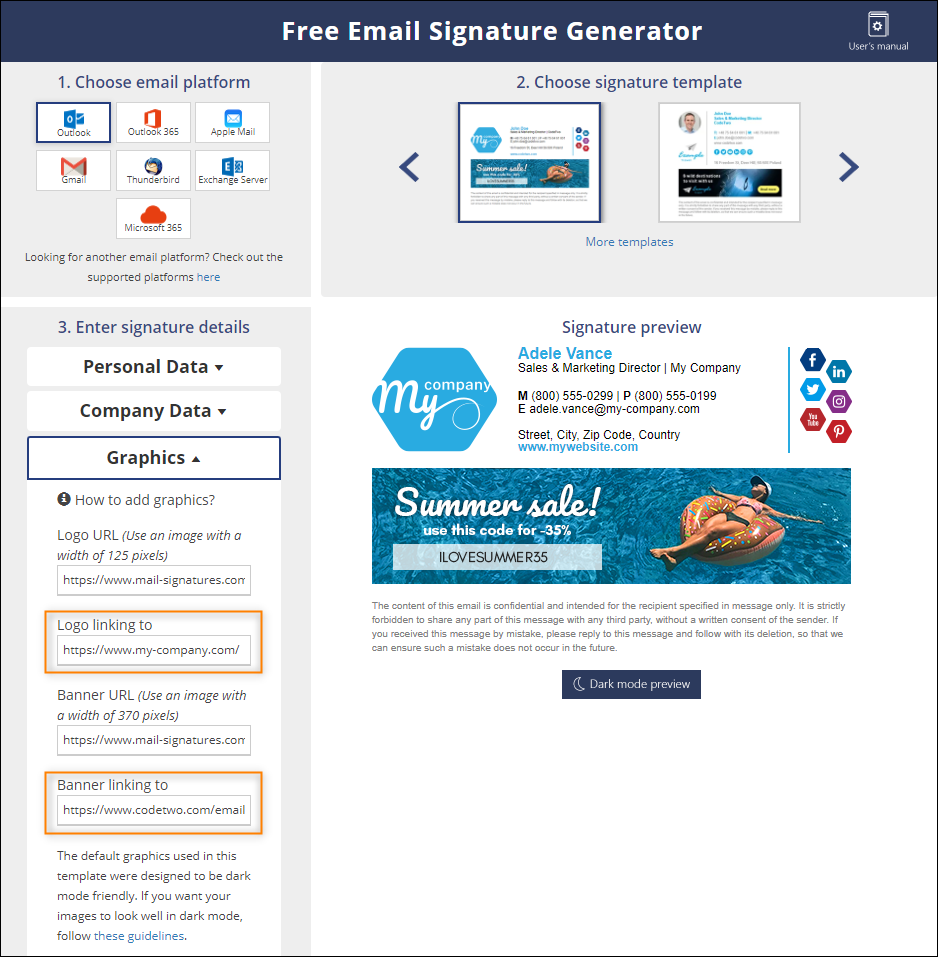
The easiest way to link an image in a chosen signature template, is to use the Graphics section in our free email signature generator. Once there, you need to provide your link(s) in the …linking to field(s). As a result, the images will become linked, clickable elements.
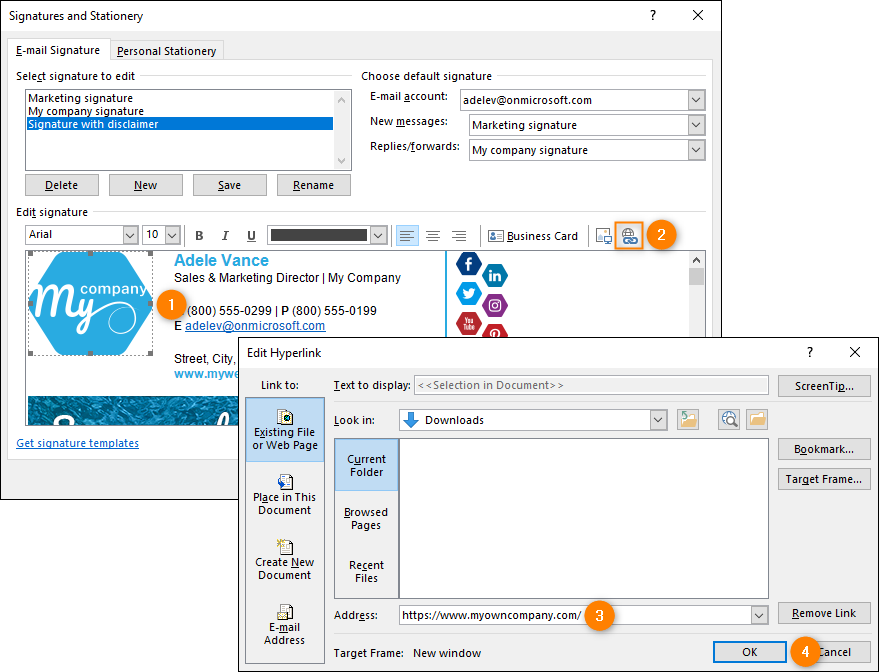
Alternatively, you can add a link to a graphical element in your email client’s editor. This is done similar to adding a basic link to a text. Once your template is copied into the editor, highlight your graphical element and click the link-adding button (#2 in the screenshot below). In the dialog window that opens, type/paste the target address. Finally, save your changes and close the editor.
That’s not the end of the story
This is just the basics. If you’re into HTML (the language of modern signature templates), there’s much more you can do with links. For example, you can download a selected template from mail-signatures.com, manually modify every element of hyperlink’s code, and insert the fully-customized template into your email client.

And when you need professional-grade features and personalization options that can be applied to all mailboxes in your company, you can always test the signature management software that lets you use links that dynamically change from user to user or can be used to track your email marketing campaigns performance. It all depends on your needs.



thankyou so much
How does this affect what Anti-Virus programs will detect these messages as Spam because of the external links in the email?
This matter was touched upon in our article on email signatures vs SPAM. Generally, smart hosts and antivirus software have a very individual approach to spam.
Keep this going please, great job!
cool