



In Microsoft 365 (or Office 365, if you like the old name better), there are some situations in which your email signatures stop working. Use the table of contents for a quick access list of the most frequent email signature management problems, with solutions.
Broken email signature formatting
While the problem is not reserved for Microsoft 365, it happens a lot on this platform.
You create a beautiful email signature in Outlook and then, after you send an email with the signature included, it is not right. The layout is different, line breaks appear out of nowhere, fonts don’t look like what you’ve set up and so on. Sounds familiar? Then you’ve got an HTML problem. The most common reason for that is creating your email signature in Microsoft Word. While it looks all right in Word and in your signature settings, it has a lot of hidden formatting information that usually breaks the layout right after you send an email.
The solution is to build your email signature with the proper HTML code. If you are an HTML expert, you can use those pro tips to build a well-formatted signature. If, like most of humanity, you only have some distant clue as to what HTML is, you can use the free email signature generator. That’s how anyone can get a great looking signature that doesn’t break as soon as you send out your email.
Outlook freezes when selecting a specific email
Sometimes, when you click an email in Outlook, your email app stops to “think” for several seconds or even crashes.
There is more than one possible reason that causes Outlook to freeze, but problematic email signatures are often the main culprit. Other possibilities include Outlook add-ins or plugins, viruses, and too many open processes. If Outlook freezes when clicking some emails but works normally when clicking others, there’s a good chance the problem is caused by a common element in those emails, and a specific signature is one of the most common reasons.
Here’s how a signature can break your email app:
- It can include large images. While a single signature might not cause any noticeable problems, long email conversations containing multiple signatures with embedded images can get quite laggy.
- In the classic Outlook, copying and pasting content into your email signature can cause the signature and its elements to be wrapped in many DIV tags. If that happens, even a single signature can cause Outlook to stop working.
To avoid the freezing/crashing problem, set up the signature correctly: make sure to follow best practices concerning signature size and avoid copying and pasting the signature, especially from word processors like Microsoft Word (as mentioned in the previous section). For company email, you can prevent problems completely by managing email signatures centrally with dedicated tools.
Email signature breaks after pasting it in signature settings
You create a professional, well-formatted HTML email signature. But right after you paste it into your signature settings, all fonts change to your client’s default one, images are resized and white space gets all messed up.
This problem occurs in every new Outlook for Windows. It’s also a rare occurrence in Outlook on the web (OWA). No matter where you copy the email signature from, after you paste it into signature settings, the signature gets destroyed. The issue happens because the signature settings don’t have the option to “keep source formatting”. Fortunately, I’ve found a workaround that isn’t obvious, but fixes the issue.
To solve the problem, instead of copying & pasting, you can drag & drop the HTML email signature to keep its formatting. Here’s the easiest way to do this:
- Create the email signature using our free email signature generator.
- Change the platform to New Outlook.
- Open your signature settings side by side with the generator.
- In the generator, click Apply your signature > Generate > Select signature. Drag & drop the signature from the generator to the signature settings.
- Add a signature’s name and save your settings.
Email signatures are missing
You had 30 different email signature designs set up and suddenly they’re all gone? Or, you had different email signatures set up across your devices and now they’re all the same?
The most likely reason for this phenomenon is the feature called “signature cloud settings” (or “roaming signatures”) added by Microsoft. With its implementation, the location of Outlook email signatures changed from your local Windows folder to mailbox settings in the cloud. The feature is meant to make your life easier – you no longer need to set up email signatures in each Outlook you use. The catch is that it might mistakenly overwrite the signatures you set up previously.
To fix the issue, you can disable the roaming signatures feature, which will automatically restore your missing signatures. Alternatively, you can also try to recreate your missing signatures by going to the local Outlook signature storage and copying the contents of HTML or RTF signature files. Learn more
Double email signatures in Microsoft 365
The problem of double email signatures shocked many and for a good reason: on the first look, it doesn’t make any sense. Here’s how it goes:
You send out an email with your signature. Everything seems fine until you get a reply in which you have two email signatures under your message. One of the signatures you know. The other has your personal data but looks completely different. What’s more, when you check your Sent Items folder, there’s only one email signature.
It might come as a surprise, but the issue is quite common and is not a prank. The second signature is usually added by your organization after an email is sent. Most well-known brands have policies that control how the brand is presented across different channels, email included. They use “mail flow rules” or dedicated tools to add a specific signature after an email is sent, so that it cannot be changed by end users. A side effect? Double signatures if end users aren’t aware of such mechanism.
The problem is probably not your fault – your organization should always communicate the use of such methods clearly, or use branding management tools that let users see the organization-issued signatures.
Microsoft 365 signatures cannot be edited
Sometimes, when using your Microsoft 365 Outlook on the web (OWA), you might experience a problem when trying to set an email signature for your account. When going through email settings, under Layout menu, the Signature button might be missing. This makes it impossible for users to make any changes to their Microsoft 365 email signatures. The most probable cause is OWA policy blocking this feature. Here is how to fix it:
- Access your Exchange admin center and go to Roles > Outlook web app policies. Choose the policy which is in action (OwaMailboxPolicy-Default in this example) and edit it.
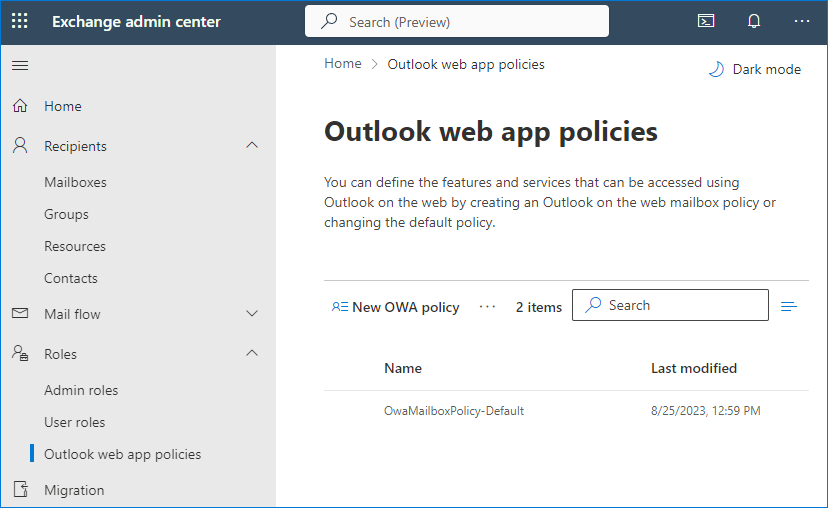
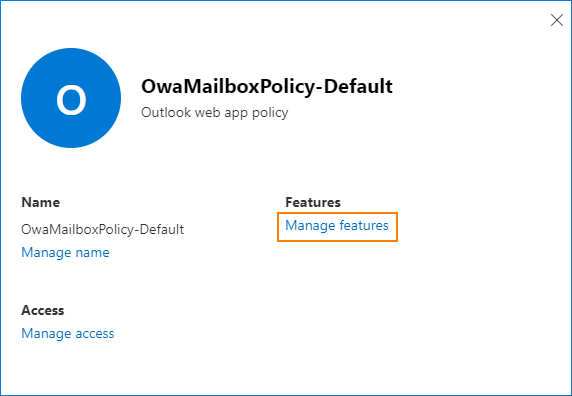
- In the Features section, click Manage features.
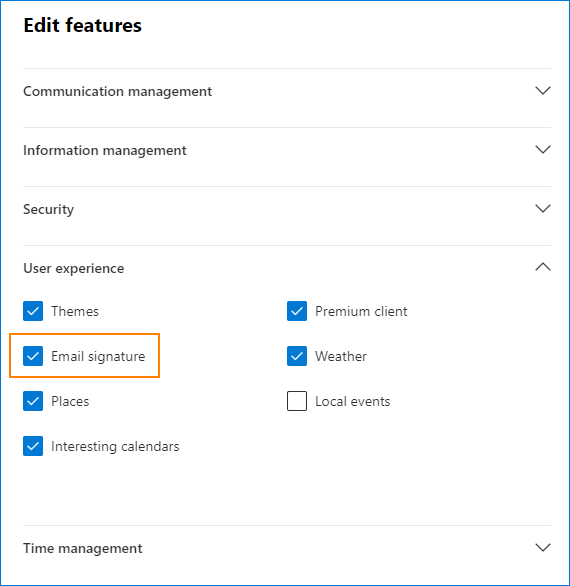
- Under the User experience section, select the Email signature checkbox.
Note:
- This feature can be used the other way around: if an email signature or disclaimer is added through mail flow rules or a third-party tool, you can use the feature to block user-made signatures.
- If an email signature was configured in Outlook before signature creation was blocked, users will still be able to use that signature. If the signature is set as the default signature, it will continue to be added automatically.
If you are not sure how to set a Microsoft 365 email signature, this article may come in handy.
No images in Microsoft 365 email signatures

Have you added an image to your email signature, but it is not displayed? Have you struggled with the dreaded red x showing instead of your marketing banners or social media icons? This might have happened because you had used a linked image (aka hosted image). Linked images are blocked automatically by most email clients, so your recipients need to voluntarily click the option to show images or add you to their safe senders’ list. However, it won’t fix the problem if the web location where the image is stored becomes unavailable or when recipients browse emails in offline mode. You can fix this issue by using embedded graphics instead:
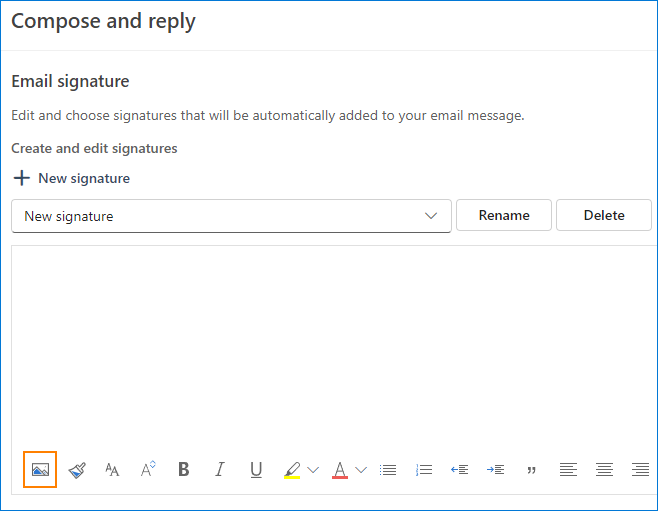
- Click the picture icon in the signature editor window and choose a picture from your local drive.
Note:
- Images in this option are sent as hidden attachments, increasing the email size.
- On rare occasions, such images can be deleted by the recipient’s anti-virus software.
- If you want to ensure your embedded images look correctly on the recipient’s side, you have to use a third-party solution like CodeTwo Email Signatures 365.
You can read more on the differences between linked and embedded (inline) pictures in this blog post.
Images don’t appear even after clicking “show images”
There’s a huge difference between using hosted and embedded images in email signatures. The fix from the previous problem will not always be available since not all email clients support embedded images. And hosted images might be broken even after recipients unblock them in their email clients. Here’s how the problem looks.
You create an email signature and add it to your signature settings. Unfortunately, after you add it to an email and your recipients open it in their email clients, some or all images don’t show up, even if they add you to their Safe senders list or click the “show images” option. For some reason, those same images do appear in some email clients (like desktop Outlook).
The same signature in Outlook for Windows:

And in Outlook on the web:
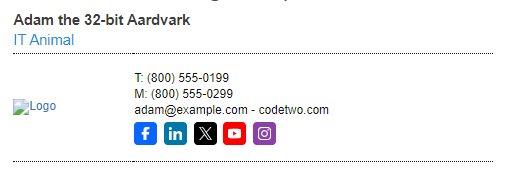
If this story sounds familiar, here’s the most possible explanation. Technically speaking, the server at which you keep your signature images blocks hotlinking. To translate it to simpler terms, the server’s settings prevent the images from being used on other websites or web-based email clients like Outlook on the web, Outlook.com, Gmail, Yahoo and many others.
Fortunately, the problem isn’t that difficult to fix. All you need to do is to move your signature images to a different server or an image hosting service. Head on over to this step-by-step tutorial on how to upload an image to a free hosting service (e.g. OneDrive, Dropbox, etc.) and get the image’s source URL to use in email signatures.
Double spacing in email signature block
While editing an HTML email signature in OWA or Outlook, it is quite common that your template does not display the way you designed it. On of the most frequent problems is double line spacing:
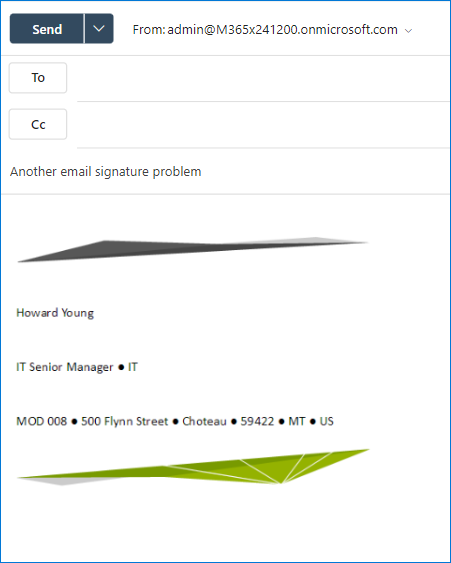
Although there are quite a few ways to solve the problem, there is one which tends to work for every formatting-related problem, including the issue with double spacing:
- Start from creating your email signature block in a word processor or email signature generator;
- Copy and paste the email signature you have created into the signature editor;
- Make final adjustments, if necessary.
The double-spacing problem could also be solved by using Shift + Enter key combination, instead of starting a new paragraph by simply pressing Enter. However, sometimes it might cause the signature to appear as just one line of text. The solution above guarantees that the problem is solved. Apart from that, it gives you more editing options than the built-in OWA or Outlook email signature editor.
Microsoft 365 email signature grayed out
This issue might occur if you access your Microsoft 365 email account in Outlook. If you cannot change or add a new email signature, this is most likely caused by a certain value entered into Registry. It has nothing to do with Microsoft 365 Administration, it is entirely dependent on Microsoft Windows’ functionalities. In order to repair the issue, follow those simple steps:
Important:
- Playing with the Registry might prove to be a bad idea if you haven’t done it before. Be sure to always create a registry backup before you start working on it. This can be done by clicking File > Export… and choosing a target location for your backup.
- Additionally, there can be value NewSignature and Reply_Signature with value type REG_SZ and value data set to name of the signature which is to be added automatically. Those Registry entries should also block changing signatures.
- On your keyboard, hold the Windows icon and press R.
- Type regedit and press Enter.
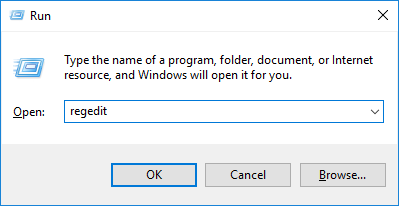
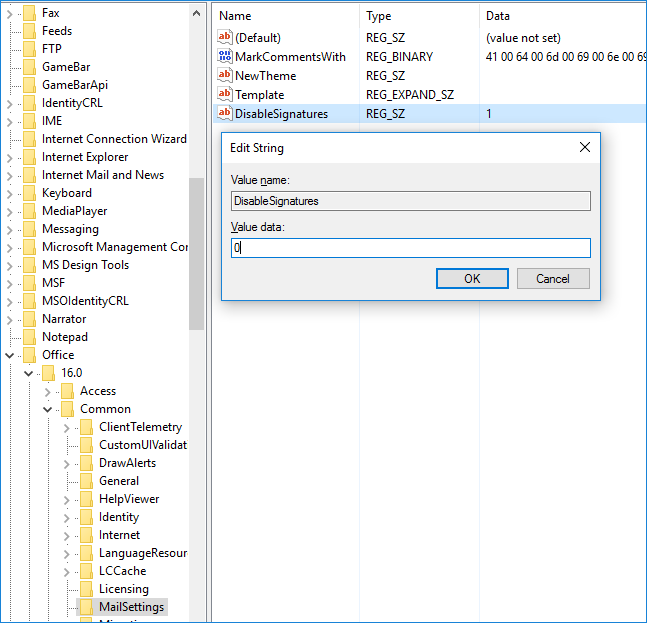
- This will open the Registry editor. In the folder tree on the left, follow the path: HKEY_Current_User > Software > Microsoft > Office > X > Common > MailSettings
- If there is a value named DisableSignatures and is set to 1, modify it so that it is set to 0.
Troubleshooting automatic email signatures generated with scripts
If your company uses a script to generate an email signature for you and the signature has suddenly stopped working, the issue may require some technical know-how to fix. The solution depends on the signature-generation method your company uses for automatic email signature management. In most cases, the problem needs to be fixed by your admin – unless, of course, you’re the admin in your organization.
- If your company has been using a VBScript script to get information from user directory and generate a signature (learn more about this method here), then it’s high time to update your signature-generation method. VBScript does not work with the new Outlook for Windows and relies on soon-to-be deprecated scripting language.
- If the signature-generation method uses PowerShell, there are some known issues that can cause various signature-related problems. For more information and a possible fix, refer to this article: How to set up organization-wide Outlook 365 signature with PowerShell.
Email signatures don’t show up directly under replies or forwards
A well-known issue often discussed among Exchange Online administrators is email signatures landing at the bottom of email conversations. Unfortunately, Exchange Online does not provide a way to overcome this problem natively. What is more, if you do not add an exception to your mail flow rule, you may experience your email signature being doubled.
Currently, the only way to automatically add email signatures directly under replies or forwards is to use a third-party solution. Your best bet would be trying out CodeTwo Email Signatures 365.
Microsoft 365 email signatures are not displayed in Sent Items
Another issue that companies often face is that email signatures inserted on the server’s side are not visible in the sender’s Sent Items folder. This might cause problems if you have a disclaimer that should be attached to every sent email, but you are not able to verify it. Not including disclaimers in your emails may cause problems of a legal nature.
There is a workaround – instead of appending disclaimers on the server level, you can create one email signature template and distribute it to all users. Then, just instruct them to insert the disclaimer in their email clients.
Unfortunately, although it solves one problem, it may generate a list of new ones. To name a few:
- Employees may fail to implement the email signature or simply ignore the request to set it up.
- In case users use more than just one email client, the signature may look different across the company.
- Every change to email signature would have to be implemented on all the machines every time it occurs.
In order to view Microsoft 365 email signatures and disclaimers in the Sent Items folder, you will need to use CodeTwo Email Signatures 365 – the first Microsoft 365 signature manager on the market to offer such a feature.
These are the most frequent problems you might experience with email signatures in Microsoft 365. If you experience any other issues, be sure to let us know about them in the comments. We will try to address those problems to the best of our abilities.


I have, what appears to be a unique issue, My signature is present, but every day I have to re-save it for it to populate on my emails, both NEW and REPLIES. If I restart Outlook, my signatures will not appear on my emails. I check the Registry settings and I don’t have a key for disabling signatures present.
This is an interesting issue; an add-in may be here to blame. If you’re using classic Outlook, you can check the list of add-ins under File > Options > Add-ins and File > Manage Add-ins. If it’s a company email we’re talking about, it’s best to ask your IT for assistance.
Thank you for the recent updated info on drag and drop for OWA email signatures. You are a life saver! I’ve been looking for a solution for weeks, and MS is of no help on the matter.
I’m having issues with my work signature. My company uses the #000099 blue from its logo, that get changed by the NEW VERSION of Outllook to a light purple… only in the front view, when i go back to the settings it’s as blue as it should be.
We use Office 365. When I try to change my signature in Office App on my computer Outlook freezes and I have to wait to edit the signature. Sometimes I can change it but sometimes it takes too long time and I kill the application. I have tried to fix it following this article https://support.microsoft.com/en-us/office/outlook-freezes-when-selecting-the-signature-button-c70b36c2-66ca-401c-ab45-f29a46495d02 but it didnt make any difference. What can be the problem? Or is the connection to the cloud just very slow?
My signature looks fine in every mailbox except in Gmail. It transfers an image to text. How do I fix that?
Are you using embedded images, as explained in this section?
Hi,
When I create an email signature email in Outlook, it looks fine on Desktop but the spacing is totally different on mobile. I’ve created it with a soft return (shift+enter) on the template and the paragraph setting are correct. For some reason it changes the spacing on mobile. Any ideas how to fix this?
Hi Peter,
The solution to your problem is to build your email signature using HTML. You can use tips listed in this article to create your own, well-formatted signature. If you do not have sufficient time or skills to build an HTML signature from scratch, you can use our free email signature generator to get a great looking signature that doesn’t break when viewed on mobile devices. It’s also worth to remember about the appropriate setting of the line-height parameter and using line breaks instead of separate paragraphs.
I have an issue where email signatures are being changed on mailbox that have been created per branch (these aren’t shared mailboxes).
I have done the Disabling of roaming signatures where I can – some user don’t have office within that path but instead in the Local machine path. I have also tried the disabled this in Outlook app itself as well but to no avail.
Any help is appreciated.
I am experiencing an issue where removing data from an Active Directory (AD) field, such as the mobile phone field, does not refresh the auto signature. As a result, the original data continues to be displayed. I would like to know if there is a way to prompt the signature to recognize that the field should be empty. As a workaround, I am attempting to input a number of spaces in the field to see if this resolves the issue.
By auto signature, do you mean a mail flow signature, like the one described in this article?
If that’s the case, some explanation is in order.
The only way to combat those issues effectively is to use a solution like CodeTwo Email Signatures 365.
Hi everyone,
today I have encountered issue in Office 365 used on Win10 laptop.
A the beginning all signatures options were grayed out. Nothing could be changed at all.
I have found out partial fix in changing following registry:
HKEY_CURRENT_USER\Software\Microsoft\Office\16.0\Outlook\Setup\
DWORD=DisableRoamingSignaturesTemporaryToggle
Value=1
This change has allowed user to manage his signatures… except for setting up default signature.
This option is still grayed out and I could not change it even in OWA where I can´t see any of his signatures at all.
I will be greatfull for any hint or advice.
Thank you in advance.
Hi!
Disabling roaming signatures is already added to Email signatures are missing. Since you blocked this feature, signature settings will be independent for Outlook for Windows and Outlook on the web. If you cannot edit the default email signature, it’s usually a problem with mailbox policy (described here) or a third-party signature add-in – it’s worth checking what add-ins the user has deployed.
I am configuring a new signature. In that i want to associate links to social media icons. I do it, but when i send an email with the signature the social media icons are without any links. is there a solution for this, seems like a bug in outlook 365 where links can be given to and they work for texts but links can be given to images but they do not work.
Have you tried using our free email signature generator to create a signature with your links provided in the Social Media Links section? Otherwise, if you are creating your email signature directly in Outlook’s signature editor, this Microsoft article explains the easiest way to insert hyperlinks to images in the Outlook desktop app. Other users reported problems when trying to change links already assigned to images in their email signatures. This might be a similar issue. In the aforementioned case, removing the images form the signature and adding new, unlinked images helped.
Hi there. I have created 3 new signature son Outlook. However, when i type a new email, and then want to add a signatures, the newly created signatures are not there for selection, but rather old ones before (that I cannot fin, edit or delete)? Strange? Any ideas?
Thanks
We’ve seen this issue before. Last time, it was caused by “Signature Cloud Settings” or “Roaming Signatures”. You can try turning the feature off, like described in this article.
My colleague and I have multiple shared mailboxes in outlook that we use. We work on different desktop computers and have always had our own signature on our own desktop for when we reply to emails. Recently the signatures have been changing so they are both the same. If one of us changes to the correct signature on our own computer, it will also change on the other computer to. Has anyone else experienced this and has advice on how we can stop this?
A recent update (called roaming signatures or signature cloud settings) caused this: https://www.codetwo.com/blog/outlook-roaming-signatures-vs-codetwo/
In short, signatures are now saved in mailbox settings in the cloud and not locally.
Occasionally. all of the information in my signature will not be displayed when I reply to an email. Lately, it has been my name that will not display. How can I fix this?
Hi Chinesta,
Could you provide more info so that I’ll be able to find a fix for your problem? What email client do you use? Is your mailbox in Office 365/Microsoft 365? What’s the scenario – are you replying from your own account (email address) or a group/shared mailbox. Do you use placeholders, so that your name is pulled from Azure AD, or is the name added to the signature as a static text? Thx!
I’ve been tasked with creating email signatures for my company in Outlook and I could use some help. They wanted the logos to look a certain way, with specific font and clickable links. For these reasons, I created the signatures in Photoshop, spliced where the links needed to go, and exported as HTML and PNG. I understand that this may be a little outdated but it seemed to work at least at first. I uploaded the exported PNGs to an online server and then copy and pasted the direct link for each image into each img tag of the HTML code. I sent the first one out yesterday by copy and pasting the HTML signature into the email body for them to then copy and paste into their email signature section. The receiver said it pasted correctly into their email signature and the signature showed when they composed a new message but when they sent me a test email, it’s not showing up. Please help.
Is it not showing up at all, or is there something that replaces the signature?
In most cases, it’s the latter. There are many possible reasons this might have happened – your email client might automatically block remote content, be unable to access those specific images (especially if it’s Apple Mail). It might have happened because the URLs are shareable instead of direct, or something was wrong with the HTML – there are some tricks you need to use in email signatures to get them right.To sum up, it’s impossible to say for sure what caused the problem, without seeing the signature. Using embedded images might resolve the issue in some cases.
Also, there are lots of arguments against image-only email signatures, you’ve run into one of them.
My signature / signature window shows my signature but my name is highlighted but everything else is greyed out thus I am unable to edit or make a new signature. I have been to the register but I do not see Disable Signatures in the location you say. Do I need to add this to the registry?
In some cases, either the registry entry, a mailbox policy or an add-in may cause the “greyed-out issue” to happen. Sometimes, it’s enforced by an organizational policy, because, e.g., email signatures are managed centrally. Before altering the registry, I’d contact IT to see if it’s not blocked on purpose.
I have a very frustrating problem. I keep adding my signature in the outlook web app and outlook will save it and it will appear in all of the emails for the rest of the day. The next day when I log in my signatures are all deleted. Outlooks shows no signature in my emails or in my email signatures and all the settings are cleared. This is not a problem in the desktop app however the desktop app does not have the same features and regularly doesn’t work.
It sounds like your company might have deployed a script which uses for example PowerShell to periodically delete Outlook on the web signatures. I’d contact IT to verify with them.
Hi there,
I am struggling with a frustrating problem. I have just loaded Outlook onto a new laptop and each time I try to set up a new signature, nothing happens then Outlook closes and opens on its own. There seems to be a glitch and any advice would be much appreciated.
many thanks,
Judith
Sounds like a glitch. I’d check if this solution provided by Microsoft helps.
Very interesting, we need article like this, very useful, thank you
Hello,
I have a user who states he changes his signature in OWA to his new Job title but it keeps reverting back to his old one. I had him clear the cache for Chrome, same thing happens. He tried a different browsers same thing. It will work but once the browser is closed it reverts back. Do you think it is a server side issue or should I clear out his signatures on the local PC?
C:\Users\First.LastName\AppData\Roaming\Microsoft\Signatures
If the signature appears in the OWA settings, it’s not a mail-flow rule signature.
Local signatures for Desktop Outlook are not synced with OWA signatures in any way. At least, they never were.
I can think of three possible reasons, sorted by probability:
Hi,
I’m using Outlook 2019 and am having some problems when trying to create a new mail signature.
I have created a signature I would like to use in word, grouped all elements, but when I try to paste it into the signature editor I just see a blank space.
Is there any way I can fix this?
Many thanks.
Designing a signature in MS Word is not the best idea. While the signature looks OK at first, it includes a lot of additional formatting which turns it into something different in each email client. If you want to go with this method anyway, try different pasting options. Right-click in the signature editor and check if other pasting options work well.
Hello! I’m using OWA. I’ve set up email signature to be used when composing or replying to emails. It used to work every time, but a few weeks ago it started to become quite intermittent, and over the past few days, it’s missing more often than it’s present. Can you help? Thanks so much!
Hello Nell,
Have you noticed that the signature is not being added when sending an email to specific recipients? Maybe the issue is with their email clients. Or is there anything special about your signatures? Large graphics etc? You can always try adding the signature manually: click the … button below the compose pane and select “Insert signature”.
Hi,
I’m having an issue with my email signature. My email signature has randomly disappeared and when I go into settings (Email > Compose and reply > Email signature), the signature box is constantly buffering so I cannot even edit it. I have tried to open my Outlook in different browsers and on my phone but the same issue still remains. I’m unsure of what to do, please let me know if you can help.
Kind regards,
Greg
The most likely scenario is that mailbox policy prevents you from editing the signature. If you don’t have access to the policy settings, you’d have to contact your admin to see if they can help you.
Hi, I’m trying to set up an e-mail signature for our new co-worker. He’s using Office 365 (which I don’t have any experience with). Well, I didn’t manage to set up the signature on the desktop version yet, but was half-successful on the web app. The problem I experience with the app web is that he’s using two accounts – one gmail and one other (which would be our domain). When I setup the signature, it appear only in new and resend messages created from the gmail account. However I would like to achieve the opposite: signature on our domain account, no signature on gmail account.
Any ideas how to do that?
Hi,
If the signature appears in Gmail only, it probably means that it was set up in Gmail. As far as I know, a Gmail account cannot be added to Outlook on the web. If you want to set up the signature in Outlook on the web, follow the steps from this article, when logged as the new co-worker.
I have deleted many signatures out of the Signature Editor over the years (office turnover), but the drop-down menu itself still displays signatures that have been long-ago deleted. How can I get these signatures to not show up in the drop-down menu so that the list is not incredibly long and clogged up by deleted signatures?
Go to File > Options > Mail and CTRL + click the Signatures button. This will let you access the physical location of your Outlook signatures. Back up the folder’s contents in case something goes wrong and delete the folders with the signatures you don’t need. When you restart Outlook, the problem should be solved.
I did try this solution, but it only shows a fraction of my saved signatures in this file folder, none of the ones I’d like to get rid of. It does not even show all the ones that appear in the Signature Editor, which is also strange.
That’s extremely strange. You can try creating another Outlook profile (without deleting the current one) and see if everything works well on the new profile.
I am having trouble every time I attach my signature to any email I keep getting a number displayed on top of it. I do not know exactly what I did wrong. Please help.
Could you specify which email client you are using and where did you get the email signature template from?
I have a end user using Outlook client and O365. Their signature works well but prints in the middle of the page over other text
how do you correct this?
It seems that there might be a problem with the signature’s HTML code. I’d check if adding a signature from the generator fixes the problem.
Weird issue here. If I’m looking at a message, then choose to create a new message, a portion of that previous message “copies” and displays overtop of my signature (essentially replacing it). If I delete my signature, it doesn’t happen. So somehow my signature is getting overwritten by content of whatever previous message I had displayed prior to creating a new message. What is going on?
I’ve never heard of such an issue before. Have you used a signature template (if so, could you share a link to it?) or created the signature from scratch? Are there any non-standard elements embedded in the signature?
some really choice content on this site, saved to favorites.
Hi,
I had a quiz and one part of the quiz is essay. There were 2 questions. My second answer was placed after my signature for the question number 9. When I submitted the email, my answer for the second essay was lost. Is there any way to retrieve it?
Thank you.
No part of an email should be lost just because it was inserted after the signature. Check your Sent Items and Drafts folders for the email you’ve sent to see if the missing part is there. It’s a good practice to attach documents and articles (or essays) to an email, instead of typing them into the email body.
Got It! Trial and error, more error than trial.
I do not know how this happened, but the folder and all the contents were checked off as Hidden. I “un-Hid” them and damned if all ain’t good again.
Thank you for your efforts, and if you ever meet Bill Gates, kick him in the shins for me. There’s an awful lot of awful in his products that could be fixed without much effort.
I’m glad you worked it out! I wouldn’t have guessed it could be caused by hiding folders. By the way, there are plans to change the location of the signature folder (move it to the cloud), so it’s a good idea to back up your email signatures before that happens, just in case.
Thank you for getting back to me. Answering your questions:
1. Subscription Product / Microsoft Outlook for Microsoft 365 MSO (16.0.1287.20200) 32-bit.
From the Services & Subscriptions page – Microsoft 365 Family.
Below that is Office Home and Business 2013. Then under More Services – OneDrive, XBox, Skype, Outlook.com.
2. Version 2005 (Build 12827.20336 Click-to-Run).
3. In the Signature folder there are sub-folders, each with a Signature name that ends with “_files” and each holding 6 files: colorschememapping.mxm, filelist.xml, 3 jpg files with a logo, and a themedata.thmx file.
Below the list of folders are each Signature listed 3 times as .htm, .rtf, and .txt. Those all open in their original format, with a couple of exceptions:
In the htm version the jpg of my logo appears as an “X” in a little box.
At the top of the preview page there is a message in a box that says “Some pictures have been blocked to help prevent the sender from identifying your computer. Open this item to view pictures.” When I open the file, the message is no longer there and the jpg is visible.
I hope my answers are useful.
I’m hugely grateful for your efforts.
Bruce Conn
I have 112 Signatures built over a very long time, each one with different calculations or terms – in other words, my whole body of work. On July 27th or soon after, they suddenly did not work. The list appears in the drop down, but when clicking on any of the Signatures, nothing appears. (I mentioned the date because in October 2018 I went through hell right after an Office update.)
The Signature folder is located User/me/AppData/Roaming/ Microsoft/Signatures.
In that folder, Signatures are first listed as folders and all have added to them at the end of the description I gave them “_files”. I do not know if this important.
Below the list of folders, each Signature is shown again as .htm and .rtf and .txt. (I always use .htm.)
Listing everything I tried would be fruitless because nothing worked. I can’t re-install Office 365 because I have many thousands of saved emails and it will take days for them to all load. And… though I changed the default for restore points to enable and I had created some. When I went to use the function, the default disable was on again.
I am out of business while this persists. Yours is the only website that isn’t a build-up to a sale or too technical for a non-techie or Microsoft in various forms of denial.
Am I too old to cry?
Losing 112 signatures sounds brutal… Now, I need you to answer a few questions to help me get to the bottom of the issue:
Not sure if anyone else has had this issue but I have had an email signature designed by a graphic designer and when I try to copy and paste it to the area where you create the email signature in settings, the bottom half is not showing ? The sizing is fine, however it seems like an invisible cut off i.e. the bottom of the editable section is midway rather than at the bottom ? I can scroll down but it is as if the editable area is somehow cut in half? I hope this makes sense and someone can help me. Any help would be much appreciated, cheers 🙂
The issue is most often caused by copying the email signature from an editor which adds its own invisible formatting details (MS Word, for example). Unfortunately, the easiest way to fix it would be to rewrite the signature’s HTML code, or to copy the signature from a different source, provided it wasn’t created in such editor in the first place.
My signature as designed shows up only in plain text. I HAVE IT SET ON HTML. It still shows up in plain text. I have fixed this before (don’t ask me how–just clicked places) but then it randomly reverts to plain text. Why does it keep doing this? So annoying. I have had to save the signature in a word document and manually add it now. Outlook has so many glitches. Does anyoe know how to fix other than change to html which it was already set on? Arrhhhh
This issue can happen when you, for example, reply to a plain text email. Then, the reply is automatically set as a plain text email, as well. You can convert the email to HTML format (Ribbon > Format text > HTML) and then add the signature manually (Ribbon > Insert > Signature)
If this doesn’t help, there might be something wrong with the HTML code you are using, which causes Outlook not to parse the signature correctly. Could you share the HTML code of your signature?
Hi, I have a lot of different accounts in my bussiness, but the signature of one of them is giving me trouble, when I try to change it using chrome there are missing characters at the bottom or at the top, and when i try using the phone to open an e-mail with that signature, it is cutted in half, like if it is not adapting to the screen size. If i use the outlook app, it does work correctly, but i don`t understand why this is happening with just one account and it works fine in all the others.
Sounds like someone might have edited the signature in Word and then pasted it back to the signature editor. Word adds tons of formatting tags which can destroy almost any email signature design. I’d try using the HTML that works for other accounts and edit the signature in a plain text editor to personalize the signature.
To make things easier, you can also use our free email signature generator.
some genuinely wonderful blog posts on this site, thanks for contribution.
The issue: I have my email added manually, and a fax email added through exchange (in exchange mailbox delegation). In signatures, I am only able to choose my email from the email drop down list, the fax email is not showing up at all. When I add the fax email manually it shows up (which I cannot do, because it is not encrypted, as it is in exchange). I have already made sure Email Signatures was selected in the permissions section, in the Exchange Admin Center. Is there another setting I need to change to get the email to show in the drop down box?
Hi Ashley,
As far as I know, no delegation rights will make signatures appear in the dropdown menu. Signatures that do appear in this menu are client-specific, and will appear only if they are found in the Outlook signature location. To make long story short, if you want to professionally manage email signatures, you should look into email signature management tools.
Hi,
I keep getting an old signature when I send e-mails, even though I have no signatures saved. When I send an e-mail without any visible signature, it still shows up in the receiving end. When I have created and saved a signature, my recipients still end up getting two signatures from me.
So my question is how do I delete a signature that I cannot find anywhere, but the people I send e-mails to still get!
Hi Erik,
It is possible that your emails are stamped with an organization-wide email signature. If that’s the case, you probably shouldn’t use your own personal signature. Either way, it will be best to discuss this with your IT department.
Hi
I have a question regarding using tables in ones signature.
In my line of work, I occasionally send out tables that my clients then have to fill out. I have made this table as a signature to speed up the process of sending them. Unfortunately, my clients change the table i.e. deleting lines as they please instead of leaving them empty which is incompatible with the further process.
Therefore, is it possible to somehow lock the table in my signature, so it can’t be changed by the receiver?
In addition to last: As well as locking the table, is it possible to lock the tabs, so no rows or columns gets deleted while you can still write in the spaces. So it becomes a fixed form but the content can be changed?
Hi Anders,
As far as I know, there is no way to lock a table like you described. You can; however, create an online form and link to it from the signature. Most online form creating tools allow a high level of customization, so you should be able to modify your form however you like, not worrying about recipients deleting any fields.
Hi have disabled the email signature policy in the exchange center under OWA policies.
But one of my users use the Outlook mobile app and there signature is still there.
How can i get rid of this ?
Hi Eric,
Like mentioned in the article, disabling the option in the policy is not enough to delete the signature. The easiest way to get rid of the user-made signature is to use PowerShell and:
Get-Mailbox {your user} -RecipientTypeDetails UserMailbox | Set-MailboxMessageConfiguration -SignatureHTML " " -AutoAddSignature:$falseI have created an email signature in HTML and replaced the code in the HTM file in the signatures folder. Inline styling is all in place, the problem seems to be that any other styles set (in the head) or below the first body tag appear to be stripped out. This seems to include classes being removed from elements as well.
I’m guessing this has something to do with it being translated into an MS Word rendition of the original HTML.
I would like to keep the CSS style sheet in place (even if it is of no use to Outlook), so that if the customer’s email client has better support, for say media queries, then they will get an enhanced and responsive version.
Is this do-able?
Unfortunately, styles set in the head are often ignored by email client. Your best bet is to use inline styling whenever possible.
Hi,
I am able to access and edit my signature with font, colour, sizing and image with no issue for my office 365 account on the outlook website, however, when using the outlook app the signature disappears. When I go to the signature option on the app, I can only add text with no formatting options (my company have a strict house style). When I add at least this in a basic format, it still does not actually appear. How do I get my original signature settings to stick to my whole account and not just when I access it via the website.
Thanks!
Hi Millie,
The signature settings are not synched accross different apps. What’s even worse, different apps and email clients have different formatting options which results in having, at the very best, multiple similar email signatures. The only foolproof way of unifying the design across different apps and devices is to use email signature management software – CodeTwo Email Signatures for Office 365.
hi, we are having an issue with user using owa outlook client, after some period of time, logo image in their signature gets replaced with an image containing text cid:image1.png@some random text.
is this server side issue?
Hi,
It might be a server-side issue. Is the logo uploaded to an image hosting service? The direct URL to the image might have changed.
Hi, Massive thanks for this article really appreciated. Hoping I haven’t missed this in previous responses.
When I’m replying through 365 it doesn’t show the signature when I build the email reply, then the recipient receives 2 lots of signature at the bottom of my response.
I’ve checked my signature and everything looks fine.
How do I stop this from happening?
Hi Nathan,
When you create your email signature in Outlook on the Web, you can choose to either use the email signature automatically for new messages only, for replies and forwards, or for none (then you need to add it manually).
The most important issue though, is that since your recipient receives multiple signatures at the bottom of the message, you most likely have server-side email signatures set up in your tenant. Native Office 365
global email signatures work this way. The only way to fix it is to use an Office 365 email signature tool, add an exception to the mail flow rule responsible for adding the signatures or to delete the rule. Each of those options require your Office 365 admin’s intervention.
5/23/2019 mail-signatures.com does it yet again! Very thoughtful site and a thought-provoking post. Thanks!
On office 365 I will go in to edit my email signature and it saves to the format I want, but when I send an email it will start breaking up words in to different lines. For example:
when I save it:
name, title
company, location
when an email sends:
first name
last name, title
company, part of location
part of location
I have copied and pasted the text I want from a google doc because I wanted more colour options. Not sure if that makes a difference.
Hi Sarah,
Copying email signatures from different sources can end up in such formatting disasters. That is because you copy the text and formatting information which can be interpreted differently for Google Docs and for Office 365 signatures. You can try using Microsoft Word instead, as it tends to work better with the Office 365 email signature editor. You can also use one of the templates from the free email signature generator to create an OWA-compatible signature design.
Having an issue adding photo & logo to email signature (web outlook) the picture icon in setup is blocked/unclickable.
Hi Dan,
Are you using “the new Outlook” experience, or the good old version of Outlook on the Web? Also, check if you can paste an image (without using the button). As a test, you can paste a complete signature from the free email signature generator and see if the images are added.
I can’t get my email signature to actually look like what I put in the signature box. It has most of the info, but won’t show my logo and uses plain black text instead of what I’ve added to the box. Very frustrating and it’s driving me crazy because I can’t figure out how to fix it! Any suggestions? Thanks.
Are you using Outlook on the Web? It sounds like you are trying to add a HTML email signature to a message which is in plain text format. Messages are converted to this format each time you forward or reply to a plain-text email. When you create an email, check if under the More options button there is an option to “Switch to HTML”. When using the desktop version of Outlook, you can change format under the Format text tab.
My signature is normally purple and gray. However, sometimes when I forward a message, my signature is all black. What is causing this? It is not happening on every forward but only on some of them. Any advice?
In most cases, such problems are caused by sending a message in plain-text format. For example, if you forward a plain-text message, both Outlook and OWA will automatically use the same format, removing all of your formatting (color, images and styles).
When I add my signature to an email, the signature populates at the top of the email instead of at the bottom, like a true signature… any ideas?
Is this a global Office 365 email signature, or just your personal email signature you add manually?
If it is a global Office 365 email signature, go through the settings in Exchange Admin Center and make sure you append the signature, and not prepend it.
If this is a personal email signature, make sure you add it when the cursor is at the bottom of the message, or highlight it and move it manually to the bottom.
When replying or forwarding to an email…the body of the existing email thread starts on the same lines as my signature. How do I format this?
Do you mean that the signature gets pushed to the bottom of the email thread? If that is the case, it is a very common problem with global email signatures applied via mail flow rules in Office 365 and on-premises Exchange Server. The only way to fix this problem is to use a third-party tool instead: CodeTwo Email Signatures for Office 365.
When I put in the signature block on the online portal (office.com), the signature displays fine and correctly. However, when i put the same signature into the signature editor into the outlook application itself, it doesn’t. What’s going on??
Hi Jake,
I’d like to help you, but I need more information. Could you specify what kind of issues you experience in Outlook? Also, how did you create the signature in the first place?
Very helpful, thanks!
After upgrading to Office 365 using my hosted work Exchange account when anyone replies to an e-mail I send, our company logo from my signature gets added as an attachment. The logo is then removed from my original e-mail signature in the reply and has the red X box with “the linked imaged cannot be displayed”. My signature worked fine before upgrading to 365. I tried adding a hosted logo instead of an embedded one and am getting the same result. Any thoughts? Thanks in advance
Hi Paul,
There is a full article directly related to the problem you are facing: How to make images display correctly in email signatures (not as attachments). Take a look and let me know if it solved your problem.
Trying to delete an OWA email signature … can delete the text OK, but a couple of graphic lines cannot be removed by highlight/Delete, backspacing, etc.
Hi Jim,
To delete all email signature content, you can click inside the signature editor box, select everything using the ctrl+a key combination and press delete. Mind to save the changes.
Keep in mind that even if you delete all content from your email signature, some invisible formatting tags might still remain. To get rid of them, you can, for example, paste a signature with the correct formatting from MS Word (or any other word processor).
Kamil,
It worked!!
ctrl+a and selected area and able to delete.
Thank You!
Jim M.
I did create my email signature in a word processor and yet it is still double spacing when I sent and reply to emails. Help!
It shows up in the signature generator as not spaced, yet when it sends it….
When you create the signature in the word processor, do you use shift+enter to go to the next line? This translates to HTML’s </ br> tag and should fix your double-spacing problems. If you are using Outlook, you could also modify the default email template, here is a guide on how to do it: How to remove double spacing in messages sent from Outlook
My issue is that when data is removed from an AD field ( for example, the mobile phone field, ) it does not refresh the auto signature, and still retains the original data.
Is there any way of forcing the signature to recognise that there should not be a mobile phone in the field? I am just trying putting a number of spaces in the field to see if this works.
The change in AD will not work on email signatures retrospectively. Do you experience the problem for the emails sent after the change in AD? Also, the only way to remove signaling phrases when an AD attribute is null is to use a third-party software, like CodeTwo Email Signatures for Office 365.
I am running into an issue where when I set a default account for one signature, it is changing it for all the others. I want to use a specific signature for each email account, but when I change one, it is changing all the other ones on the list.
Nevermind, I figured it out!
When I reply to some email strings, there is one of my peers email addresses added to my signature. It reads mailto:XXXXXX@XXX.com. Why is this happening?
Hello Cara,
Is the “mailto link” added to your email address? Can you see this link in your Sent Items folder? Some email clients (including Outlook) add mailto links to any email address automatically.
Im having an issue where I want to use a jpg image in my signature, and when I send a test email to myself, it looks great. However when anyone else gets my email, there are 2 duplicate logos included in my signature.
Which email client are you using? This sounds like an Outlook issue where images are sent as attachments. Please consult the following article to see if the suggested solutions solve the issue: How to make images display correctly in email signatures.
I am running into an issue where I was able to load a picture of the company logo into the signature but the sizing is all wrong. I am unable to edit the size of the logo (without the usual drag corners to resize) and unable to delete it either. Has anyone else run into the same issue?
It is a good practice to resize the logo you want to have in your email signatures using a graphics editor. This way, your logo will have the dimensions you require and the email size will be reduced. To delete a picture, you should highlight it the same way you would highlight a part of text, and then hit the delete key.