



To set company-wide automatic email signatures for your Google Workspace organization (or whole domain) using the Append footer option, follow the steps below.
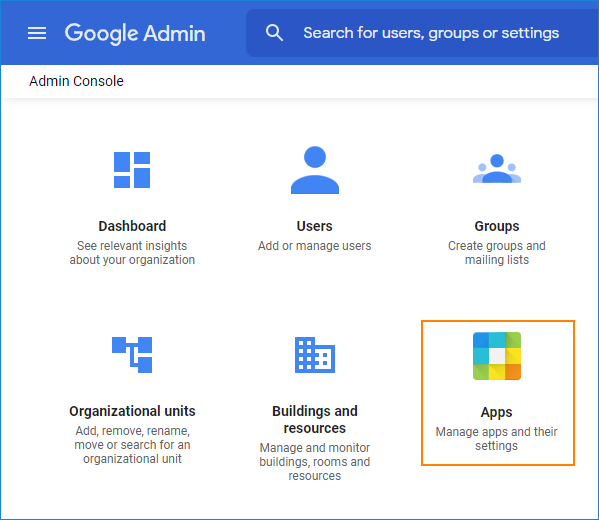
- Log in to your Google Admin Console at admin.google.com and click the Apps icon
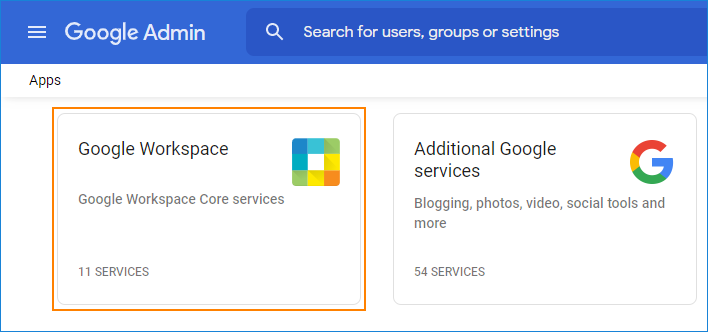
- In the resulting page click Google Workspace.
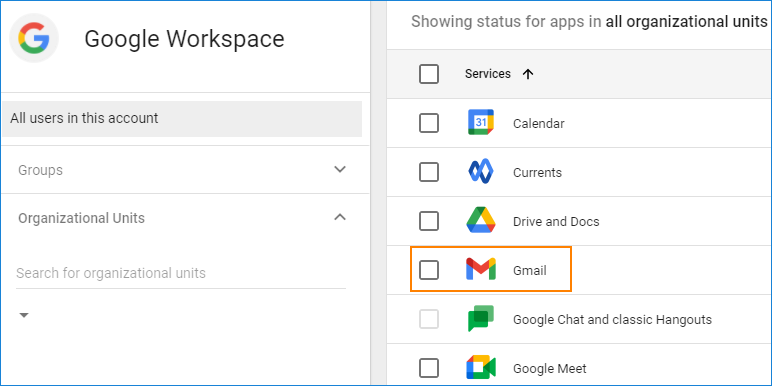
- Now, choose the Gmail icon. Note that the Status on the right side should indicate it is turned on.
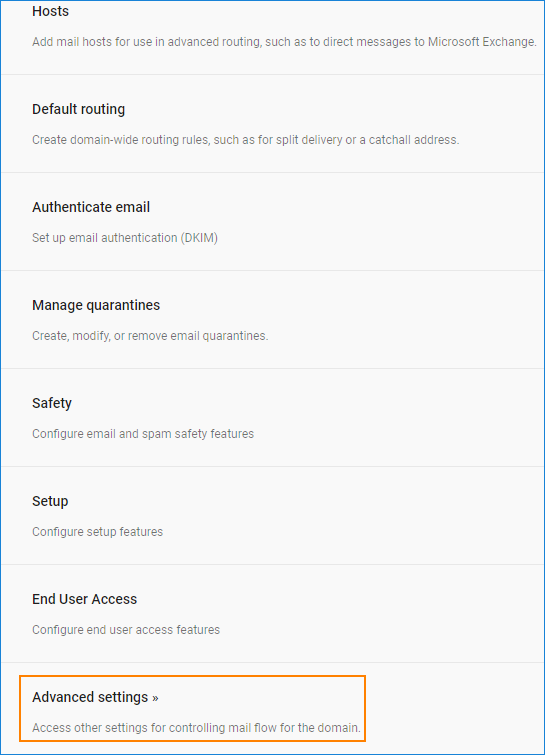
- Scroll down and click the Advanced Settings button.
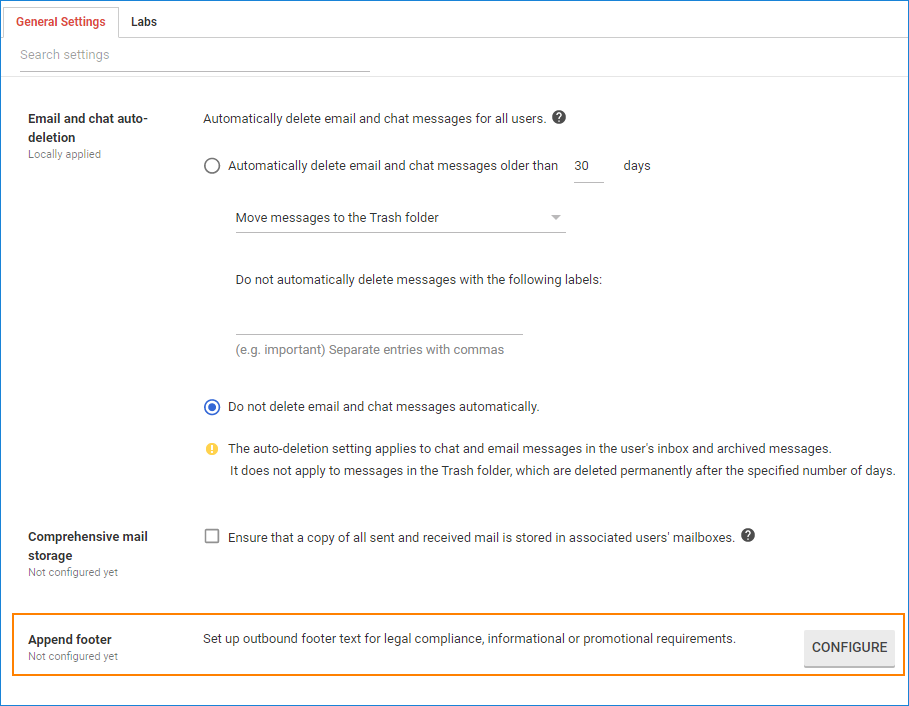
- You have just arrived at Advanced Settings for Gmail. Under Organizations select the domain or organization you want to create the signature for (child organizations will inherit the setting) and then type append in the search box or just find the Append footer bar. Click the Configure button, which appears when you glide over the Append footer bar.
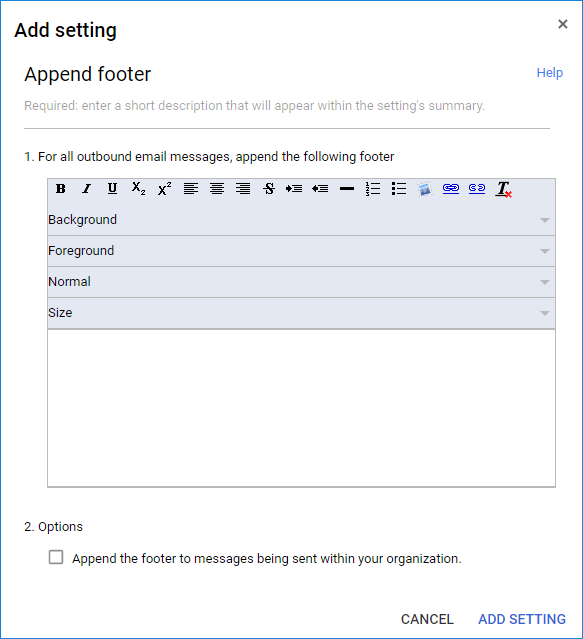
- In the pop-up Add setting window, you can compose your signature. The editor is very similar to the one which is used to compose email signatures in Gmail. The signature can contain text, hyperlinks, and images. Keep in mind that the footer will be identical for all your users, so it is best to include only general information.You also have to add a description to the setting (e.g. ‘Company-wide signature’) and decide whether the signature will be added to internal emails using the Append the footer to messages being sent within your organization option.Click Add Setting when finished.
- The pop-up window will close automatically. Click Save changes at the bottom of the Advanced settings page.
- Your signature is now ready. Perform a test to make sure it works, but keep in mind that it will not be displayed when users compose new emails (Fig. 5). This is because it is attached on the server level. Incidentally, this means that your Append footer setting will apply to Google Workspace mail regardless of the email client (Outlook, Apple Mail, Gmail, etc.) used.
When the email reaches the recipient, the signature is already there. Mind that when the message users send an email message in the plain text format, the signature will also be in plain text format. In other words, the images and hyperlinks defined in the Google Admin Console editor will not be visible, leaving only the text part of the signature.
Limitations of the automatic email signatures in Google Workspace
Features missing from the email signatures applied by the Google Admin Console editor:
- Display name and email address variables updated by information in individual users’ profiles;
- Tables;
- Hyperlinks and tooltips in images
- HTML source access.
- Email signatures visible while composing a new message and in the Sent Items folder.
Read more:


Hi,
Can i assign a signature for all my users from the workspace admin portal.
That’s what this article is about. Keep in mind it’s more of a footer than a signature (the Limitations section explains why)
Hi,
I was wondering if i can put my footer on a precise time, for example 6pm.
Is it possible ?
If not, it will be add to the Google admin workspace ?
Thanks & Cheers !
Hi Quentin,
I’m afraid that it’s not possible to schedule the footer in Google Workspace.
I don’t know if they are planning to introduce this feature. You can try asking at the Google Workspace community
Hi,
I’ve tried following the above footsteps however when it comes to step 5, the append foot bar does not appear even when I try to search for it. Any suggestions on what else I can do?
I know it’s not available in the legacy Google Google Apps Free edition. If that’s the case, the only way to have this option is to upgrade the Google Workspace plan.
Hey guys,
I there a way to have one user opt out of the signature?
Cheers,
In G Suite? The last time I checked, there was no such option. It is either none or all.
hello,
we are using gapps for education, can we include information like title & dept in the footer? with no third-party?
Hi Jinane,
I am afraid that automatically personalized email signatures are not available in G Suite natively. So without any third-party app, you will need to ask users to fill in their contact information.
Hi,
Footer gets appended correctly, except when we send mails from iphone mail, when it sends only in plain text. How to resolve this?
Hi Sanket,
The default behavior for iPhone mail app is to send emails in plain text format. To change this, go to Mail > Preferences > Composing and change Message format to Rich Text. Then, while composing an email, format the text in its body at least once (for example, apply bold font) and send the message.
Thanks Kamil, worked like a charm!!
Also wanted to check if the appended footer appear in sent mails?
Thanks a lot for your help.
Sorry, the signature is applied on the server level and it will not appear in the Sent Items folder. To test if it works well, set it up and send an email to yourself.
If you need to see automatic, centrally-managed emails in Sent Items, you would have to use a third-party tool. For G Suite, it would be a CodeTwo Email Signatures for Email Clients. Using this software, you can automatically apply email signatures to everyone in your company, including their personal information.
do you know if I can disable my automatic banner in signature to outside companies? Since it highlights Palo Alto, I’d like to disable it when I send emails to Sophos for example.
Can user able to append this ? and disable company signature?
Hi Nikhil,
The automatic signature will be appended to all emails, you cannot set rules to append it only in some cases.
All users can replace or update it if they want.
I just want to get something straight. Is it that Gmail Admin Console has no option to add company-wide email signatures to every Gmail user accounts in such a way that the individual user’s name (like first name and last name) and title can reflect automatically?
Hi David,
That is correct. To add users’ data automatically to email signatures in G Suite, you would have to use a third party tool, like CodeTwo Email Signatures for Emails Clients.
How do you get an image to be in the footer? I click the image icon, and paste the URL to where the image was saved but it doesn’t show up.
Hi Jen,
Where did you upload the image you would like to have in your email signature? It may be an issue with permissions on the target site. Or if it is on an image hosting site, you might have to change the url a little.
I was looking for footer on compose and since its not shown when composing, i was worried it wasn’t working. Alas it is there when its received by recipient. Thanks for saving me the trouble.
I am having google apps users i need to configure all default signature but we are using all users in microsoft office outlook Is it possible can fix for all in outlook
Hi Hussain,
If you apply the instructions from my article, the signature will be added to emails from all clients configured with a Google Apps account, including Outlook.
Remember that the signature will be added after a user sends an email, so the user will not see the signature when composing the email. To enable your users to see the signature you can use CodeTwo Email Signatures: http://www.codetwo.com/email-signatures/?sts=3054. The application comes with a 30-day trial which you can download here: http://www.codetwo.com/email-signatures/download?sts=3054
Hope this helps,
Pawel
I used a the Rules option – Oh hang on that was in my Office 365 admin console. There doesn’t appear to be a Rules option in Google as that’s a bit half baked with regard to some features.
I am having problem with one user, the company wide signature is not appearing for this particular user. The user is in our group and member of all staff group.
Any thought?
Thanks
Bereket
Hi Bereket, Are the problem user’s system and email client specifications the same as other users?
The footer is getting appended multiple times, i.e. as many times as a reply is made to the same thread. How can this be solved?
Hi Garima,
This is correct behavior. There is no other way of configuring email signatures within Google Apps.
Using CodeTwo Email Signatures you will be able to centrally deploy footers directly to users’ gmail accounts. They will see the footer when they start to compose a new email or reply, at which point they will be able to delete or modify it.
Let me know if you need more info about the application.
Best regards,
Pawel
I have this same problem. How did you solve it? There’s got to be a way inside google apps w/o resorting to a third party program.
This did NOT work for me, it gave me a message saying it was missing a description….but didn’t say where to put a description…..
Hi Selina,
At what point did you get the message? Also, check if you provided a name for the footer in the Append footer window (Step 4 – in my example the name is “A company wide signature”).
Pawel
thanks. I spent 15 minutes looking for it.