



Mozilla Thunderbird continues to be one of the most popular free email apps. In this article, I’ll show you how to add an email signature in Thunderbird. But first, let’s see how to design a professional signature that will work well with Thunderbird.
How to create a Thunderbird email signature
Creating a professional email signature for Thunderbird is a bit different from preparing a signature for most other email apps. Here’s why:
- Thunderbird’s signature settings don’t include a standard-issue easy-to-use editor. You need raw HTML code or an HTML file. Otherwise, you can only use a simple plain-text signature.
- Thunderbird signatures don’t support “standard” embedded images (cid), but they do support BASE64-encoded images. While this format is supported, I wouldn’t recommend using BASE64-encoded images in your signatures – they tend to get blocked by spam filters and, generally speaking, are a pain to use.
- The default type of image used in a Thunderbird email signature is a linked (hosted) image. These images can be blocked by default by some email apps. Learn more about differences between linked and embedded images in email signatures
- In Thunderbird, there’s no option to configure a different signature version for replies and forwards, so make sure your design is well-balanced.
The easiest way to create a great-looking email signature for Thunderbird is to use our free email signature generator. If you choose the dedicated Thunderbird option, our tool will generate HTML code you can copy and paste straight into your email app’s settings.
If you don’t want to use the free email signature generator, that’s not a problem. This guide shows how to save any email signature as an HTML file, which you can add to your Thunderbird signature settings.
Whichever method you pick, read on to learn how to set up your HTML signature in Thunderbird.
How to add an HTML signature in Thunderbird
Once you have the HTML code in your clipboard or saved as file, Thunderbird email signature setup is easy.
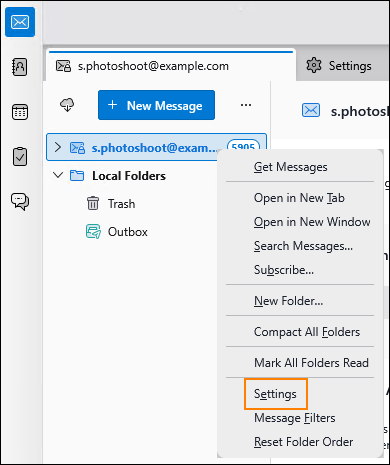
- The quickest way to get to your signature settings is to right-click your mailbox name and click Settings.
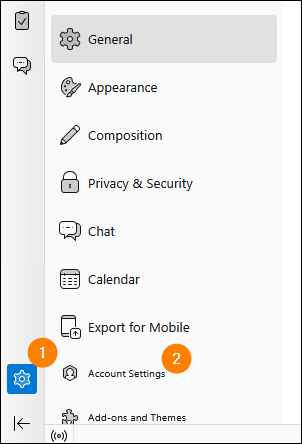
You can also get there by clicking the cogwheel in the bottom left corner and then choosing Account Settings.
- Once you’re in the right place, make sure the Use HTML checkbox is selected (1). Then, paste your HTML email signature into the text field (2) or use Attach the signature from a file instead (3). All you need to do then is choose the HTML signature file on your computer.
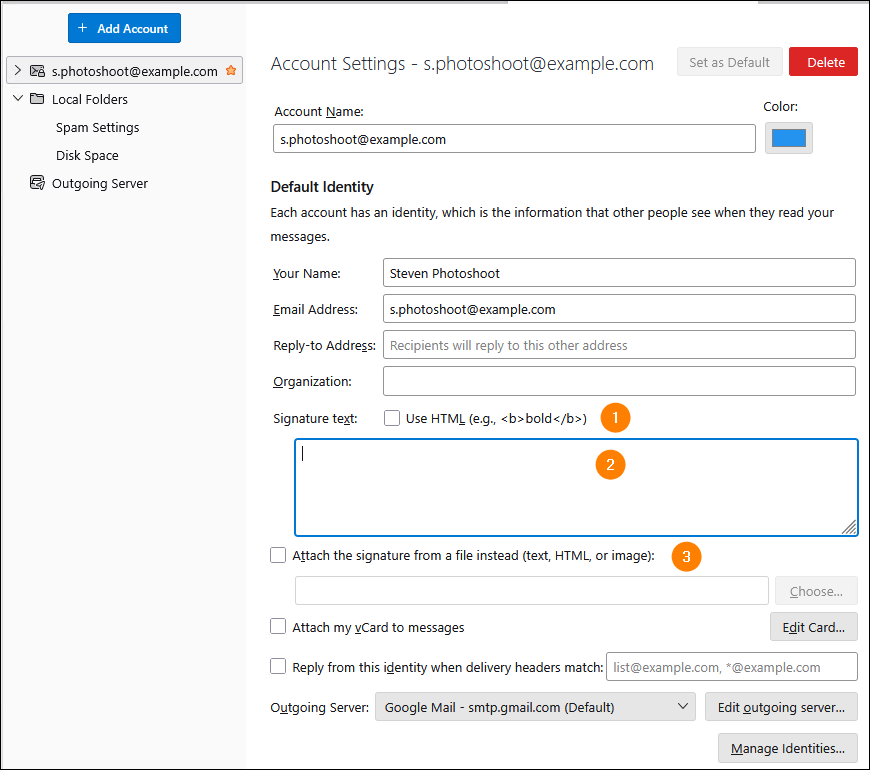
- Whichever option you choose, there’s no need to save the changes: they are synchronized automatically, so you can simply close the settings tab.
From this point on, your signature should be added to every email you send. Here’s what happens after you compose a new email:
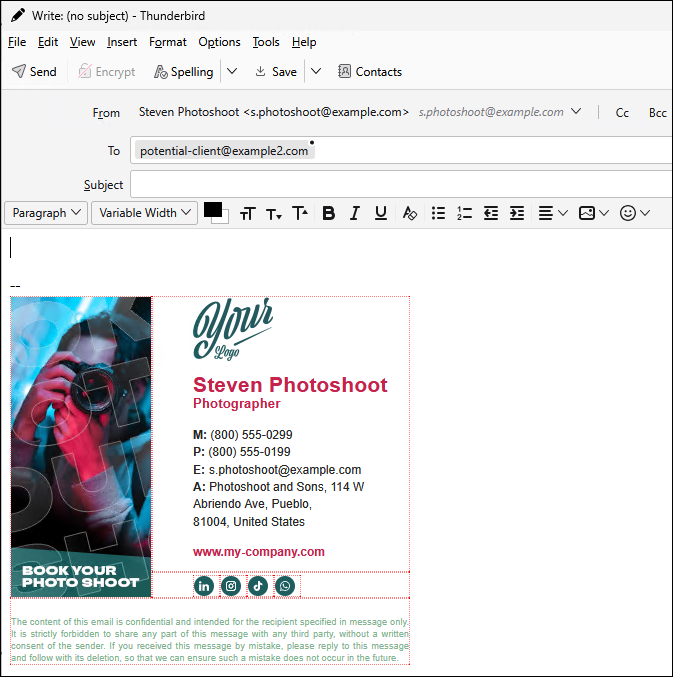
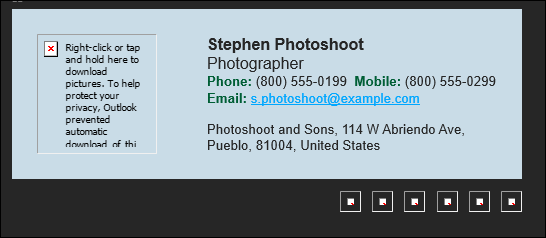
Don’t be alarmed by the red borders. While Thunderbird adds them to all tables in your email compose window, recipients will not see them after you send your email. As a result, your email signature could look like this for your recipients:

Or like this, if your recipient uses dark mode:

Troubleshooting Mozilla Thunderbird email signatures
Here are some common problems with Thunderbird email signatures, along with quick solutions.
Remove dashes before a Thunderbird email signature

By default, Thunderbird adds a characteristic separator between the email body and your signature: a double dash followed by a space (“– “). This is called a signature delimiter, and it used to tell the email app where the email body ended so that signatures could be separated from longer conversations. If this archaic feature together with those two dashes don’t bother you, you’re good to go. However, if you want to get rid of them for good, you can turn this option off in settings:
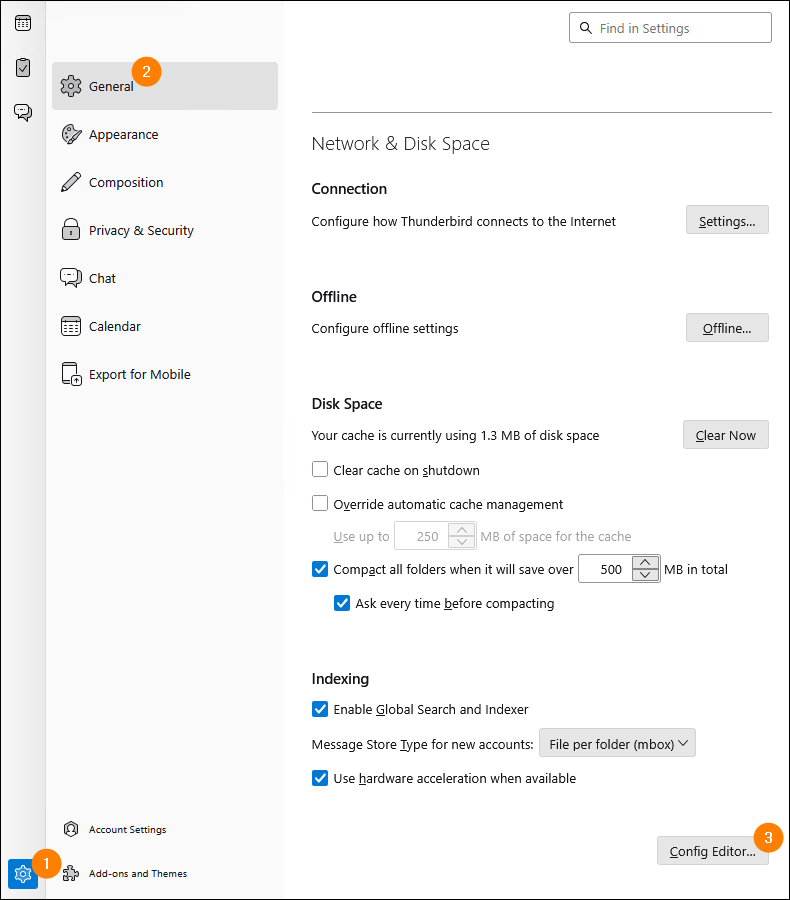
- Go to Settings > General > Config Editor (you will need to scroll down a little).
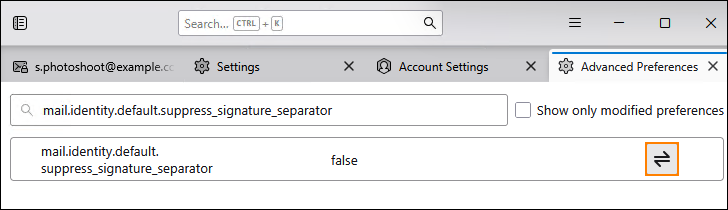
- Here, you can edit advanced preferences. Use the search bar to find
mail.identity.default.suppress_signature_separatorand click the switch button. If the setting is set to true, the dashes will not be added above your email signature.
Fix missing images in a Thunderbird email signature
There are two main reasons why images might be missing from your Thunderbird email signature.
- If your images are missing before you even send your email, it means Thunderbird can’t access their source files. This usually happens when you add the signature from a file and the signature’s code references image files from your hard drive. To fix this, create the email signature using the free email signature generator, as suggested here.
- If your signature images appear in Thunderbird before you send an email, but are blocked after recipients open your messages, this is most commonly caused by your recipients’ email app settings blocking linked images. The images should appear after the recipient chooses to download them or adds you to the safe senders list.



I have set up my html signature on my PC version of thunderbird.
I have downloaded and copied my account to my mobile version successfully.
I have tried and failed to add an html signature to my outgoing emails from my mobile!!
Help please
For the time being, Thunderbird mobile only supports plain text signatures and doesn’t allow HTML signatures. That said, it looks like Mozilla has this feature on their roadmap. If you don’t want to wait for it to be implemented in the mobile version of Thunderbird, there are other mobile apps out there that support HTML signatures, and you can easily connect your email account to any of them.
Super helpful, thanks!
M
Hi,
How come my thunderbird does not have the “Ok” Button? I have finished setting up. But, I dont see the okay button.. Funny!!
If that’s not a temporary issue, you might need to reinstall your Thunderbird. I’ve just checked the most recent version and the OK button is here.
Great article.Much thanks again. Really Great.
Once you are ready to set up your email signature, open Mozilla Thunderbird for Mac. At the top, click on Tools and then Account Settings.
Note: When installing your email signature in Thunderbird, you need to use the HTML source code of the email signature.
Best directions I have found. Greatly appreciated.
Really good directions. Thank you.
Thank you for the useful tutorial.
I have a problem when I send e-mail there’s no attachment (this is ok), but in received e-mail, there’s also attached a picture of a logo (I don’t want that). I would appreciate a solution to this.
I’ve got an article which answers this exact question:
How to make images display correctly in email signatures (not as attachments)
If it doesn’t solve your problem, let me know, I’ll investigate this case more closely.
thank you for your information regarding how to create a signature line in Thunderbird.
Thanks for the useful tips.
Up until now, I had to put up with Thunderbird displaying grey text in my signature.
Option 3 worked for me.. and fixed it.
Thank you.
Worked for me. Thankyou.
This is a very useful guide as I start a new business consulting service and am trying to do as much as possible on my own for now. Thank you for sharing your tools so others can be successful!
I’m wondering how to incorporate the logo into one of your signature templates. In your third method, I see the html code for the image+source, but I don’t see reference to it in the first two methods. I am currently playing with the “Compact Logo.”
Thank you!
Glad to know you find our guides and resources helpful!
The easiest way for you to get familiar with the HTML code is to use our signature generator and export the signature to HTML. The HTML tags will point to an online image location, but you can try using the local images, the way you have seen in the third method.
Thank you for your great help! I was able to follow your instructions, and get my siggy fixed asap!
Thanks for the tip
Can I add icons for various social media with links that are clickable (Facebook, Instagram) to take recipient directly to those pages
Hi Liza,
Sure, just add social icons and link them to your Social media profiles. You can use our free signature generator to make this even easier.
Thanks a lot!
Really appreciate it 🙂
PNG & JPG are most acceptable image format in digital world. You may use your e-mail signature banner file as .PNG or .JPG.
1. Open a fresh/new e-mail space.
2. Type & paste you e-mail signature including images, if any. Resize the image as required.
3. Select the entire content
4. Click on Insert menu on top horizontal menu tabs.
5. Click on HTML
6. A message window will appear.
7. Click on insert at the bottom of message window.
OR
Copy the codes from the message window.
8. The signature banner appear at the bottom.
The Signature banner will appear at composing e-mail window.
Enjoy
Thank you, It works
everything word, except the logo doesn’t appear, what format it as to be
Hello Arnaud,
The most reliable image formats are PNG and JPG. Please try using one of those.
This was superduper helpful – a lot more than anything else I’ve encountered (including the official thunderbird support).
Thank you very much!
I was able to set up the signature, however, when I reply to the message, my signature goes to the end of email from the recipient, instead above it. I want my signature at the end of my email, not at the end of email thread. Is there any way to fix it? Thanks a lot!
Hi Erin,
Please try this solution: go to Tools>Account Settings>[account name]>Composition & Addressing and set the reply style to Start my reply above the quote and then, change the place my signature setting to below my reply (above the quote).
Wow, this is great. Thank you so much for your help!!!!
Very Useful and crystal clear instructions Thank you
Thanks Kamil
I’ve checked the ‘Attach this image to the message’ is checked so in theory all should work but it isn’t. I’ll try your other suggestion at a later date.
Hi
I used option 3 and it worked really well. However I now wish to amend it slightly – I wish to change the link associated with one of the images in my signature. Do I need to make a new signature or can I amend/edit?
Hi Lyn,
You can edit the signature. Changing the link should be very easy. Simply go to your signature settings (Step 8 in the third method), find the link you want to change, and change it to the new one. Make sure that the link is surrounded by quotation marks and click OK save the changes.
That worked thank you however I have just noticed, and it may have been the same before but – I created a new message to see how it looked and all was good so just to be sure I sent a test message to my other email account. When it arrived, there were no images, just text 🙁
When you insert the image using Insert > Image, please make sure that the Attach this image to the message option is checked. If it still does not work, you can try uploading your picture to an image hosting service and pasting the picture’s url into the HTML code in place of the image path.
Thank You..
hi,
i like to insert my company logo in my signature with method 1 , i think it s missing… could you help? Thank s!
Hi Alex,
You can insert your company logo with method 1 using standard HTML code, that is <img src=”your image file path” />. You can see the code in step 8 of method 3. If you have any problems, please try using method 3, as it is the quickest and requires no HTML skill.
Currently, when I reply an email, the location of my signature is right at the bottom of the thread. Meaning if I reply several times, my signature will appear several times at the bottom of the thread.
How do i have my signature at the end of my reply every time i reply?
Hi Karen,
This is a common problem, to solve it in Thunderbird, please go to Tools>Account Settings>[account name]>Composition & Addressing and set the reply style to Start my reply above the quote and then configure place my signature option to below my reply (above the quote).
Thanks. Found this easier to use than T-bird’s own doc.
Thanks a lot, that was really helpful.
Hi,
When i reply to mail my signature always go at the bottom part of the email trail.
I prefer to have it at the bottom of my message then the history of email at the bottom of my signature…
Thanks!
Hi ESTEE,
Please go to Tools>Account Settings>[account name]>Composition & Addressing and try setting the reply style to Start my reply above the quote and setting place my signature to below my reply (above the quote).
Hi, when i follow either option i get red lines around the boxes and the format doesnt look the same as it does via IE/Chrome, and when i try to still send emails using it I get error messages saying there are issues with each png image that’s used within it. I cant figure out how to resolve this. Any help would be greatly appreciated.
Hi Leischa,
Red borders are visible only in your editor to help you see where your tables are, they should not appear in your signature. Please send a message to yourself (when you are able) to test if they are visible in messages. When it comes to formatting issues and png problems, I need more information to help you. What are the differences between the formatting on browsers and in Thunderbird? Finally, could you specify how you insert images and what the error message is?
Thank you Kamil. I tried method 3 and it worked. Only problem is that there remains a stubborn double hyphen — at the left margin and above my signature, and I can’t get rid of the double hyphen. I tried using the Signature Generator template, went into Gmail, and my signature was set up just as I want it, except with the double hyphen. I tried everything from the beinning, even re-formatted the signature template, and I still can’t get rid of the double hyphen. Please help again. Thanks.
I am glad the method worked and I think you will deal with the double hyphen as easily. Go to Tools>Options>Edit>Preferences>Advanced>Config Editor and find the entry mail.identity.default.suppress_signature_separator (you can use filter suppress_signature_separator) and double click it so that it is set to true (or 1).
Thank you for your help. I could not get beyond Tools>Options. Edit, Preferences etc. were nowhere to be found. However, the double hyphens — have disappeared on their own. I tested my E-mail by writing to myself, and now it is clean, with no distractions. I appreciate your assistance, Kamil.
I am trying to use Method 2 since my office has a logo. Several times I have created a new file with the signature material. But every time I test to write a new E-mail, the signature appears as merely a double hyphen — at the left margin, and the letters PK double spaced below, also at the left margin. I can’t get the signature line to reproduce at all. Please help. Thank you.
Hi Richard,
If method 2 is not working for you, please try method 3. In the editor, you can add the logo by clicking the image icon in the editor, or using the menu (Insert>Image…). If you still experience problems, just use one of our free templates or the Signature Generator (both links on the menu) and simply substitute graphics with your own. Please let me know if it solved your problem.
Hi..Milena
very useful and nice article . Thank you so much..
Best Regards
Veeresh
Hi,
Thank you for the article.
I have done the method 3 and created the signature.
But when I am sending mail from (or via) Thunderbird and looking up it directly in gmail, it shows a different font other than I have set. Thunderbird shows the same signature I have set.
Please help.
Thank you.
Hi Ebin Antony,
I have tested this with different browsers and fonts, but I was not able to reproduce the problem – my signature looked exactly as I set it up in Thunderbird.
What font are you using when the problem occurs?
Also, have you tried to recreate your signature from scratch or use different fonts?
You can also try adding style=”font-family: <font_name>;” to paragraphs in your signature, e.g. <p style=”font-family: Verdana;”>John Doe</p>
-Milena
Hi, when I reply to a message my email goes to the very bottom (below the original message) instead of in my reply. How can I have my signature be included in my reply? thank you
Hi Jill,
This functionality is not supported natively.
To insert email signatures right under replies/forwards, you would need to use a third party tool like CodeTwo Exchange Rules: https://www.codetwo.com/exchange-rules-family/?sts=5255 (providing you use an Exchange email account in Thunderbird).
All the best,
Milena
I have done everything I’ve read but when I go to a new email it looks like I have a blank signature then below it has the new signature I created. How do I get rid of this blank signature.
—
—
Lynda Mikulec
Purchasing
Excalibur Rental
Elite Toilet Rental
purchasing@…
cid:E5C164A1-A696-4662-ABFD-9E762ECDC486
Hi Lynda,
Perhaps there are some extra lines of code added at the beginning of your signature, which cause the problem (they might have been added by the program for some reason). Please try to recreate your signature from scratch using Method 1 as shown in this article.
If the problem persists, try to do the following:
1. Create a new text file (right-click the mouse button>New>Text Document) and name it, e.g. TB Signature.
2. Open the text file and create your signature. Save changes and close the file.
3. Go to Thunderbird and import the file using Method 2 from this article.
4. Open a new message to check the results.
Please let me know if it helps!
Milena
Hello Milena,
very useful article. Thank you.
Was looking for diffrent kind of signature (idea or example) and this article answers to one of my problem
write html code … this way is easier so i can now make my own signature without html / css skills
I use an helful add-on (signature switch) to manage several signaures
Sebastien
Sebastien
how do i get rid of the — before the signature?
Hi Bec,
To get rid of the double dash “– ” before the signature, you need to do some changes in the config editor as per this instruction: http://kb.mozillazine.org/Signatures_(Thunderbird)#Removing_the_signature_separator (section: Removing the signature separator).
Hope this helps,
Milena
I like method 3. My signature will consist of 3 or 4 simple lines. However I would like to add a JPEG just left balancing between the lines. If you know would you explain how I can do this with the 3rd method?
Thanks
Hello Russell,
If I understood you correctly, simply position the cursor between the lines in your signature exactly where the JPEG should appear (use the Enter key if you need to add an extra line to the signature), then go to the Insert tab, and select Image (method 3, step 3).
In the resulting window, under the Location tab, click Choose File to load an image and click OK.
Let me know whether it helps!
All the best,
Milena
Thanks for explaining clearly Milena.
How would one insert a hyperlink to your signature within Thunderbird? Do you need to attach a file? I’m trying “Command K” and that does not seem to work (as it does in Apple Mail). Thanks for the helpful article.
Hi Josh,
To insert a hyperlink to your signature you can:
– In method 1, add a link wrapped around the
[a href="link"][/a]tags e.g.[a href="www.example.com"]Display text for the link[/a](I used square brackets instead of the angle ones as my editor changes them into a piece of code. Please use the angle brackets.)– In method 3, while composing your signature in the email body, insert a link using the “Ctrl/Cmd + L” command or go to the Insert tab and then select the Link option.
Hope this helps!
Milena
Thank you, this is very helpful.
Perfect!
And … any advice re. using special characters? I have an é in my name and I see this is often changed to é. Thanks!
Hello Des,
The problem with displaying special characters may be caused by the set of fonts installed on your operating system which may not support special characters or by inadequate character encoding. For more info, please refer to this article: http://kb.mozillazine.org/International_characters.
To change the color of hyperlinks, go to the Thunderbird settings and then expand Options>Options>Display>Formatting tab. Under the Formatting tab in the Fonts & Colors section, click the Colors button. In the resulting widow, select new colors for your links.
To add a graphic link to social media, please follow the steps below:
1. Open your Thunderbird.
2. Open a new message.
3. In the new message window, go to the Insert tab in the top menu (or to the Insert icon in the message body) and click the Image… option.
4. In the resulting window, click Choose File to insert the image (your social media icon) and then, in the same window, go to the Link tab where you can enter a link of your choice. Click OK to save changes.
5. Now, when you click on your social media icon, it should take you to the selected webpage.
Hope this helps!
Milena
Thanks for this info – very useful. Using method 3, what’s the best way to insert a graphic link to social media? And … how do you stop the links “turning blue”?
I have followed these very good directions (option 3) and when I am finished and click OK, a window appears that says : An account with this name already exists. Please enter a different account name.
Please help! I only have one account!
Thank you,
Leslie
Hello Leslie,
My research shows that the problem might be related to an updated version of Thunderbird. Please refer to this Thunderbird forum where the problem is discussed in detail: http://forums.mozillazine.org/viewtopic.php?f=39&t=2867903.
As stated in that thread, a rollback to, e.g. 24.6.0 version of Thunderbird may solve the problem.
Please let me know whether it helped!
Milena
I am having that same problem. How do I do a “rollback”?
Hello Russell,
Follow the steps from this article to go back to an old version of Thunderbird: http://kb.mozillazine.org/Go_back_to_an_old_version_of_Thunderbird.
Before doing the re-installation, create a backup copy of your Thunderbird profile: http://kb.mozillazine.org/Profile_backup (test your backup copy to make sure it is not corrupted and works as expected).
Hope this helps!
Milena