



The steps below show how to use a transport rule with the “add a disclaimer action” to help you with central management of your email signatures in Exchange 2013.
In case you missed it, Exchange 2016 and Exchange 2019 are reaching end of life in 2025. Exchange 2013 reached end of extended support in April 11, 2023. If you’re still on Exchange 2013, be extra careful.
Steps to set up email signatures on Exchange 2013:
Access your Exchange admin center. To do this open an internet browser and in the address bar type:
https://localhost/ecporhttps://<CASServerName>/ecp(where
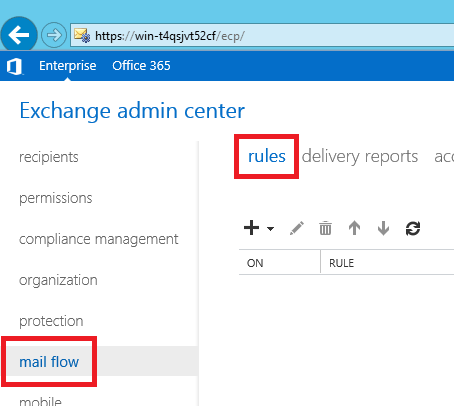
<CASServerName>is your Client Access Server computer name) and log in using domain Administrator credentials.Go to mail flow, rules to arrive at the Exchange 2013 transport rules’ editor.
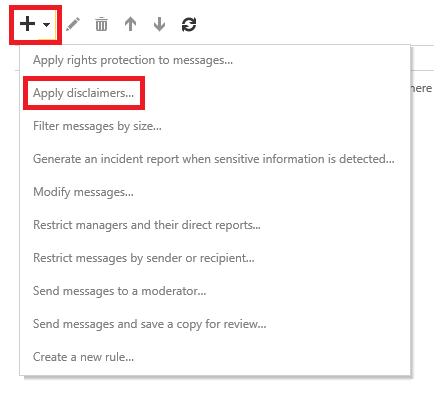
Click the + button to go straight to the transport rule creation wizard (and specify action type later) or the small downward arrow to first choose the action type (Apply disclaimers…).

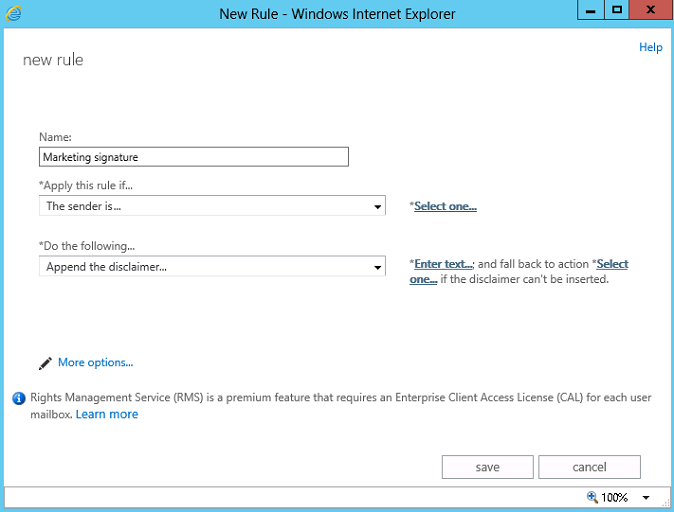
By default the wizard starts up in simple mode, with only 2 configuration options: 1 condition (e.g. senders’ scope) and 1 action (Append the disclaimer…).Use the *Apply this rule if… section to define the conditions for your rule (complete list available here)

If the *Do the following… section is not defined yet, select Append the disclaimer… and click the Enter text… link. The disclaimer you design can contain text, Active Directory variables (in %%name_of_variable%% format; more in this article), HTML tags (including linked images) and CSS styles.
Click Select one… to select the action the rule will fall back to if the primary action fails. The options are: wrap (append the disclaimer to a new message with original message attached), reject (block message and send ndr to sender) and ignore (send message without disclaimer).
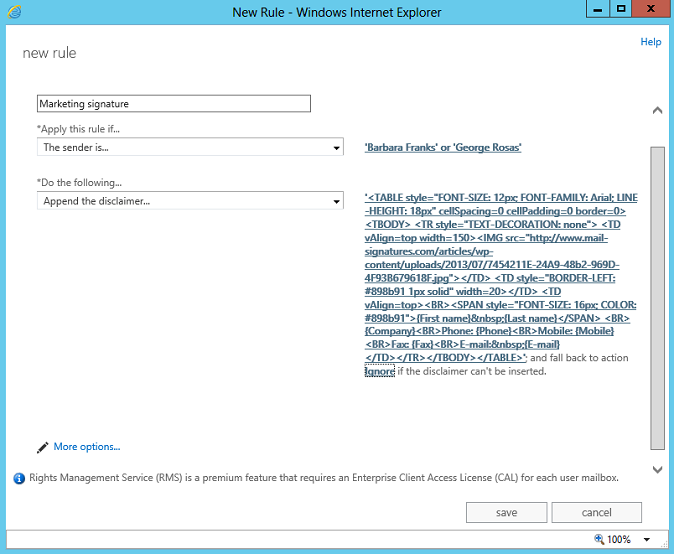

Click save and test your rule.
Or, to get more configuration options, click More options… . This will enable you to add multiple conditions, actions, exceptions, decide whether more rules should be processed, specify a time frame (recurring time frames not supported) and set audit configuration.
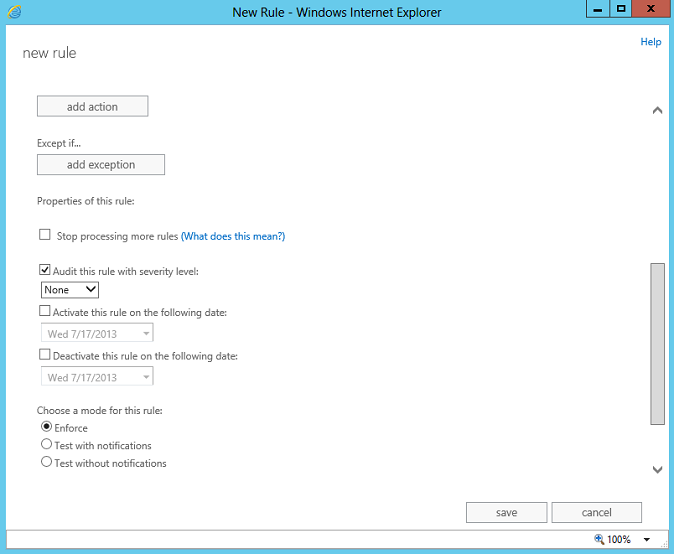
In the Choose a mode for this rule section select Enforce to deploy the rule, or one of the Test… options to have your rule’s actions logged to messages’ tracking logs, but not actually affecting the content of emails.
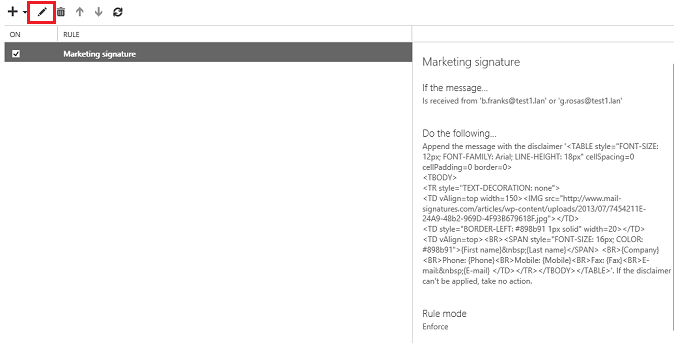

Afterwards you can enable/disable the rule (checkbox in ON column) and view its summary without accessing the wizard. To modify the rule configuration, highlight your rule and click the pen button (marked red).



I have applied the signature according to your manual. But we ran into a very weird problem. Whenever you sent out a calendar invite in Office2013, lines are added around the pictures inside the signature. This is only visible in Outlook 2013 and 2016 for windows. not in the OWA or on Mac 2011 or 2016. We tried adding ‘no line’ css styling in the HTML signature, but with no result.
Any idea what is causing this?
Hi Frodo,
Outlook sometimes requires setting the styling to the nearest object, so using “no line” styling on the whole signature might not work.
Try adding border:0 to your img tag:
<img src="https://www.example.com/picture.png" style="border:0" />Hello…
Our company has a corporate email with a signature applied at the level of the company domain, the Active Directory … And it works well in our Outlook 2013…
But… When we access the Web Aplication 2013 and open a new message, our signature not appear … It would be possible to configure the signature to function in AD as in web aplication? The same signature we created in AD?
Is it really necessary to have the “Code Two Exchange Rules 2013” to have that operation running?
Hi Monica,
Do I understand correctly that you want the signature to appear in a person’s email in OWA when they start to compose the email? To achieve this you would have to use CodeTwo Email Signatures: http://www.codetwo.com/email-signatures/?sts=3024. I don’t know of any built-in Exchange or AD mechanisms that would allow you to do this.
Best regards,
Pawel
Thnak you for responding my request, i will test the tool…
Hope ti works.
Have a nice weekend
Great article! We used it to create our company standard signature. The only problem is now that the lay out of the signature is completely gone when the mail contains an attachment. Have you got any idea how we could fix this?
Thanks!
Hi Bert,
If to add your company signature you’re using an Exchange 2013 mail flow rule, the first thing to check would be if you have 1) an exception in this rule defined for emails containing attachments or 2) another rule with higher priority, that is applied to emails with attachments and has the Stop processing more rules attribute enabled.
Other transport rule limitations that can affect message processing:- Encrypted email messages – Rules with predicates that require inspection of message content, or actions that modify content, can’t be processed.
- Protected messages – If transport decryption is disabled, the agent can’t access message content and treats the message as an encrypted message.
Source: TechNet: Exchange 2013 Transport Rules
If none of the above applies, I recommend reviewing the message tracking logs for problem emails. You will find the logs in %ExchangeInstallPath%TransportRoles\Logs\MessageTracking. More in this TechNet article.
I created the company’s signature using Exchange 2013 rule work well for the signing of all users, but when you reply to the email I find that the signature comes at the bottom of the original email .
Hi Bassem,
Not being able to insert signatures directly under replies/forwards is an Exchange 2013 mail flow rule limitation (I talk about it in the last paragraph of my article). The only way around it is to use a 3rd party signature management application for Exchange.
Best regards,
Pawel