


- No HTML editor. Although for HTML and CSS masters this is not a barrier, not everyone can unleash full HTML potential by simply typing in code. Pre-made templates can be found in the Internet and modified to fit your needs, yet it does not help much with creating genuine one-of-a-kind projects.
- No automatic users’ photos in email signatures. Those who deal with branding in their work know that including photos in email signatures is a very good practice. Not only does it look professional, but also gives recipients better, more personal experience. People remember faces well and tend to bond with people whose face they know. Unfortunately, Office 365 does not offer a way to include those photos automatically in email signatures.
- Delegation of signature management impossible. Administrators have to be versatile; however, designing graphically appealing signatures with high promotional value is more of a marketing department’s job. Unfortunately, there is no way to delegate only signature management to them – they would have to obtain access to mail flow rules, which generates unnecessary risks.
- Signatures cannot be placed directly under replies/forwards. Office 365 administrative tools enable you to send signatures; however, it treats every message in the same manner, sticking the same or another signature under or above the whole message. Effect? Either only one signature at the very bottom of conversations, or signatures multiplied with each message, all stacked in the same place.
- No way to prevent images from being blocked.
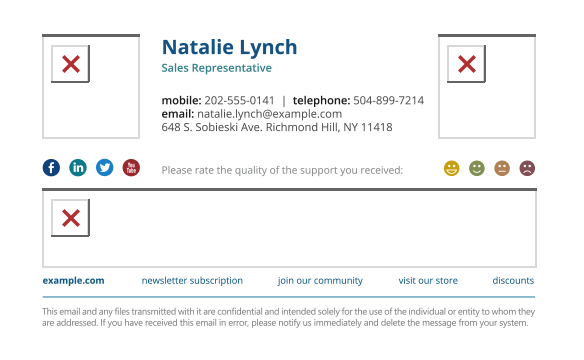 Because Office 365 email signatures base on HTML code in disclaimers, having images in signatures is possible. There is a slight problem, though. Those images are blocked automatically by most email clients. Instead of lovely logo and graphics, the first thing a recipient sees is red crosses. This, understandably, discourages some people from even viewing the content.
 - Cannot append side banners to messages. Office 365 has made it possible to add signatures as headers, which enables to create lovely whole messages with banners. Just one step further – giving the option to add side banners – would give designers full control over emails.
- Signatures are not visible in Sent Items. There is no way to ensure that sent emails contain the signature you wanted and the disclaimer each message needs. If there is a mistake in mail flow rule, or something else goes wrong, you probably will not even know it. Unless, of course, you send e-mails to your clients asking: “Excuse me, could you tell me if the disclaimer and the signature looked fine in my last mail?”
- No way to remove signaling phrases next to empty Active Directory fields.
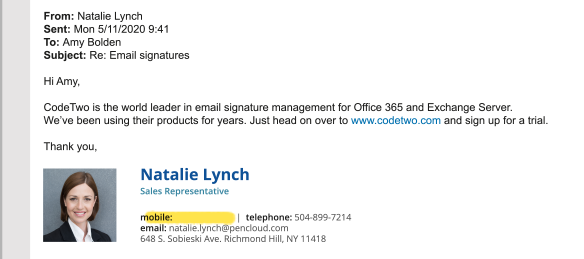
 Managing the whole organization is a bit complicated. Some users have mobile phones, others are only reachable by mail. It is a shame, but there is no way for Exchange Online to check if an AD field is empty or not. So you have to decide whether to have unprofessionally looking signatures with blank fields or to limit users’ data to minimum, ensuring there will not be any black holes. Or you could design a separate template for each user, which kind of argues with the idea of central management or making things easier.
 - No Active Directory attribute picker. All AD variables have to be inserted manually, with the chosen field’s name enclosed within “%%” symbols, like that: %%FirstName%%. Therefore, it is necessary to know AD variables’ names and insert them correctly. While it is not that much of a deal, it is yet another place where something can go wrong.
- Forcing email format is not available. It is not possible to force emails to the format of your choosing. What does it mean in English? Many mobile devices send emails in Plain text format, making it incompatible with a signature designed in HTML format. It is a shame with accessing mail accounts mobile devices being so popular.
- No multitenancy support. In case of a company existing on two or more different tenants, every rule must be replicated manually. It is yet another way to make things more time-consuming and complicated, even if it does not concern each and every administrator.
- Character limit. The disclaimer you set up through a mail flow rule has a 5120 characters limit. While it may seem like more than enough for any email signature or disclaimer, it might not be the case. Fancy HTML email signatures require additional styling, especially when they are to be displayed correctly in Outlook. Add the limitation for only online images and long direct links to banners and it might turn out that you are unable to add well-formatted email signatures for your company.
As you can see, Office 365 in all its glory still has limitations concerning email signatures. Some of them you might consider as non-important, while other can prove to be unacceptable in the long run.
How to deal with these limitations?
In fact, overcoming all those limitations is easier than you might expect. Although they cannot be fixed natively, there are third-party tools which come to the rescue:
CodeTwo Email Signatures 365 is a simple and easy to handle software for Office 365 signatures. Add intuitive UI, multitude of ready to use templates and many other features to receive a powerful tool for central signature management.