How to manage company-wide email signatures on Exchange 2019?
This article shows a step-by-step guide on how to create an Exchange 2019 central email signature using a native method. Although the native method is not free of limitations, it should help organizations meet basic requirements regarding corporate email signature management.
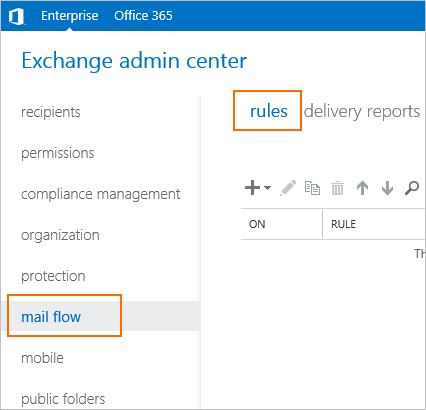
In the Exchange admin center, click mail flow > rules.
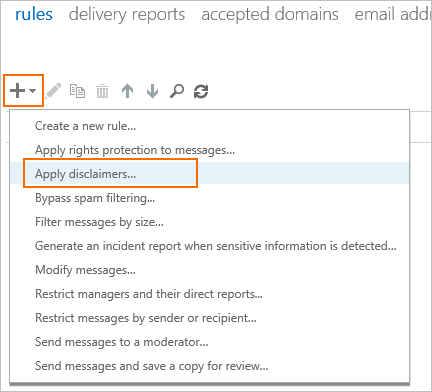
Then, click New (the + icon), and Apply disclaimers.
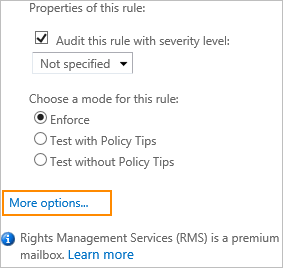
A new rule window will open. Before you start creating your signature rule, you can click More options to unlock additional conditions.
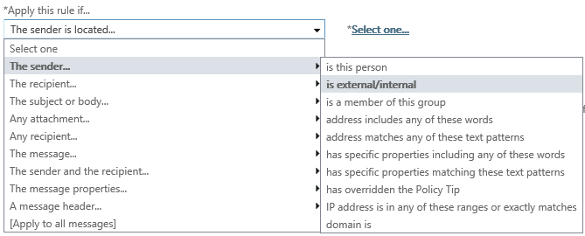
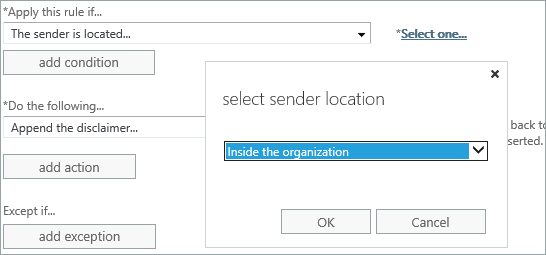
Provide a name for your rule. Then, in the Apply this rules if… section, select a condition that, if met, will trigger this rule. In my case, this would be The sender > is external/internal.
In the following window, I set a sender location to Inside the organization, so that the rule applies to all users within the organization.
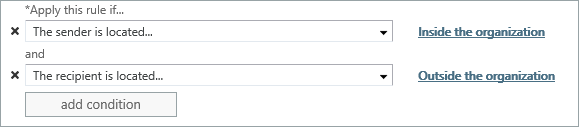
If you want to narrow down the extent of your rule, you can click add condition to set up another condition. For example, the recipients is located> Outside the organization. This way only emails sent to external recipients will get the signature.
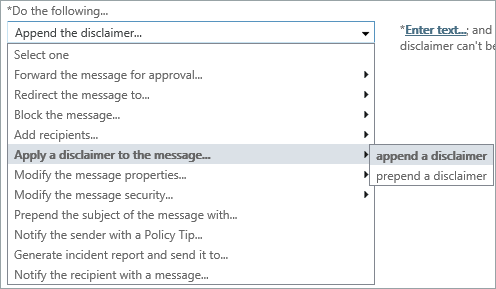
Then, in the Do the following section, you should already see a pre-selected action, which is Apply a disclaimer to the message > append a disclaimer. If not, add it as shown in the screenshot below.
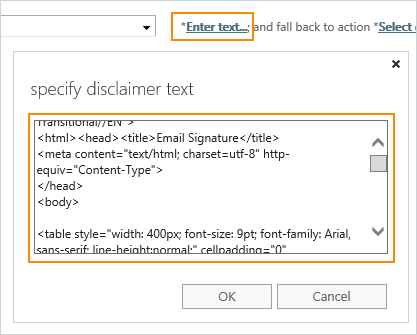
Now, enter text of your signature. As there is no WYSYWIG editor, you need to wrap your signature text in HTML code if you want to look it more appealing. Note: If you are not fond of creating HTML signature by yourself, you may want to use one of the ready-to-use email signature templates or get help from this free email signature generator (it generates HTML code of a selected signature so you can just copy/paste it to the Exchange text box)
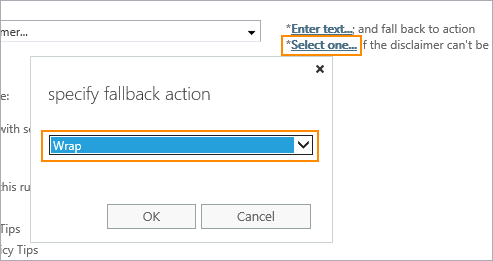
Click Select one to choose a fallback action if the disclaimer can’t be added. Note: You can choose from three fallback actions. Wrap is a default value. It adds the original message to a new message as an attachment and inserts the signature to that new message. Ignore takes no notice of the rule so the email doesn’t get the signature. Reject drops the message and notifies the sender with an NDR.
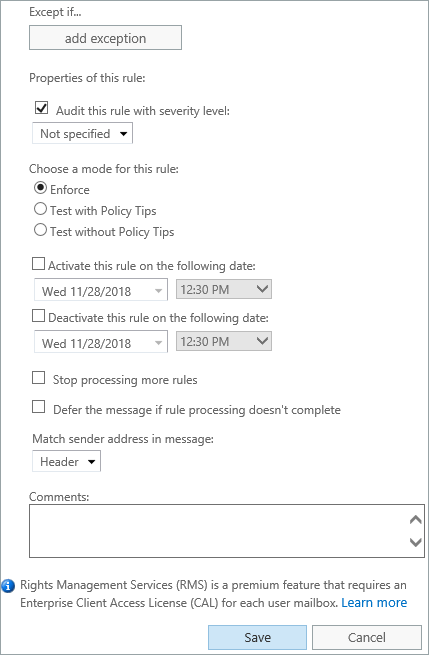
Once your email signature is ready, you can go to other options of the rule, like exceptions, or finish the setup by saving the changes.
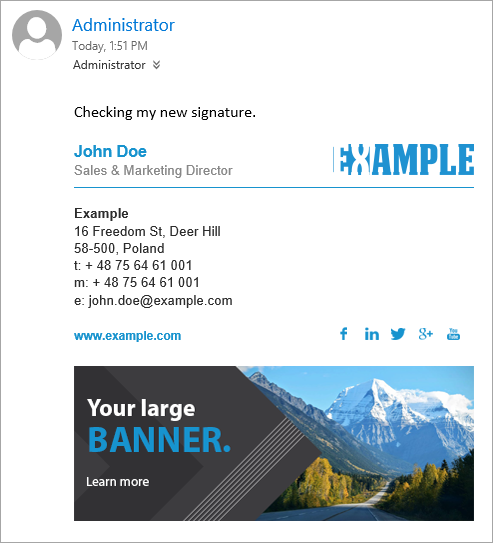
Send a test message to see if the signature works as expected.
That’s it! Your Exchange Server 2019 email signature is ready to go.
When you manage email signatures using native functionalities, it is worth being aware of a few limitations that come with this solution:
Signature text editor – the lack of WYSIWYG signature editor may cause pain when designing complex email signatures. To write a piece of working code that displays signatures correctly on different email clients requires some advanced HTML skills.
Signatures always land at the bottomof email thread – when you reply to a message, you would perhaps expect to have the signature added under your response. But, instead, you get the signature inserted at the very end of an email conversation. If exchanging emails goes on, the pile of signatures grows. This is default Exchange behavior.
Blank spaces in signatures – user information in signatures is, in most cases, dynamically pulled from Active Directory. However, if some fields in AD have no values, then no information can be pulled into a signature. As a result, the signature contains blank spaces not filled with contact details. For example, you can see empty space instead of the user’s mobile number like “Mobile: [blank space]”.
No signatures in Sent Items – native Exchange signatures are added on the server, so after you hit the Send button. Because of that, you will not be able to see your signature in the Sent Items folder to verify whether it looks as expected.
The above examples are only a few of Exchange 2019 signature limitations. If these are not acceptable for your company and you would like to format email signatures via WYSIWYG HTML editor, get signatures added right under the lasted reply or be able to see signatures in Sent Items, you need to use a third-party solution like CodeTwo Exchange Rules Pro.
There are many email signature tools on the market. Choosing the best one can be a challenge, especially if you don’t deal with creating or managing email signatures on a daily basis. I guess you could test all email signature software on the market to see which one is the best, but I have a better idea. We work with email signatures every day. We live and breathe email signatures, they’re our bread and butter. That’s why we’ve decided to put together a list of the most important characteristics that the best email signature tool should have. What is the best email signature software? The best email signature software should be: 100% reliable. Flexible. Easy to use. It’s obvious that vendors will pitch their own tool (guilty as charged). So how can you verify whether certain software lives up to its creators’ promises? Either test it yourself or look for organic reviews on sites like G2, Capterra or TrustRadius. But for now, let’s dive a bit deeper into different types of signature software. There are different kinds of signature tools and to choose the right one, you need to ask yourself one question "what do I need?". So, if you need to: manage signatures for everyone in your company, create one signature design that gets automatically personalized for everyone in your team, get intelligent signatures that change based on recipients, keywords or other variables… … then you probably need an email signature manager. On the other hand, if you need to: design an awesome email signature, add an email signature to your Outlook, Gmail or <insert your mail app here>, get a professional email signature but have no idea where to start... … then you probably need an email signature generator. What is an email signature management tool? An email signature manager is a tool that not only lets you design a signature but it also integrates with your company systems to make sure every employee gets the right signature, with their own personal details. Why? Think about this scenario: You have a team of 100 employees. Each employee sends around 30 emails a day. That’s 3,000 brand impressions daily. To put it simply, a brand impression is any interaction with your brand. In this case, it refers to how many times your clients see your business email signature (which can either look professional or not). Each impression can be either a risk or an opportunity. Let’s make a list (or two lists, to be exact). Risks If a company doesn’t manage its email signatures, it may need to deal with several risks: No signature means a customer or lead never sees an alternative contact channel like a phone number. This translates to lost opportunities or decreased customer satisfaction. A broken signature layout, an old logo or outdated contact details –all of these can damage your brand. Non-compliance with some legal requirements. And that’s just off the top of my head. See what other email signature mistakes can hurt your brand. Opportunities Having a unified email signature layout is already a huge step toward true professionalism in email communication – consistency is key to making your brand more noticeable and trustworthy. And there’s even more you can achieve with a smart approach to using email signatures: Create effective email marketing campaigns without the need for profiling. Collect customer feedback easi
Very Good blogs, I Implemented this and working fine, thanks a lot. I just have one query this is working for only for newly composed message but not working when I’m replying any email. How to enable this functionality for reply of emails.
If you’ve created a mail flow rule as described in this article, the signature/disclaimer should be added to all emails – new ones as well as replies and forwards. Keep in mind that, as mentioned in the article, signatures always end up at the very bottom of email conversations. Try looking for your signature there.
That’s the limitation of Exchange mail flow rules. To get your signatures directly under replies/forwards, you need to use third-party tools.

















Very Good blogs,
I Implemented this and working fine, thanks a lot. I just have one query this is working for only for newly composed message but not working when I’m replying any email.
How to enable this functionality for reply of emails.
Thanks!
If you’ve created a mail flow rule as described in this article, the signature/disclaimer should be added to all emails – new ones as well as replies and forwards. Keep in mind that, as mentioned in the article, signatures always end up at the very bottom of email conversations. Try looking for your signature there.
That’s the limitation of Exchange mail flow rules. To get your signatures directly under replies/forwards, you need to use third-party tools.