



A few words against email signatures
Have you ever tried to create a perfect email signature for your entire company? If so, you probably know that designing a good signature is sometimes far more complex than building a complete website. And this is because different email clients have their very own way of interpreting the HTML code you wrote, which makes the signature design be a far cry from what you expected. However, there are several rules that you can follow to achieve better results. Let’s get started.
To design your signature, you would need an HTML editor. The standard Windows Notepad is enough, but an editor with syntax highlighting and automatic completion (like Notepad++ or Sublime Editor) will be a much better option.
Old methods might still be the best
The era of websites built on dozens of HTML tables is already over. Thank you very much! Despite the fact that such websites are a nightmare these days (due to SEO-related problems), for the email signatures it is actually the best way to keep entire content in one piece. If you decide to use another type of HTML containers (like DIVs) it may turn out that in many email clients they do not float as desired, leaving the signature or disclaimer smashed.
The HTML table with many columns and rows should be enough to create even the most complicated layout of your email disclaimer or footer – especially thanks to the rowspan and colspan attributes that help you merge rows and columns. Also, it is a good idea to set the cellpadding and cellspacing attributes to zero, as some mail clients may add additional unwanted spacing.
Last but not least, remember to set the widths and heights clearly, both in HTML and CSS – do not allow your email client to surmise what your dimensions should be.
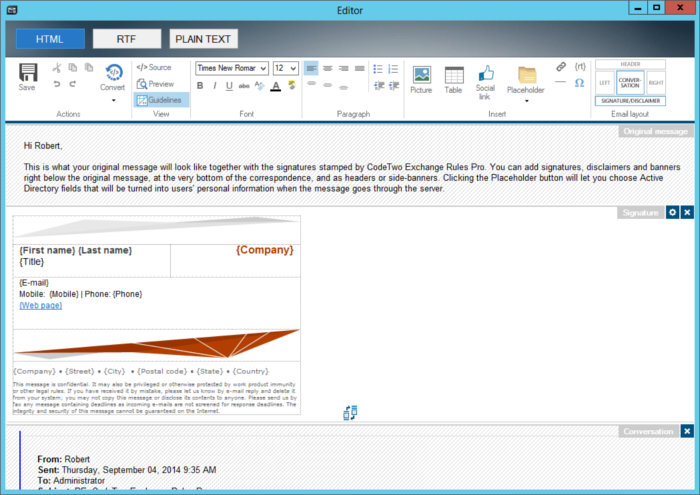
Check the exemplary signature below, which is based on a table with merged columns in two places.
Be clear, always
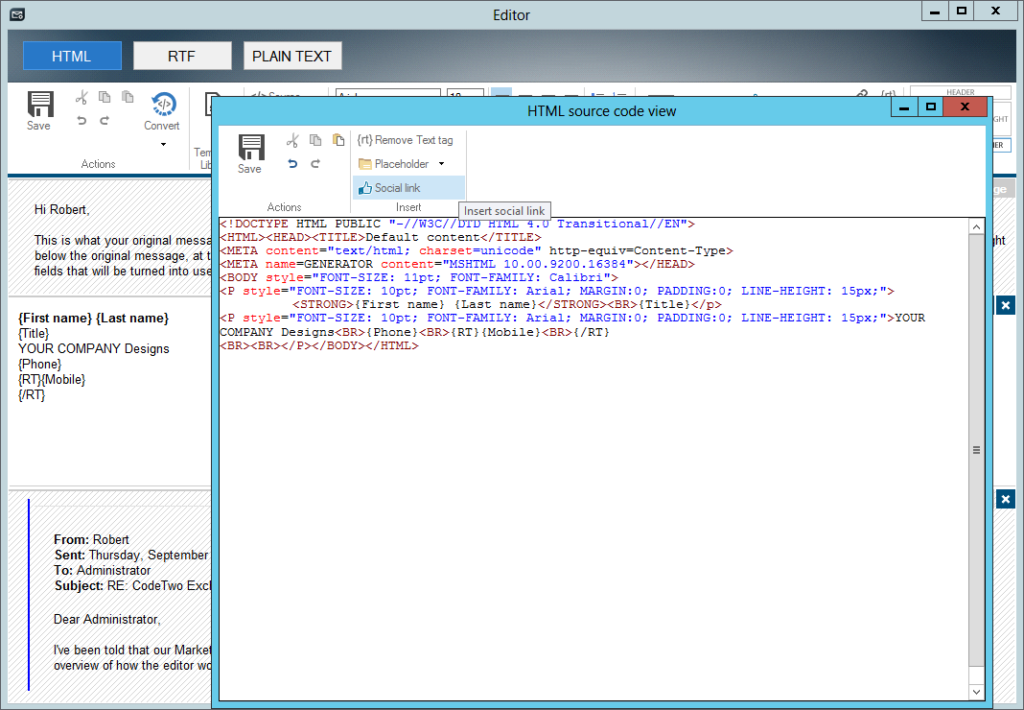
When it comes to websites, there are many ready-made CSS files that let you easily normalize the way the site looks for different web browsers. For the email signatures, the problem remains the same, but the approach needs to be completely different. Since an external CSS file is not an option, you have to put all CSS and HTML attributes directly into the nearest container which content you want to change. When you need to set the font family to Arial – set it to nearest paragraph; when you need to set the table font size to 8pt, set it directly on the TD element. This will allow you to prevent any errors that may occur during replying or forwarding. The approach is shown in the example below – all necessary styles are set to nearest paragraphs.
What is more, there are some attributes that must be set to achieve accurate results – especially margins. One of the most popular problems while designing an email signature is that the gaps between lines are either too high or too low in different email clients. To solve that, simply declare margins, paddings and line height, just like below – thanks to this, the results remain consistent between various platforms.
A picture is worth a thousand words
That is true. But the image must always be displayed with good dimensions, in the right place and without disrupting your attention – so it is actually best if your email client does not prompt you for downloading the remote images – you can achieve that by using inline images (hidden attachments).
Get the best look for your mobile
For many years we would say that the best way to display images properly is to scale them in some kind of graphic application like Adobe Photoshop, GIMP or even Paint. But it is no longer true. Nowadays, most emails are read on mobile phones that are equipped with large screens with incredibly high resolution. So, what is the problem? The same images that look awesome on your PC are unfortunately blurred on mobile devices.
However, there is a simple method to work this around. Basically, you need to prepare a high-resolution image (so it looks good even on Android and Apple phones and other kinds of devices) and then scale it down using both CSS and HTML attributes (since some email clients are sensitive to them), like in the example below.
<IMG src=”cid:logo.jpg” style=”width: 100px; height: 50px;” width=100 height=50 border=0>
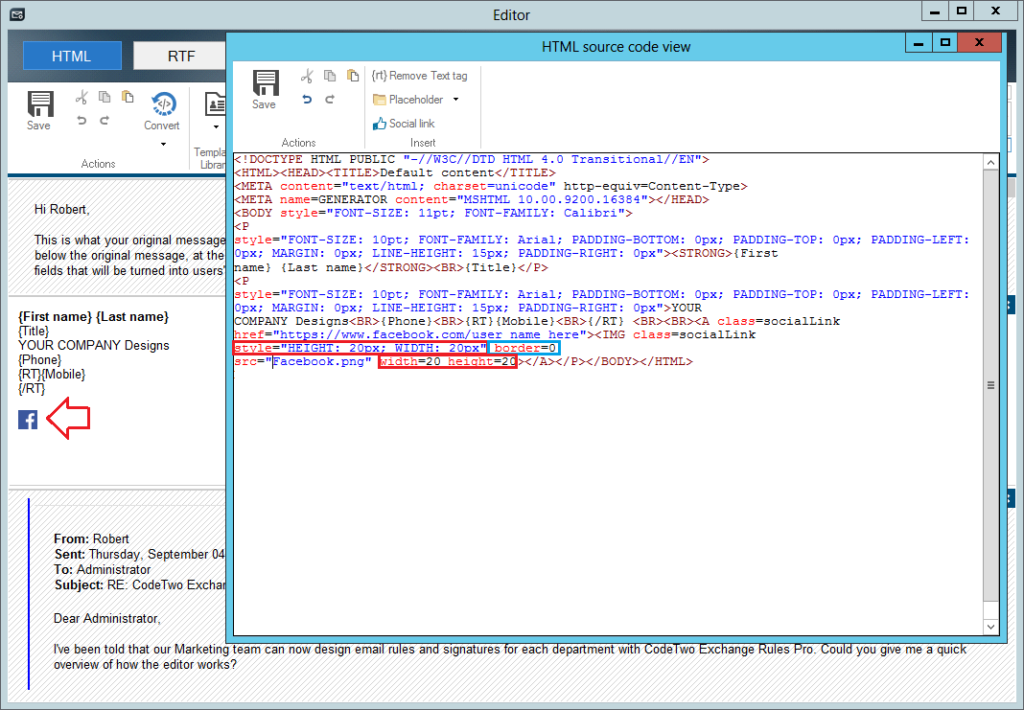
Note: Try using border=0 attribute so the image (see above – the Facebook image is not bordered).
Find the right path you must
If you set the path of an image to a resource located on a web server, you may be sure that most of the email clients will consider this as a threat to your privacy. Therefore, you would be asked if you really want to download them. And of course, you can set your email client not to ask anymore (and always download images in emails from a particular sender), but honestly – how to convince other users to do so?
You need a different approach here. There is one way to resolve the issue – you must embed the images into your message rather than refer to them. And this is possible using some third-party apps like CodeTwo Email Signatures On-prem or CodeTwo Email Signatures 365. Thanks to embedded images (they are invisible attachments) your recipients always have a nicely-looking signature, even if the web server hosting your images is down.
A narrow screen does not mean narrow signature
One of the most popular problems of email signatures is that their content appears narrowed on mobile screens, despite you have used a table. This actually happens if you do not define the width either in CSS or HTML. However, there is a much simpler workaround, which does not require determining the width of every single HTML container (like a paragraph, table etc.), all you need to do is define white-space: nowrap; property to the nearest possible container.
<TD style=”font-family: Arial; font-size: 9pt; white-space: nowrap;”>Lorem ipsum</TD>
Moreover, this approach is far better than using media queries in the HEAD section, as these are not supported properly on all platforms – yet it might be quite problematic to modify the HEAD section at all.
A right signature for the right person
Sometimes you need to prepare different signatures for different people or different departments. One of the most popular scenarios is when a particular group needs to have one more field included in the signature. Some people try to make a separate version for them. If you are running an Exchange / Office 365 environment, you can create a set of transport rules that can be triggered by some keywords and inform your users what words they should include to get the right signature.
But let’s just imagine that you have a couple of groups, with a couple of requirements. And there is a couple of these groups in every site of your company. Quite overwhelming, right? The best way to solve this issue would be to automatically remove parts of the signature if the required attributes do not exist. So, if a user does not have their mobile number, the Mobile: label should disappear. To achieve that you may use the RT tags that are available in CodeTwo software.
Quick summary
As you can see, the email signatures are not as black as they are painted, but obviously, you need to keep the entire layout consistent by using a table with styles applied to nearest HTML containers (cells or paragraphs). Also, it is a good idea to include only embedded images of fair resolution as opposed to using images loaded from the cloud. Last but not least, do not forget to prevent your signature for and you are good to go.
However, if you are looking for a complete solution that would allow you to easily manage signatures for entire company, without using PowerShell and transport rules, please check out CodeTwo Email Signatures 365 (if your email system is in the cloud) or CodeTwo Email Signatures On-prem (if your email servers are on-premises). These applications are equipped with an easy WYSIWYG editor (optimized for designing footers and disclaimers) plus some useful features like stamping the signature under your last response (that cannot be done by any transport rule, though) and quite good library of ready-made templates.